
Home » Posts tagged 'sip phone' (Page 2)
Tag Archives: sip phone
The Most Versatile VoIP Provider: FREE PORTING

 JUST RELEASED: Visit the Incredible PBX Wiki
Clearly Anywhere: The Ultimate Mobile User VoIP Companion

The wait is over! If you like sliced bread, then today’s your lucky day to enjoy the next best thing. Perhaps the single most important component in the VoIP toolbox for any PBX deployment that includes mobile users is a softphone for Android and iOS devices. We began this month with a tip for users of a limited number of Android smartphones. And we have previously written about Linphone and Zoiper and Telephone. We’ve also sung the praises of earlier releases of Google’s Pixel smartphone which makes a perfect VoIP companion even without a cellphone provider. Today we’re pleased to introduce Clearly Anywhere for Incredible PBX 2020 PUBLIC platforms that checks all the boxes: security, reliability, flexibility, feature set, emergencies, and a very reasonable price that covers unlimited devices per user extension. Downloading Clearly Anywhere onto your smartphone from the App Store or Google Play, setup is instantaneous using Clearly Anywhere’s native QR code activation.
- Security: SIP credentials need not be shared with the Softphone provider
- Reliability: Incoming calls arrive via Push Notifications whether app is running or not
- Flexibility: With PJsip, multiple iOS & Android devices can share the same extension
- Feature Set: SMS, BLFs, recording, video calls, DND per phone with Custom Scheduling
- Emergencies: Easily reroute 911 calls to the cell carrier for reliable location identification
- Intro Price: Through October 31: $9.99 per user per year with grandfathered rate lock
Clearly Anywhere Setup on Incredible PBX 2020
Before you deploy Clearly Anywhere on your smartphones, you first must set things up on the PBX side. Here’s how the process works. First, you will need to deploy the PUBLIC version of Incredible PBX 2020. This will reconfigure the IPtables firewall to support Clearly Anywhere. It requires assignment of a fully-qualified domain name (FQDN) for your server. The FreePBX® Clearly Anywhere module is licensed on a per PBX basis. In order to activate the FreePBX module, you’ll next need to purchase one or more user licenses from our Incredible PBX Store. As part of the purchase process, you’ll be prompted to provide the FQDN of your Incredible PBX 2020 PUBLIC server plus the TCP port that Clearly Anywhere clients will use to communicate with your PBX. By default, that port is TCP 2267. We will whitelist TCP port 2267 (or a port of your choice) as part of this setup process. Finally, you will be provided a Registration Token to activate the Clearly Anywhere module when you first run it in FreePBX. Then you simply activate the Clearly Anywhere client for the extensions corresponding to the number of licenses you have purchased.
1. Let’s begin by installing the Clearly Anywhere module for FreePBX. Log into your server as root and issue the following commands from the CLI. NOTE: After this initial install, future updates to the Clearly Anywhere module will be handled in the traditional way using the Module Admin utility in FreePBX.
fwconsole ma downloadinstall http://incrediblepbx.com/clearlysp-14.0.2.tgz
fwconsole reload
/root/sig-fix
/root/sig-fix
2. Purchase one or more client licenses from the Incredible PBX Store. Keep in mind that, if multiple users will be sharing access the same extension, you only need a single license for each extension. And, if you will be setting up multiple smartphones using the same extension on your PBX, that only requires a single license as well.
3. When prompted, provide the FQDN of your server as well as the TCP port that will be used by Clearly Anywhere clients to communicate with your PBX. Default is TCP 2267. To avoid service interruptions, we strongly recommend against using a dynamic IP address for your server. Even with a dynamic DNS utility, there will be times when your Clearly Anywhere clients cannot reach the PBX unless it has a static, public IP address. If you need a cloud-based solution, the $25/year offering from Crown Cloud has no equal.
4. Decipher the Registration Token from the Clearly IP email confirmation.
5. Using a web browser, access the FreePBX GUI using your admin credentials. Navigate to Settings -> Clearly Anywhere. Enter your Registration Token at the prompt. Your Clearly Anywhere configuration will display. NOTE: If you purchase additional client licenses down the road, revisit this page and click Refresh to update your license count.
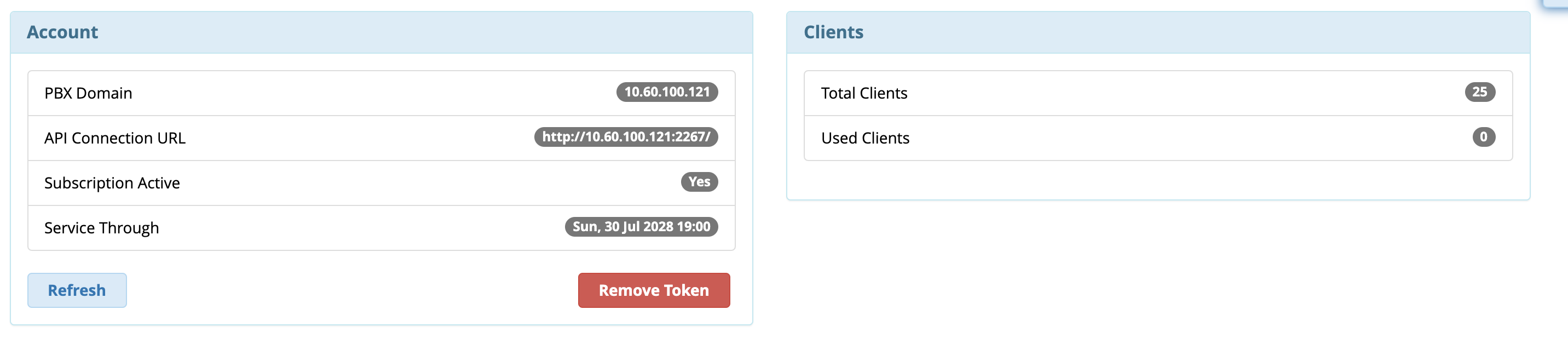
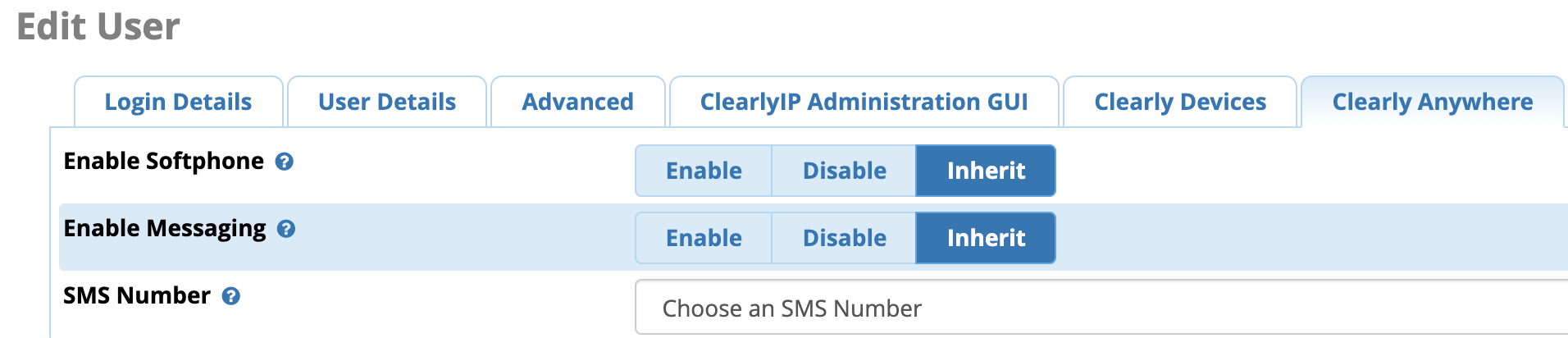
6. Next, you need to activate Clearly Anywhere for each PJsip extension that will be used with the softphone clients. Each additional extension requires a separate Clearly Anywhere license. Navigate to Admin -> User Management and then Edit the desired Username. Click on the Clearly Anywhere tab and set Enable Softphone to ENABLE. If you previously have subscribed to Incredible SIP Trunking in our ClearlyIP Store, then you also have the option of enabling SMS Messaging on any of the DIDs assigned to your account. As the video above explains, this SMS messaging carries across all of the Clearly Anywhere clients as well as the UCP connected to this same extension on your PBX. IMPORTANT: In PJsip Advanced settings, remember to increase the Max Contacts entry by two for each softphone that will be connecting to the PJsip extension.
7. Whitelist TCP 2267 assigned for Clearly Anywhere API client connections to your server:
cd /etc/sysconfig
sed -i 's/10000:20000 -j ACCEPT/&\\n-A INPUT -p tcp -m tcp --dport 2267 -j ACCEPT/' iptables
iptables-restart
Clearly Anywhere Setup on Smartphones
The setup process on the smartphone side is simple. Begin by downloading the Clearly Anywhere app from either the App Store or Google Play for your device. Once the client softphone is installed, run the app. You will be prompted for the UCP user credentials and FQDN of your PBX. You can manually enter these, or you can access the User Control Panel (UCP) for the desired user/extension and activate the QR code Provisioning widget for the account. Then, instead of entering the credentials manually on every softphone, you can choose the QR code option and simply point your smartphone at the QR code displayed in UCP. Connections are virtually instantaneous.NOTE: The beauty of this design is SIP credentials need not be shared with the provider.1 While UCP accounts, by default, are created using the extension numbers to which they are associated, these usernames can be changed to anything you like. So, for the 701 extension, if you want to change the UCP login name in your extension settings to BettyBoop, that’s perfectly okay.
Once connected, click on the Settings icon in Clearly Anywhere. Verify that Push Notifications are enabled for Incoming Calls. In the Preferences tab, set a Ring Tone for incoming calls and decide whether to record calls. The Network preference by default will choose WiFi and then Cellular with automatic roll-over when needed. If you want 911 calls routed through your cell carrier instead of through your PBX, choose Number Rewriting, click +. For Conditions, choose Equals 911. For Actions, choose Override Dial Action and select gsmCall. Click Done.
You’re now a Clearly Anywhere Expert. We hope you enjoy using the Ultimate Softphone with Incredible PBX 2020.
Originally published: Monday, September 21, 2020
Need help with Asterisk? Visit the VoIP-info Forum.
Special Thanks to Our Generous Sponsors
FULL DISCLOSURE: ClearlyIP, Skyetel, Vitelity, DigitalOcean, Vultr, VoIP.ms, 3CX, Sangoma, TelecomsXchange and VitalPBX have provided financial support to Nerd Vittles and our open source projects through advertising, referral revenue, and/or merchandise. As an Amazon Associate and Best Buy Affiliate, we also earn from qualifying purchases. We’ve chosen these providers not the other way around. Our decisions are based upon their corporate reputation and the quality of their offerings and pricing. Our recommendations regarding technology are reached without regard to financial compensation except in situations in which comparable products at comparable pricing are available from multiple sources. In this limited case, we support our sponsors because our sponsors support us.
 BOGO Bonaza: Enjoy state-of-the-art VoIP service with a $10 credit and half-price SIP service on up to $500 of Skyetel trunking with free number porting when you fund your Skyetel account. No limits on number of simultaneous calls. Quadruple data center redundancy. $25 monthly minimum spend required. Tutorial and sign up details are here.
 The lynchpin of Incredible PBX 2020 and beyond is ClearlyIP components which bring management of FreePBX modules and SIP phone integration to a level never before available with any other Asterisk distribution. And now you can configure and reconfigure your new Incredible PBX phones from the convenience of the Incredible PBX GUI.
 VitalPBX is perhaps the fastest-growing PBX offering based upon Asterisk with an installed presence in more than 100 countries worldwide. VitalPBX has generously provided a customized White Label version of Incredible PBX tailored for use with all Incredible PBX and VitalPBX custom applications. Follow this link for a free test drive!
 Special Thanks to Vitelity. Vitelity is now Voyant Communications and has halted new registrations for the time being. Our special thanks to Vitelity for their unwavering financial support over many years and to the many Nerd Vittles readers who continue to enjoy the benefits of their service offerings. We will keep everyone posted on further developments.

- If you activate Push Notifications, SIP credentials must be stored on the SIPIS server in order to reregister your softphone with your PBX when incoming calls arrive. This is an Asterisk and PJsip limitation. [↩]
Frozen in Time: Sangoma at a Crossroads or the Cliff

We are fast approaching the 18 month anniversary since the mass exodus of talent from Sangoma and Digium. During that time, Asterisk® and FreePBX® have languished in limbo with FreePBX commercial modules mired in discontinued encryption methods and the Asterisk and FreePBX feature set frozen. Sangoma’s acquisition of Digium gave the company a well-respected business phone system in Switchvox® while relegating FreePBX deployments with commercial modules to second-class citizen status.
Now Sangoma has a difficult and expensive decision to make. In order to continue to deploy FreePBX commercial modules on a current operating system and PHP platform, they are facing a multi-million dollar investment to retool all of the commercial modules using an entirely different encryption platform which will generate additional headaches with their module repositories which now must manage and maintain two different sets of modules. Think of it as migrating from an English-based operation to one in which the customer base speaks either English or French, but not both. In the meantime, Asterisk 17 is fast approaching end-of-life while Asterisk 16 is getting long in the tooth with only minor fixes of late. And there’s FreePBX 15 which hasn’t seen significant upgrades since the departure of the former Schmoozecom staff in April of 2019.
While we have never agreed with the Sangoma CEO about much of anything, let’s take over the management reins for a moment and look at the landscape. The Digium acquisition coupled with some other purchases has left Sangoma with a mountain of debt in the middle of a global pandemic. Coronavirus also has forced many businesses to reassess their long-term office strategy. With nearly everyone on the planet now carrying a smartphone and most current employees having high-speed Internet connectivity at home neither of which the company has to pay for, does a fancy office for every employee still make good business sense? When you have a well-positioned business phone offering in Switchvox, does it make good business sense to continue to pump boatloads of money into a competing FreePBX commercial product simply to preserve its functionality? At the same time, Sangoma’s open source Asterisk and FreePBX products need a serious shot in the arm to remain viable. For example, FreePBX 15 with its User Control Panel won’t run on CentOS 8, and CentOS 7 reaches EOL status in December.
So here’s our first act as Sangoma CEO. Convert all of the existing FreePBX commercial modules into open source, GPL code while offering existing FreePBX commercial module customers a 50% discount to migrate to Switchvox within the next six months. We would stagger conversion of the commercial modules to GPL code by releasing three on the first day of every month. This would keep Sangoma in the news for many months to come. The move would not only restore Asterisk and FreePBX to their well-deserved position at the forefront of the open source community, but it would also give Switchvox a leg up in the commercial phone system marketplace. By keeping the identity of the monthly releases a secret, it would build much needed momentum for Sangoma’s open source offerings while reinforcing Sangoma’s commitment to the open source community. Give it some thought, Sangoma!
Originally published: Tuesday, September 8, 2020
Need help with Asterisk? Visit the VoIP-info Forum.
Special Thanks to Our Generous Sponsors
FULL DISCLOSURE: ClearlyIP, Skyetel, Vitelity, DigitalOcean, Vultr, VoIP.ms, 3CX, Sangoma, TelecomsXchange and VitalPBX have provided financial support to Nerd Vittles and our open source projects through advertising, referral revenue, and/or merchandise. As an Amazon Associate and Best Buy Affiliate, we also earn from qualifying purchases. We’ve chosen these providers not the other way around. Our decisions are based upon their corporate reputation and the quality of their offerings and pricing. Our recommendations regarding technology are reached without regard to financial compensation except in situations in which comparable products at comparable pricing are available from multiple sources. In this limited case, we support our sponsors because our sponsors support us.
BOGO Bonaza: Enjoy state-of-the-art VoIP service with a $10 credit and half-price SIP service on up to $500 of Skyetel trunking with free number porting when you fund your Skyetel account. No limits on number of simultaneous calls. Quadruple data center redundancy. $25 monthly minimum spend required. Tutorial and sign up details are here.
The lynchpin of Incredible PBX 2020 and beyond is ClearlyIP components which bring management of FreePBX modules and SIP phone integration to a level never before available with any other Asterisk distribution. And now you can configure and reconfigure your new Incredible PBX phones from the convenience of the Incredible PBX GUI.
VitalPBX is perhaps the fastest-growing PBX offering based upon Asterisk with an installed presence in more than 100 countries worldwide. VitalPBX has generously provided a customized White Label version of Incredible PBX tailored for use with all Incredible PBX and VitalPBX custom applications. Follow this link for a free test drive!
Special Thanks to Vitelity. Vitelity is now Voyant Communications and has halted new registrations for the time being. Our special thanks to Vitelity for their unwavering financial support over many years and to the many Nerd Vittles readers who continue to enjoy the benefits of their service offerings. We will keep everyone posted on further developments.

Android Alert: Unmasking Your Hidden SIP Phone
Perhaps the single most important component in the VoIP toolbox for any PBX deployment that includes traveling users is the softphone whether it’s deployed on notebook computers or smartphones. We’re kicking off football season with reviews of some of our favorite SIP softphones for mobile users. We’ve previously written about Linphone and Zoiper and Telephone. We’ve also sung the praises of earlier releases of Google’s Pixel smartphone which makes a perfect VoIP companion even without a cellphone provider. Today we’re passing along an Android tip from @w1ve on the VoIP-Info.org Forum for anyone needing PBX connectivity while away from the home or office. And it won’t cost you a dime so long as you already have an Android smartphone with either a Wi-Fi connection or a data plan with any cellphone carrier.
You may be unaware that Android has been shipping with a native SIP phone since as far back as Android Marshmallow which will be five years old next month. Some phone manufacturers such as Chinese-owned Lenovo/Moto disable the SIP functionality, but many do not including Google, Samsung, and OnePlus. If you’ve deployed an Incredible PBX 2020 PUBLIC server in the Cloud with a PJsip extension, the beauty of this discovery is that you’ll always have VoIP connectivity through your PBX with only a WiFi connection. No SIM is required!
To determine if your Android smartphone includes the SIP dialer, simply open the native Phone app and tap the three vertical bar icon at the top of the dialer menu. From the pull-down menu, choose Settings, Calls, and Calling Accounts. If your Android smartphone includes support for the native SIP dialer, there will be a SIP Accounts option in the menu.
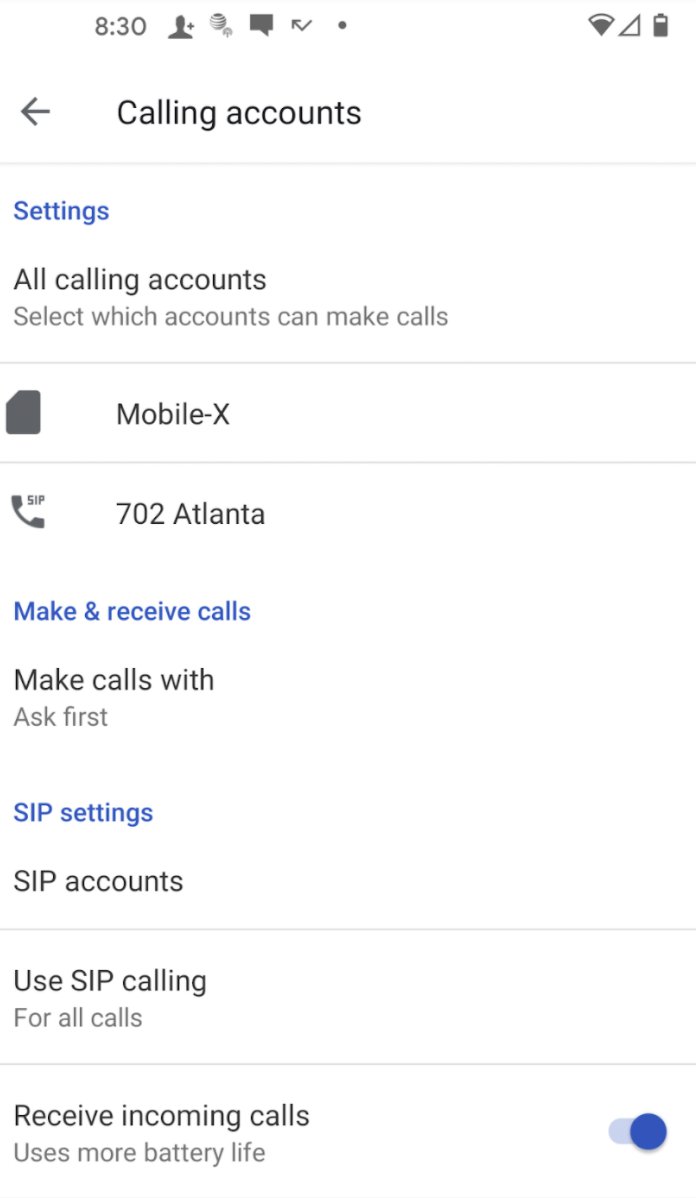
TIP: Even if the SIP Menu doesn’t appear on your smartphone, it may be that the manufacturer simply disabled the menu without actually trashing the SIP functionality as Lenovo has done. To determine whether the menu has simply been hidden, install QuickShortcutMaker from the Play Store. Run the app and scroll down and tap the SIP Settings option and click Test. It should bring up the SIP Accounts menu shown below.
Tapping SIP Accounts and then + icon will open a dialog to add a SIP account to your phone.
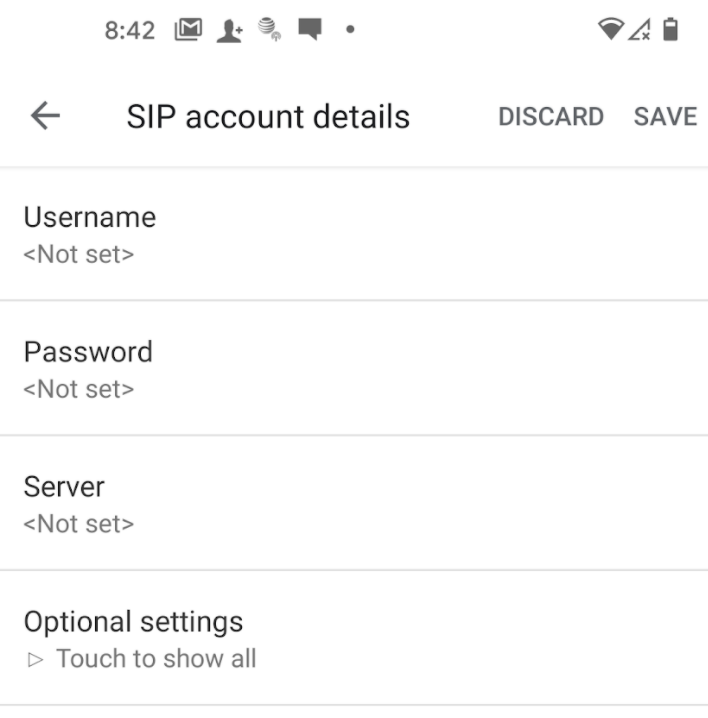
With an Incredible PBX 2020 PUBLIC server, the entries should look like the following:
- Username: Your PJsip extension
- Password: Your PJsip password
- Server: FQDN of Your PBX
- Optional Settings -> Port: 5061
Keep in mind that an FQDN for the Server address is required with an Incredible PBX 2020 PUBLIC server. If your server is using a dynamic IP address, you also would want to configure the FQDN using a Dynamic DNS service and refresh that FQDN periodically on your PBX using a cron job. Once you’ve entered your credentials, tap SAVE to activate the SIP account on your smartphone. It should then appear in the SIP Accounts window as shown above.
Next, you have some choices to make as to how the SIP account is actually used. As you can see from our setup (shown above), we allow outbound calls using either the SIM card or the SIP phone, and the phone will prompt for a choice whenever you make a call. We also have activated Inbound SIP calling which, as the dialog explains, uses some battery life. Finally, if you elect to use a chan_SIP extension on your PBX, make certain that you have enabled NAT Mode in the Advanced tab, or you will experience one-way or no audio on calls. This is not required with PJsip extensions. One of the other beauties of PJsip extensions is that you can assign this extension to multiple SIP devices including softphones and desktop phones so long as you increase the Max Contacts entry in the Advanced tab for the PJsip extension. In this way, you can answer incoming calls on your desktop phone when you’re at home or in the office and answer the same calls on your smartphone when you’re out and about. Enjoy!
Originally published: Tuesday, September 1, 2020
Need help with Asterisk? Visit the VoIP-info Forum.
Special Thanks to Our Generous Sponsors
FULL DISCLOSURE: ClearlyIP, Skyetel, Vitelity, DigitalOcean, Vultr, VoIP.ms, 3CX, Sangoma, TelecomsXchange and VitalPBX have provided financial support to Nerd Vittles and our open source projects through advertising, referral revenue, and/or merchandise. As an Amazon Associate and Best Buy Affiliate, we also earn from qualifying purchases. We’ve chosen these providers not the other way around. Our decisions are based upon their corporate reputation and the quality of their offerings and pricing. Our recommendations regarding technology are reached without regard to financial compensation except in situations in which comparable products at comparable pricing are available from multiple sources. In this limited case, we support our sponsors because our sponsors support us.
BOGO Bonaza: Enjoy state-of-the-art VoIP service with a $10 credit and half-price SIP service on up to $500 of Skyetel trunking with free number porting when you fund your Skyetel account. No limits on number of simultaneous calls. Quadruple data center redundancy. $25 monthly minimum spend required. Tutorial and sign up details are here.
The lynchpin of Incredible PBX 2020 and beyond is ClearlyIP components which bring management of FreePBX modules and SIP phone integration to a level never before available with any other Asterisk distribution. And now you can configure and reconfigure your new Incredible PBX phones from the convenience of the Incredible PBX GUI.
VitalPBX is perhaps the fastest-growing PBX offering based upon Asterisk with an installed presence in more than 100 countries worldwide. VitalPBX has generously provided a customized White Label version of Incredible PBX tailored for use with all Incredible PBX and VitalPBX custom applications. Follow this link for a free test drive!
Special Thanks to Vitelity. Vitelity is now Voyant Communications and has halted new registrations for the time being. Our special thanks to Vitelity for their unwavering financial support over many years and to the many Nerd Vittles readers who continue to enjoy the benefits of their service offerings. We will keep everyone posted on further developments.
One-Minute Wonder: It’s Incredible PBX 2020 for VirtualBox
If you’re new to the VoIP world and want to kick the tires to see what you’re missing, then today’s one minute setup is for you. You’ll get a $10 credit to try out some penny-a-minute calls and to purchase a $1 a month phone number in your choice of area codes. If you decide VoIP is not for you, you don’t have to buy anything ever. And you can use almost any desktop computer you already own to bring up the VirtualBox® edition of Incredible PBX® 2020.
If you’ve followed Nerd Vittles over the years, you already know that VirtualBox from Oracle® is one of our favorite platforms. Once VirtualBox is installed on your desktop computer, adding Incredible PBX is a snap. Download the latest Incredible PBX 2020 image from SourceForge, double-click on the downloaded image, check the initialize MAC address box, and boom. In less than a minute, your PBX is ready to use with the very latest components of Asterisk® 16 and FreePBX® 15. There are no hidden fees or crippleware to hinder your use of Incredible PBX for as long as you like. Just set up an account with our Platinum provider, Skyetel, and you can start making calls in minutes. Of course, the Incredible PBX feature set is included as well which brings you nearly three dozen applications for Asterisk® that will revolutionize your communications platform. Speech-to-text, voice recognition, and a Siri-like telephony interface are as close as your SIP phone.
Installing Oracle VM VirtualBox

Oracle’s virtual machine platform inherited from Sun is amazing. It’s not only free, but it’s pure GPL2 code. VirtualBox gives you a virtual machine platform that runs on top of any desktop operating system. In terms of limitations, we haven’t found any. We even tested this on an Atom-based Windows 7 machine with 2GB of RAM, and it worked without a hiccup. So step #1 today is to download one or more of the VirtualBox installers from VirtualBox.org or Oracle.com. Our recommendation is to put all of the 100MB installers on a 4GB thumb drive.1 Then you’ll have everything in one place whenever and wherever you happen to need it. Once you’ve downloaded the software, simply install it onto your favorite desktop machine. Accept all of the default settings, and you’ll be good to go. For more details, here’s a link to the Oracle VM VirtualBox User Manual.
NOTE: The Incredible PBX 2020 VM requires a VirtualBox 6.x platform. Adjust screen size in View -> Virtual Screen.
Installing the Incredible PBX 2020 Image
To begin, download the Incredible PBX 2020 image (3.5 GB) onto your desktop.
Next, double-click on the Incredible PBX .ova image on your desktop. Be sure to check the box to initialize the MAC address of the image if you’re using an older version of VirtualBox. Then click Import. Once the import is finished, you’ll see a new Incredible PBX 2020 virtual machine in the VM List of the VirtualBox Manager Window. Let’s make a couple of one-time adjustments to the Incredible PBX configuration to account for possible differences in sound and network cards on different host machines.
(1) Click once on the Incredible PBX virtual machine in the VM List. Then (2) click the Settings button. In System tab, check Hardware Clock in UTC Time. In the Audio tab, check the Enable Audio option and choose your sound card. In the Network tab for Adapter 1, check the Enable Network Adapter option. From the Attached to pull-down menu, choose Bridged Adapter. Then select your network card from the Name list. Then click OK. That’s all the configuration that is necessary for Incredible PBX.
Running Incredible PBX 2020 in VirtualBox
Once you’ve imported and configured the Incredible PBX Virtual Machine, you’re ready to go. Highlight the Incredible PBX virtual machine in the VM List on the VirtualBox Manager Window and click the Start button. The standard Linux boot procedure will begin and, within a few seconds, you’ll get the familiar Linux login prompt. During the bootstrap procedure, you’ll see a couple of dialogue boxes pop up that explain the keystrokes to move back and forth between your host operating system desktop and your virtual machine. Remember, you still have full access to your desktop computer. Incredible PBX is merely running as a task in a VM window. Always gracefully halt Incredible PBX just as you would on any computer.
Here’s what you need to know. To work in the Incredible PBX virtual machine, just left-click your mouse while it is positioned inside the VM window. To return to your host operating system desktop, press the right Option key on Windows machines or the left Command key on any Mac. On Linux desktops, press the right Ctrl key. For other operating systems, read the dialogue boxes for instructions on moving around. To access the Linux CLI, login as root with the default password: password. Change your root password when you are prompted to do so. Then update your admin password for web access: ./admin-pw-change. Also update your admin password for web applications: ./apache-pw-change. You’ll need these admin passwords to access the web GUI to manage your PBX as well as to use the AsteriDex and Reminders web apps. The above password updates are automatically requested when you first activate the virtual machine. You can update all of your other passwords using the scripts provided in /root. For example, you’ll want to set the email delivery address for incoming faxes by running: ./avantfax-email-change. And set the AvantFax admin password by running: ./avantfax-pw-change. When running the AvantFax web application, be advised that you first will be prompted for your Apache admin credentials. Then you will be prompted for your AvantFax admin credentials.
Setting the Date and Time with VirtualBox
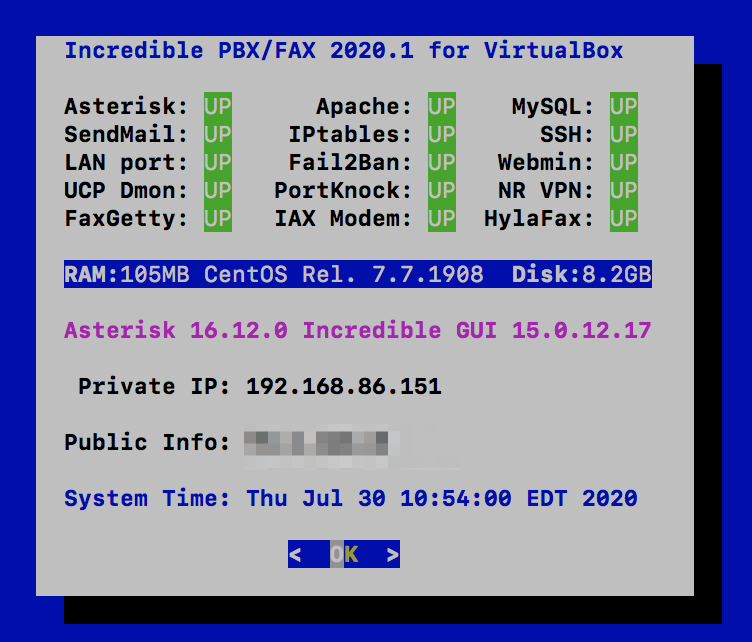
On some platforms, VirtualBox has a nasty habit of mangling the date and time of your virtual machine. Verify that you have enabled the Hardware Clock in UTC Time option for your virtual machine as documented above. If pbxstatus still shows an incorrect time, manually set the date and time and then update the hardware clock. Here’s how assuming 08130709 is the month (August), day (13), and correct time (7:09 a.m.) of your server:
date 08130709
clock -w
Configuring Skyetel for Incredible PBX 2020
If you’d like to try out the Skyetel service at no charge, here’s the drill. Sign up for Skyetel service to take advantage of the Nerd Vittles specials. First, complete the Prequalification Form here. You then will be provided a link to the Skyetel site to complete your registration. Once you have registered on the Skyetel site and your account has been activated, open a support ticket and request the $10 credit for your account by referencing the Nerd Vittles special offer. Once you are satisfied with the service, fund your account as desired, and Skyetel will match your deposit of up to $250 simply by opening another ticket. That gets you up to $500 of half-price calling. Credit is limited to one per person, company, and address. Effective 10/1/2023, $25/month minimum spend required.
Skyetel does not use SIP registrations to make connections to your PBX. Instead, Skyetel utilizes Endpoint Groups to identify which servers can communicate with the Skyetel service. An Endpoint Group consists of a Name, an IP address, a UDP or TCP port for the connection, and a numerical Priority for the group. For incoming calls destined to your PBX, DIDs are associated with an Endpoint Group to route the calls to your PBX. For outgoing calls from your PBX, a matching Endpoint Group is required to authorize outbound calls through the Skyetel network. Thus, the first step in configuring the Skyetel side for use with your PBX is to set up an Endpoint Group. Here’s a typical setup for Incredible PBX 16-15:
- Name: MyPBX
- Priority: 1
- IP Address: PBX-Public-IP-Address
- Port: 5060
- Protocol: UDP
- Description: my.incrediblepbx.com
To receive incoming PSTN calls, you’ll need at least one DID. On the Skyetel site, you acquire DIDs under the Phone Numbers tab. You have the option of Porting in Existing Numbers (free for the first 60 days after you sign up for service) or purchasing new ones under the Buy Phone Numbers menu option.
Once you have acquired one or more DIDs, navigate to the Local Numbers or Toll Free Numbers tab and specify the desired SIP Format and Endpoint Group for each DID. Add SMS/MMS and E911 support, if desired. Call Forwarding and Failover are also supported. That completes the VoIP setup on the Skyetel side. System Status is always available here.
If VirtualBox is sitting behind a router or firewall on a private LAN, you’ll need to forward ports UDP 5060 and 10000-20000 in your router to the private LAN address of your Incredible PBX server. Also edit your extensions in the GUI and set NAT=YES in the Advanced tab of every extension. In Settings -> Asterisk SIP Settings, click the Detect Network Settings button and then Submit your changes and reload the Asterisk dialplan when prompted.
Configuring VoIP.ms for Incredible PBX 2020
To sign up for VoIP.ms service, may we suggest you use our signup link so that Nerd Vittles gets a referral credit for your signup. Once your account is set up, you’ll need to set up a SIP SubAccount and, for Authentication Type, choose Static IP Authentication and enter your Incredible PBX 2020 server’s public IP address. For Transport, choose UDP. For Device Type, choose Asterisk, IP PBX, Gateway or VoIP Switch. Order a DID in their web panel, and then point the DID to the SubAccount you just created. Be sure to specify atlanta1.voip.ms as the POP from which to receive incoming calls.
Configuring V1VoIP for Incredible PBX 2020
To sign up for V1VoIP service, sign up on their web site. Then login to your account and order a DID under the DIDs tab. Once the DID has been assigned, choose View DIDs and click on the Forwarding button beside your DID. For Option #1, choose Forward to IP Address/PBX. For the Forwarding Address, enter the public IP address of your server. For the T/O (timeout) value, set it to 2o seconds. Then click the Update button. Under the Termination tab, create a new Endpoint with the public IP address of your server so that you can place outbound calls through V1VoIP.
Configuring Anveo Direct for Incredible PBX 2020
To sign up for Anveo Direct service, sign up on their web site and then login. After adding funds to your account, purchase a DID under Inbound Service -> Order DID. Next, choose Configure Destination SIP Trunk. Give the Trunk a name. For the Primary SIP URI, enter $[E164]$@server-IP-address. For Call Options, select your new DID from the list. You also must whitelist your public IP address under Outbound Service -> Configure. Create a new Call Termination Trunk and name it to match your server. For Dialing Prefix, choose six alphanumeric characters beginning with a zero. In Authorized IP Addresses, enter the public IP address of your server. Set an appropriate rate cap. We like $0.01 per minute to be safe. Set a concurrent calls limit. We like 2. For the Call Routing Method, choose Least Cost unless you’re feeling extravagant. For Routes/Carriers, choose Standard Routes. Write down your Dialing Prefix and then click the Save button.
Before you can make outbound calls through Anveo Direct from your PBX, you first must configure the Dialing Prefix that you wrote down in the previous step. Log into the GUI as admin using a web browser and edit the Anveo-Out trunk in Connectivity -> Trunks. Click on the custom-Settings tab and replace anveo-pin with your actual Dialing Prefix. Click Submit and Apply Config to complete the setup.
By default, incoming Anveo Direct calls will be processed by the Default inbound route on your PBX. If you wish to redirect incoming Anveo Direct calls using DID-specific inbound routes, then you’ve got a bit more work to do. In addition to creating the inbound route using the 11-digit Anveo Direct DID, enter the following commands after logging into your server as root using SSH/Putty:
cd /etc/asterisk
echo "[from-anveo]" >> extensions_custom.conf
echo "exten => _.,1,Ringing" >> extensions_custom.conf
echo "exten => _.,n,Goto(from-trunk,\\${SIP_HEADER(X-anveo-e164)},1)" >> extensions_custom.conf
asterisk -rx "dialplan reload"
Configuring a Softphone for Incredible PBX 2020
We’re in the home stretch now. You can connect virtually any kind of telephone to your new PBX. Plain Old Phones require an analog telephone adapter (ATA) which can be a separate board in your computer from a company such as Digium. Or it can be a standalone SIP device such as ObiHai’s OBi100 or OBi110 (if you have a phone line from Ma Bell to hook up as well). SIP phones can be connected directly so long as they have an IP address. These could be hardware devices or software devices such as the YateClient softphone. We’ll start with a free one today so you can begin making calls. You can find dozens of recommendations for hardware-based SIP phones both on Nerd Vittles and the PIAF Forum when you’re ready to get serious about VoIP telephony.
We recommend YateClient for Windows which is free. Download it from here. Run YateClient once you’ve installed it and enter the credentials for the 701 extension on Incredible PBX. You can find them by running /root/show-passwords. You’ll need the IP address of your server plus your extension 701 password. In the YateClient, fill in the blanks using the IP address of your Server, 701 for your Username, and whatever Password was assigned to the extension when you installed Incredible PBX. Click OK to save your entries.
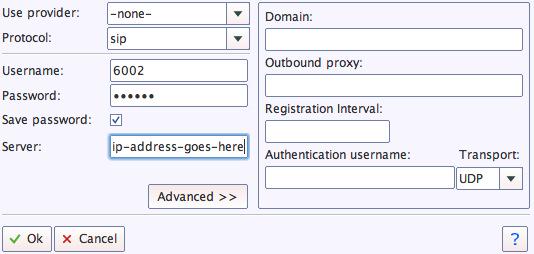
Configuring Incredible PBX 2020 for VirtualBox
In order to take advantage of all the Incredible PBX applications, you’ll need to obtain IBM text-to-speech (TTS) and speech-to-text (STT) credentials as well as a (free) Application ID for Wolfram Alpha.
This Nerd Vittles tutorial will walk you through getting your IBM account set up and obtaining both your TTS and STT credentials. Be sure to write down BOTH sets of credentials which you’ll need in a minute. For home and SOHO use, IBM access and services are mostly FREE even though you must provide a credit card when signing up. The IBM signup process explains their pricing plans.
To use Wolfram Alpha, sign up for a free Wolfram Alpha API account. Just provide your email address and set up a password. It takes less than a minute. Log into your account and click on Get An App ID. Make up a name for your application and write down (and keep secret) your APP-ID code. That’s all there is to getting set up with Wolfram Alpha. If you want to explore costs for commercial use, there are links to let you get more information.
In addition to your Wolfram Alpha APPID, there are two sets of IBM credentials to plug into the Asterisk AGI scripts. Keep in mind that there are different usernames and passwords for the IBM Watson TTS and STT services. The TTS credentials will look like the following: $IBM_username and $IBM_password. The STT credentials look like this: $API_USERNAME and $API_PASSWORD. Don’t mix them up. 🙂
All of the scripts requiring credentials are located in /var/lib/asterisk/agi-bin so switch to that directory after logging into your server as root. Edit each of the following files and insert your TTS credentials in the variables already provided: nv-today2.php, ibmtts.php, and ibmtts2.php. Edit each of the following files and insert your STT credentials in the variables already provided: getquery.sh, getnumber.sh, and getnumber2.sh. Finally, edit 4747 and insert your Wolfram Alpha APPID.
Using AsteriDex with Incredible PBX
AsteriDex is a web-based dialer and address book application for Asterisk and Incredible PBX. It lets you store and manage phone numbers of all your friends and business associates in an easy-to-use SQLite3 database. You simply call up the application with your favorite web browser: http://pbx-ip-address/asteridex4/. When you click on a contact that you wish to call, AsteriDex first calls you at extension 701, and then AsteriDex connects you to your contact through another outbound call made using your default outbound trunk that supports numbers in the 1NXXNXXXXXX format.
Keeping FreePBX 15 Modules Current
We strongly recommend that you periodically update all of your FreePBX modules to eliminate bugs and to reduce security vulnerabilities. From the Linux CLI, log into your server as root and issue the following commands:
rm -f /tmp/*
fwconsole ma upgradeall
fwconsole reload
/root/sig-fix
systemctl restart apache2
/root/sig-fix
Taking Incredible PBX for a Test Drive
You can take Incredible PBX on a test drive by dialing D-E-M-O (3366) from any phone connected to your PBX.
With Allison’s Demo IVR, you can choose from the following options:
- 0. Chat with Operator — connects to extension 701
- 1. AsteriDex Voice Dialer – say "Delta Airlines" or "American Airlines" to connect
- 2. Conferencing – log in using 1234 as the conference PIN
- 3. Wolfram Alpha Almanac – say "What planes are flying overhead"
- 4. Lenny – The Telemarketer’s Worst Nightmare
- 5. Today’s News Headlines — courtesy of Yahoo! News
- 6. Weather by ZIP Code – enter any 5-digit ZIP code for today’s weather
- 7. Today in History — courtesy of OnThisDay.com
- 8. Chat with Nerd Uno — courtesy of SIP URI connection to 3CX iPhone Client
- 9. DISA Voice Dialer — say any 10-digit number to be connected
- *. Current Date and Time — courtesy of Incredible PBX
Originally published: Monday, December 16, 2019 Updated: Thursday, July 30, 2020
Need help with Asterisk? Visit the VoIP-info Forum.
Special Thanks to Our Generous Sponsors
FULL DISCLOSURE: ClearlyIP, Skyetel, Vitelity, DigitalOcean, Vultr, VoIP.ms, 3CX, Sangoma, TelecomsXchange and VitalPBX have provided financial support to Nerd Vittles and our open source projects through advertising, referral revenue, and/or merchandise. As an Amazon Associate and Best Buy Affiliate, we also earn from qualifying purchases. We’ve chosen these providers not the other way around. Our decisions are based upon their corporate reputation and the quality of their offerings and pricing. Our recommendations regarding technology are reached without regard to financial compensation except in situations in which comparable products at comparable pricing are available from multiple sources. In this limited case, we support our sponsors because our sponsors support us.
BOGO Bonaza: Enjoy state-of-the-art VoIP service with a $10 credit and half-price SIP service on up to $500 of Skyetel trunking with free number porting when you fund your Skyetel account. No limits on number of simultaneous calls. Quadruple data center redundancy. $25 monthly minimum spend required. Tutorial and sign up details are here.
The lynchpin of Incredible PBX 2020 and beyond is ClearlyIP components which bring management of FreePBX modules and SIP phone integration to a level never before available with any other Asterisk distribution. And now you can configure and reconfigure your new Incredible PBX phones from the convenience of the Incredible PBX GUI.
VitalPBX is perhaps the fastest-growing PBX offering based upon Asterisk with an installed presence in more than 100 countries worldwide. VitalPBX has generously provided a customized White Label version of Incredible PBX tailored for use with all Incredible PBX and VitalPBX custom applications. Follow this link for a free test drive!
Special Thanks to Vitelity. Vitelity is now Voyant Communications and has halted new registrations for the time being. Our special thanks to Vitelity for their unwavering financial support over many years and to the many Nerd Vittles readers who continue to enjoy the benefits of their service offerings. We will keep everyone posted on further developments.
- Many of our purchase links refer users to Amazon when we find their prices are competitive for the recommended products. Nerd Vittles receives a small referral fee from Amazon to help cover the costs of our blog. We never recommend particular products solely to generate Amazon commissions. However, when pricing is comparable or availability is favorable, we support Amazon because Amazon supports us. [↩]
Harnessing the Cloud to Start An Incredible PBX Business

If you’ve ever wanted to start your own VoIP business and earn some big bucks through consulting and hosting cloud-based PBXs, now’s your chance. One of the requests we often receive from those that deploy Incredible PBX 2020® for a living is a quicker way to produce new Incredible PBX servers on cloud platforms such as Vultr and Digital Ocean while also preserving Incredible PBX’s unique ability to upgrade source components for Asterisk® and FreePBX®. For small businesses, these cloud providers offer a perfect $5 a month platform for Incredible PBX. You can mark it up to $10 or $15 a month and make a handsome 100% to 200% profit without lifting a finger as a VoIP consultant. And Vultr and Digital Ocean will spot you a $100 credit to get the ball rolling.
Today’s solution was especially designed for those that would like to host virtual machines for customers in your own cloud account. It would work equally well for anyone wanting a quick way to create multiple Incredible PBX platforms in 5 minutes for friends and neighbors.
To begin, you’ll need to create a master image of Incredible PBX 2020 on the cloud platform of your choice using the recommended $5/month platform with CentOS 7. The July 1, 2020 or later tarball of Incredible PBX 2020 is required. Here are the Five Easy Steps:
1. Create the base Incredible PBX 2020 platform in the traditional way:
# create a secure root password to hand out to future customers
passwd
yum -y update
yum -y install net-tools nano wget tar
cd /root
wget http://incrediblepbx.com/incrediblepbx2020.1.tar.gz
tar zxvf incrediblepbx2020.1.tar.gz
rm -f incrediblepbx2020.1.tar.gz
# to add swap file on non-OpenVZ cloud platforms with no swap file
./create-swapfile-DO
# kick off Phase I install
./IncrediblePBX2020.sh
# after reboot, kick off Phase II install
./IncrediblePBX2020.sh
# set desired timezone
./timezone-setup
# optionally install Incredible Fax 2020
./incrediblefax2020.sh
2. Once you complete the Phase I and Phase II installs and optionally install Incredible Fax, log out of your server and log back in so that the Automatic Update Utility can do its thing.
3. Next, we need to configure your master image so that it can be replicated using a simple image snapshot. A snapshot is free on the Vultr platform and will cost you about $5 a month with Digital Ocean. While still logged into your server as root, issue the following commands and then shut down your server gracefully:
cd /etc/sysconfig
cp -p rules.v4.tm3 iptables
sed -i 's|#-A|-A|' iptables
touch /etc/update_hostconfig
touch /etc/update_serverconfig
halt
4. Once your server has halted, create a snapshot image of the server from Vultr or Digital Ocean dashboard. You do NOT need to preserve your Master VM once the snapshot is created.
5. Create a new virtual machine but, instead of choosing CentOS 7 as the base platform, choose the snapshot image built in the previous step. Once the 5-minute install completes, it’s ready for handover to a new customer by providing the root password from the Master Image together with the IP address of the new virtual machine.
When the new customer logs in via SSH using the root password from the Master Image, the Incredible PBX reconfiguration script will complete the setup of the new platform in a couple minutes prompting the user to change all of the passwords, resetting the ports for PortKnocker, and reconfiguring the firewall by whitelisting the customer’s IP addresses. If the build includes Incredible Fax, the customer should be instructed to change the AvantFax password. Run: /root/avantfax-pw-change. If the customer is in a different time zone, the customer should run /root/timezone-setup. Whooda thunk making money could be this easy.
The real beauty of this design is that you keep control of all the virtual machines you create. If a customer fails to pay, it’s easy to either shut down their VM or even delete it. You also can schedule automatic backups for the customer while recovering the extra $1 per month charge from the provider. In addition, if the customer ever needs hands-on support, you can use the Console link in the Dashboard without the need to whitelist your IP address. The customer still retains full control over the root password which would have to be provided.
Originally published: Monday, July 27, 2020
Need help with Asterisk? Visit the VoIP-info Forum.
Special Thanks to Our Generous Sponsors
FULL DISCLOSURE: ClearlyIP, Skyetel, Vitelity, DigitalOcean, Vultr, VoIP.ms, 3CX, Sangoma, TelecomsXchange and VitalPBX have provided financial support to Nerd Vittles and our open source projects through advertising, referral revenue, and/or merchandise. As an Amazon Associate and Best Buy Affiliate, we also earn from qualifying purchases. We’ve chosen these providers not the other way around. Our decisions are based upon their corporate reputation and the quality of their offerings and pricing. Our recommendations regarding technology are reached without regard to financial compensation except in situations in which comparable products at comparable pricing are available from multiple sources. In this limited case, we support our sponsors because our sponsors support us.
BOGO Bonaza: Enjoy state-of-the-art VoIP service with a $10 credit and half-price SIP service on up to $500 of Skyetel trunking with free number porting when you fund your Skyetel account. No limits on number of simultaneous calls. Quadruple data center redundancy. $25 monthly minimum spend required. Tutorial and sign up details are here.
The lynchpin of Incredible PBX 2020 and beyond is ClearlyIP components which bring management of FreePBX modules and SIP phone integration to a level never before available with any other Asterisk distribution. And now you can configure and reconfigure your new Incredible PBX phones from the convenience of the Incredible PBX GUI.
VitalPBX is perhaps the fastest-growing PBX offering based upon Asterisk with an installed presence in more than 100 countries worldwide. VitalPBX has generously provided a customized White Label version of Incredible PBX tailored for use with all Incredible PBX and VitalPBX custom applications. Follow this link for a free test drive!
Special Thanks to Vitelity. Vitelity is now Voyant Communications and has halted new registrations for the time being. Our special thanks to Vitelity for their unwavering financial support over many years and to the many Nerd Vittles readers who continue to enjoy the benefits of their service offerings. We will keep everyone posted on further developments.
A New World: Adding Cellular Extensions to Incredible PBX

Over the past few weeks, we’ve introduced a revolutionary new technology for the Asterisk® and FreePBX® community by marrying Incredible PBX® with GTI Global cellular extensions. For $20 to $35 a month, you get a new SIM card for your unlocked GSM cellphone that links all four U.S. carrier networks to a PJsip extension on your PBX. Incoming calls ring on both the cellphone and any other SIP phone connected to the same PJsip extension. Outbound calls from the cellphone get processed just like every other outbound call on your PBX. All the other bells and whistles that make Asterisk and FreePBX a one-of-a-kind platform work exactly the same way on the smartphone as they do with every other PBX extension. And your cell phone is no longer tied to a single carrier’s network. Based upon your current U.S. location, the GTI SIM finds the strongest signal by automatically selecting from the cell towers of the four major U.S. carriers: AT&T, Verizon, T-Mobile, and Sprint. And last week, we added additional icing to the cake by introducing the perfect cloud platform for Incredible PBX in either Atlanta or Los Angeles for a jaw-dropping $25 a year with a 5-minute install.
Today we want to document the setup procedure to put all the cellular pieces in place to add a GTI-enabled cellphone to your Incredible PBX platform. In a nutshell, there are preliminary configuration steps on your PBX so that GTI can verify that your PBX can be successfully integrated into their cellular network. Next, you’ll need to sign up for service with GTI Global and provide some basic information about your server configuration. Once you receive credentials from GTI Global, you’ll need to complete some additional setup steps on your PBX including creation of a GTI trunk as well as configuring inbound and outbound routes to support your cellphone calls. You’ll also need to add exceptions for each GTI DID to the [from-sip-external] context. Finally, await delivery of your SIM card and then decide how you will deploy the GTI SIM on a GSM cellphone of your choice.
GTI Global provides promotional consideration to help defray costs of our Asterisk projects.
Preliminary Configuration Steps with Incredible PBX
To connect a GTI-enabled cellphone to Incredible PBX, here are the preliminary steps:
- Incredible PBX must have a static IP address on the public Internet.
- Whitelist a number of GTI IP addresses in your firewall.
- Create a PJsip extension for each GTI-enabled cellphone.
- Create a Preliminary Chan_SIP Trunk for Registration to GTI.
These whitelist entries should be added to iptables-custom in the /usr/local/sbin directory:
/usr/sbin/iptables -I INPUT -p udp -m udp -s 99.198.122.166 --dport 5060:5069 -j ACCEPT
/usr/sbin/iptables -I INPUT -p udp -m udp -s 99.198.110.51  --dport 5060:5069 -j ACCEPT
/usr/sbin/iptables -I INPUT -p udp -m udp -s 96.127.174.38  --dport 5060:5069 -j ACCEPT
/usr/sbin/iptables -I INPUT -p udp -m udp -s 37.18.129.170  --dport 5060:5069 -j ACCEPT
/usr/sbin/iptables -I INPUT -p udp -m udp -s 37.18.129.171  --dport 5060:5069 -j ACCEPT
/usr/sbin/iptables -I INPUT -p udp -m udp -s 37.18.129.172  --dport 5060:5069 -j ACCEPT
/usr/sbin/iptables -I INPUT -p udp -m udp -s 37.18.129.173  --dport 5060:5069 -j ACCEPT
/usr/sbin/iptables -I INPUT -p udp -m udp -s someid.mvnoserver.com --dport 5060:5069 -j ACCEPT
For each GTI cellphone you plan to deploy, add a PJsip extension with a very secure password:
Extension: 484xx1
Display Name: 484xx1 GTI
Secret: yourSuperSecretpassword

Advanced -> Max Contacts: 3
Also make note of the SIP port that is configured for your PJsip extensions, typically 5061. It’s shown as Port to Listen On under Settings -> SIP Settings -> PJsip Settings in FreePBX GUI.
Create a preliminary Chan_SIP Trunk for registration to GTI leaving the CallerID field empty:
Trunk Name: trunk4321

PEER Details:

username=trunk4321
type=friend
secret=yourBIGpassword
host=xxxxxx.mvnoserver.com
disallow=all
allow=ulaw
canreinvite=no
dtmfmode=rfc2833
port=5062

Register string: trunk4321:yourBIGpassword@xxxxxx.mvnoserver.com:5062
Registration Information to be Provided to GTI
As part of your GTI setup procedure, in addition to your name and a reachable cellphone number, you will be prompted for the following information. If any of it is missing, open a support ticket and provide it. NOTE: you must register through our portal, or your request will be denied unless you pay the standard $250 setup fee which is waived for our users. All GTI accounts through Nerd Vittles include one free SIM card, a free trunk account to process calls to and from your GTI pjSIP extension(s), and a free DID for each SIM card. Unlimited calling and unlimited SMS/MMS messaging is included on all plans. Pricing difference is for monthly data allocations: $20 (no data), $25 (2GB), and $35 (4GB). You must pay for the first month’s service BEFORE your SIM card will be shipped.
- PBX Public IP Address and Trunk Listening Port (5062)
- Extension IP address (PBX public IP address)
- pjSIP Extension Number
- pjSIP Extension Secret
- pjSIP Extension Port (5061)
- Service Desired: $20, $25, or $35 monthly plan
- Area Code Desired for DID
- Business Name and Shipping Address for Your SIM
Configuring Your PBX with GTI Credentials
Once GTI has verified that they can communicate with your PBX, you will be provided the credentials for your GTI Trunk. Simply edit the trunk you configured above inserting the Trunkname/Username, Secret, Host, and Port for your new Trunk. Modify the Register String, save your settings, and reload your dialplan. Also edit your whitelist and change the FQDN from someid.mvnoserver.com to the host name that was provided. Then restart the firewall: iptables-restart.
Verifying Successful Extension & Trunk Registrations. Once your GTI extension and trunk are configured. You can verify successful connections in the Asterisk CLI.
For the extension: pjsip show aors
For the trunk: sip show registry
Configuring an Inbound Route for GTI Global Calls. Replacing 16785551212 with your actual 11-digit DID assigned to each cellphone, create Inbound Routes that look like this:
Description: GTIglobal 16785551212
DID Number: 16785551212
Destination: Extension -> 484001 (extension number of matching SIM)
Also add the following context at the end of /etc/asterisk/extensions_custom.conf using your DID. Then reload your dialplan: asterisk -rx "dialplan reload"
[from-sip-external]
; GTI Global
exten => 16785551212,3,Goto(from-trunk,${DID},1)
Configuring an Outbound Route for GTI Global Calls. No special outbound routes are required unless you wish to use the GTI Global trunk to process U.S. calls at no cost. In this case, configure an Outbound Route pointing to your GTI Global Trunk. NOTE: Calls using this trunk can only be made from the extensions associated with GTI Global SIMs.
CallerID and Trunking Strategy. In setting up the GTI components in FreePBX, you need to consider how you wish to process outbound calls. If you want all outbound calls including those from the GTI extensions to reflect the company’s main phone number, then you can use your default outbound route making certain that CallerID override is set with the company number in the appropriate trunks. No CallerID should be set in the outbound route.
If you want calls from the GTI extensions to use the GTI trunk with the CallerID number of the individual cellphones, then the GTI trunk needs to be moved to the top of the default route sequence with no CallerID number specified in the GTI trunk or the outbound route. Instead, set the correct 11-digit CallerID numbers in each of the GTI extensions. This will not impact outbound calls from other extensions because the GTI trunk will indicate congestion forcing the calls out through the next trunk specified in the outbound route.
I’ve Got My GTI SIM. Now What?
It’s decision time on what sort of smartphone you wish to use with your GTI SIM. If you’re a heavy data consumer then it may make sense to acquire a cellphone that supports dual SIMs and use a SIM with an unlimited data plan as your data provider and use the GTI SIM for business purposes with your PBX.
Choosing a Cellphone Platform. Our favorite deployment strategy is to take advantage of the new dual SIM offerings that allow a user to have one SIM for personal use and a second SIM (GTI) for business use. This lets you acquire the least expensive cell service with unlimited data for personal use and acquire the $20 GTI SIM with no data plan through our Incredible PBX offering. You don’t really need two data plans on the same smartphone. A couple of options worth exploring include GTI’s MVNO offering of T-Mobile unlimited data service for $35 a month and Visible (a Verizon-owned MVNO) that offers unlimited plans for as little as $25 a month with a four-user signup. The users need not be related, and the users can each pay their own monthly bill. Keep in mind that MVNOs almost always have fine print allowing "deprioritization" in busy areas and during busy times of the day. And the underlying carriers always screw their MVNO customers first.
Some smartphones support two SIMs while others have one physical SIM slot plus an eSIM registration that can be acquired from the major carriers. We personally liked an unlocked $200 Motorola G8+ which has two actual SIM slots as do most of the newer Samsung, OnePlus, Huawei, and many other smartphones. Several cellphones from BLU are available for under $25. The following devices currently support a single SIM card plus an eSIM:
- Apple® iPhone® SE
- Apple iPhone 11
- Apple iPhone 11 Pro
- Apple iPhone 11 Pro Max
- Apple iPhone XR
- Apple iPhone XS
- Apple iPhone XS Max
- Google Pixel 4 / Pixel 4 XL
Configuring the API Settings for GTI. Once you insert your SIM into your smartphone and power it on, you need to modify the API settings and choose GTI Global (Mobile-X) as your provider for the GTI SIM. Here is a FAQ covering the appropriate API settings depending on whether you’re using an iPhone or Android phone. Here’s another tip. Even though your phone may show a number of available carriers other than Mobile-X, that doesn’t mean you can connect to any of them directly. Why? Because you don’t have credentials to access those networks. Your connection to those other networks is only available through Mobile-X using your GTI credentials.
Testing Out Your GTI Smartphone
Once you complete all of the steps above, it’s time to try things out. From your cellphone, try dialing *98 to connect to Asterisk voicemail. Next, try calling another extension on your PBX. Then try calling an outside number. Finally, try calling the DID of your GTI SIM from another phone and be sure it rings and you have audio in both directions.
When you complete the testing, you can add another SIP phone to the same extension as your GTI cellphone. Be sure to set the port to the proper port for your PJsip extension. When you call your GTI SIM’s DID, both the smartphone and the SIP phone should ring simultaneously.
In some environments, you may wish to configure 611 calls to ring a support ring group in your organization. If so, add a new SIP extension 611 and forward calls to that extension to the number of the desired ring group. For example, if the Ring Group number is 777, you could enter the following command at the Asterisk CLI: database put CF 611 777.
Originally published: Monday, July 13, 2020
Need help with Asterisk? Visit the VoIP-info Forum.
Special Thanks to Our Generous Sponsors
FULL DISCLOSURE: ClearlyIP, Skyetel, Vitelity, DigitalOcean, Vultr, VoIP.ms, 3CX, Sangoma, TelecomsXchange and VitalPBX have provided financial support to Nerd Vittles and our open source projects through advertising, referral revenue, and/or merchandise. As an Amazon Associate and Best Buy Affiliate, we also earn from qualifying purchases. We’ve chosen these providers not the other way around. Our decisions are based upon their corporate reputation and the quality of their offerings and pricing. Our recommendations regarding technology are reached without regard to financial compensation except in situations in which comparable products at comparable pricing are available from multiple sources. In this limited case, we support our sponsors because our sponsors support us.
BOGO Bonaza: Enjoy state-of-the-art VoIP service with a $10 credit and half-price SIP service on up to $500 of Skyetel trunking with free number porting when you fund your Skyetel account. No limits on number of simultaneous calls. Quadruple data center redundancy. $25 monthly minimum spend required. Tutorial and sign up details are here.
The lynchpin of Incredible PBX 2020 and beyond is ClearlyIP components which bring management of FreePBX modules and SIP phone integration to a level never before available with any other Asterisk distribution. And now you can configure and reconfigure your new Incredible PBX phones from the convenience of the Incredible PBX GUI.
VitalPBX is perhaps the fastest-growing PBX offering based upon Asterisk with an installed presence in more than 100 countries worldwide. VitalPBX has generously provided a customized White Label version of Incredible PBX tailored for use with all Incredible PBX and VitalPBX custom applications. Follow this link for a free test drive!
Special Thanks to Vitelity. Vitelity is now Voyant Communications and has halted new registrations for the time being. Our special thanks to Vitelity for their unwavering financial support over many years and to the many Nerd Vittles readers who continue to enjoy the benefits of their service offerings. We will keep everyone posted on further developments.
Last Chance to Jump onto Incredible PBX Cellular Bandwagon

We introduced our new GTI Technologies cellular extensions for U.S.-based Incredible PBX® platforms last week, and the enthusiastic response has been truly amazing. This week we want to share the results of our testing, and encourage you to become one of the pioneers for this exciting new technology. It can be integrated into almost any Asterisk® platform.
To briefly summarize, GTI cellular extensions provide a traditional cellphone connection to all four of the major U.S. carriers. GTI-enabled cellphones also register as traditional PJsip extensions with Asterisk. The GTI SIM deciphers the best network based upon the cellphone’s current location and then processes inbound and outbound calls just as if your cellphone were a registered desktop SIP phone on your PBX. Incoming calls are routed according to the inbound routing rules on your PBX, and outgoing calls follow the outbound routing rules of your PBX. 911 calls are processed directly by the carrier to whom your cellphone is connected.
GTI Global provides promotional consideration to help defray costs of our Asterisk projects.

This is not our first rodeo, and we wander into new communications territory with our eyes wide open. So the real test of this new platform was our recent 1,000 mile voyage in the southeastern United States. Our benchmark cellphone is registered on the AT&T network and reported one or two bars of coverage throughout much of the journey. That’s more than adequate to handle calls, text messaging, Waze, and TuneIn Radio with less than a handful of momentary outages. But what a difference four carrier connectivity makes. On our Google Pixel 3 with the GTI SIM, we observed four-bar cellular coverage throughout most of the trip. So my first observation would be that those in remote locations with spotty cellphone service are likely to experience a dramatic improvement in connectivity thanks to access to almost every cellphone tower in the United States. This has nothing to do with Asterisk and everything to do with simply having a better cellphone experience in general.
Now for the Asterisk component using a GTI SIM-based cellphone. If you write down the top ten things you love about Asterisk, you now can do almost all of them from your cellphone: transfer calls, listen to your voicemail, call other extensions and ring groups, use various trunking options by dialing prefixes to save on international calls, chatting with colleagues, unlocking a front door, opening a gate, retrieving news and weather data, and on and on. You can even use the traditional 611 cellular option to route calls to your help desk or security services. And, thanks to the magic of PJsip, folks can call your office extension and both your cellphone and desktop phone ring. They’ll never know you’ve left the office.
Pricing for GTI cellular service is competitive until you get into the high data categories. Unlimited calling and texting is available on all of the plans. With no data service which is not required for calling and messaging, the monthly cost is just $20. A 2GB data plan is $25.
And here is an update on an Unlimited Data Plan that we received this morning:
We are working on building an "unlimited" data plan that is based on a data throttling mechanism. This mechanism would look like this:
User would be sold a 20GB data bundle. Once the user reaches 15GB, the data channel speed would be throttled to 128 kbps. This should stretch the remaining 5GB of data so it will last through the end of the month. While it is not truly unlimited data [nobody else has it either], it gives the perception of unlimited data to the end-user. This type of approach is under review by the business team.
UPDATE: GTI Global is a T-Mobile MVNO. So another option would be to purchase a separate T-Mobile SIM to cover data requirements. An unlimited data T-Mobile SIM costs $35/month while an unlimited plan with 2GB 4G LTE data and 3G throttling runs $20/month. There is a $2 charge for the additional T-Mobile SIM.
And here is another update. Canada DIDs are now available for an additional $0.55 per month. Cellphone calls still have to be initiated or received within the U.S.
Choosing a Cellphone Platform. Our favorite deployment strategy is to take advantage of the new dual SIM offerings that allow a user to have one SIM for personal use and a second SIM (GTI) for business use. This lets you acquire the least expensive cell service with unlimited data for personal use and acquire the $20 GTI SIM with no data plan through our Incredible PBX offering. You don’t really need two data plans on the same smartphone.
Some smartphones support two SIMs while others have one physical SIM slot plus an eSIM registration that can be acquired from the major carriers. We personally liked an unlocked $200 Motorola G8+ which has two actual SIM slots as do most of the newer Samsung, OnePlus, Huawei, and many other smartphones. Several cellphones from BLU are available for under $25. The following devices currently support a single SIM card plus an eSIM:
- Apple® iPhone® SE
- Apple iPhone 11
- Apple iPhone 11 Pro
- Apple iPhone 11 Pro Max
- Apple iPhone XR
- Apple iPhone XS
- Apple iPhone XS Max
- Google Pixel 4 / Pixel 4 XL
Become a Pioneer. At the end of this week, we’ll submit to GTI the email addresses of those wanting to venture into the future along with us. We think the companies you represent and the customers you support will thank you six months from now. GTI service is rock-solid, the technology has no competition, and the rewards for you and the organizations you support are noteworthy. You must have an Incredible PBX server or comparable Asterisk server with a static, public Internet address to use this service. Setup details are in last week’s article.
If you’d like to join the adventure, please shoot us an email request this week and keep us informed about your progress. We can’t wait to share in your discoveries!
UPDATE: After you hear back from us with the signup details, here’s what happens next. You will sign up on our GTI Portal. Within an hour or two, you will get an email from GTI requesting the IP address of your server and extension credentials for each GTI SIM. Once you have provided that information, GTI will provision your account. It typically takes about 2 to 4 hours for service setup on carriers network (and some time less that 30 minutes). Then you will receive further notice/request and or status of the progress via a support ticket with a copy to your email address. GTIGLOBAL IP address and FQDN information will be provided after GTI has completed the setup of your Asterisk/FreePBX domain and IP in GTI’s system. If GTI needs clarification or additional information, GTI will contact you via support ticket. Once provisioned, all of the information will be available in your GTI portal. We’re providing the sequence of events so that you can be on the lookout for each step. If it doesn’t happen, open a support ticket.
Continue Reading: Soup-to-Nuts Tutorial: Adding Cellular Extensions to Incredible PBX
Originally published: Monday, June 29, 2020
Need help with Asterisk? Visit the VoIP-info Forum.
Special Thanks to Our Generous Sponsors
FULL DISCLOSURE: ClearlyIP, Skyetel, Vitelity, DigitalOcean, Vultr, VoIP.ms, 3CX, Sangoma, TelecomsXchange and VitalPBX have provided financial support to Nerd Vittles and our open source projects through advertising, referral revenue, and/or merchandise. As an Amazon Associate and Best Buy Affiliate, we also earn from qualifying purchases. We’ve chosen these providers not the other way around. Our decisions are based upon their corporate reputation and the quality of their offerings and pricing. Our recommendations regarding technology are reached without regard to financial compensation except in situations in which comparable products at comparable pricing are available from multiple sources. In this limited case, we support our sponsors because our sponsors support us.
BOGO Bonaza: Enjoy state-of-the-art VoIP service with a $10 credit and half-price SIP service on up to $500 of Skyetel trunking with free number porting when you fund your Skyetel account. No limits on number of simultaneous calls. Quadruple data center redundancy. $25 monthly minimum spend required. Tutorial and sign up details are here.
The lynchpin of Incredible PBX 2020 and beyond is ClearlyIP components which bring management of FreePBX modules and SIP phone integration to a level never before available with any other Asterisk distribution. And now you can configure and reconfigure your new Incredible PBX phones from the convenience of the Incredible PBX GUI.
VitalPBX is perhaps the fastest-growing PBX offering based upon Asterisk with an installed presence in more than 100 countries worldwide. VitalPBX has generously provided a customized White Label version of Incredible PBX tailored for use with all Incredible PBX and VitalPBX custom applications. Follow this link for a free test drive!
Special Thanks to Vitelity. Vitelity is now Voyant Communications and has halted new registrations for the time being. Our special thanks to Vitelity for their unwavering financial support over many years and to the many Nerd Vittles readers who continue to enjoy the benefits of their service offerings. We will keep everyone posted on further developments.
Introducing Cellular Extensions for Incredible PBX & Asterisk

The Holy Grail for many of us in the VoIP community has been a cellphone that functions like a traditional Asterisk® extension on your PBX. The typical use case would be a real estate agent, service technician, salesperson, or other mobile worker who interacts with a home office as part of their daily routine. The beauty of this for the mobile workforce is it allows both the home office receptionist and the mobile worker to not only exchange calls but also to transfer the calls and retrieve voicemail just as if the worker were using a phone in the office.
Some of you may recall that we introduced a service like this called vMobile from Vitelity about six years ago. vMobile had some growing pains not the least of which was total reliance upon Sprint for cellular coverage. The service has been discontinued.
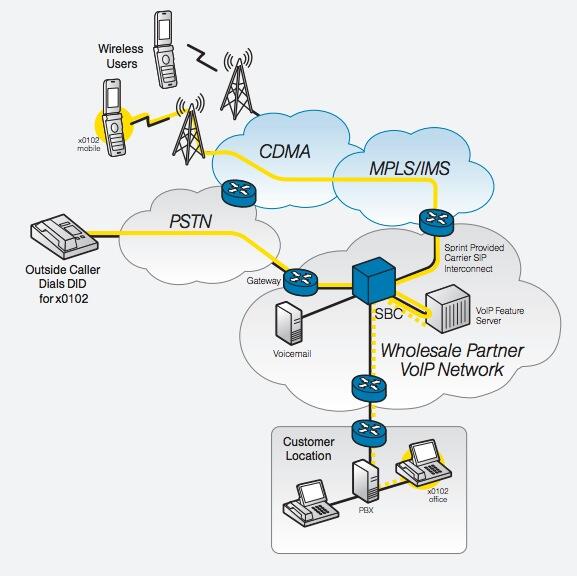
Today we’re testing a new offering from Global Technologies (GTI Global) on the Incredible PBX® platform that addresses some of the shortcomings of the vMobile offering. First, it provides a SIM card that can automatically utilize all four of the major carrier networks in the United States. Second, it offers a dedicated DID, a SIP trunk with free U.S. calling, and an Asterisk extension for every cellphone. And third, it takes advantage of PJsip which permits multiple phones to be connected to and ring on the same Asterisk extension.
GTI Global provided promotional consideration to help defray costs of our Asterisk projects.
Prerequisites. System integrators will acquire SIM cards through the Incredible PBX project. Pricing for the recommended unlimited calling, unlimited messaging, and 2GB monthly data plan is $25/month. A NoData plan is available for $20/month, and other higher data plans also are available. The SIM is compatible with any iPhone® or Android phone device. Users must provide their own cellphones which need not be jailbroken. Dual-SIM smartphones allow users to dedicate one line to the GTI Global SIM and another line for personal use. GTI Global currently is exploring support for eSIMs which would facilitate iPhone use.
To use the SIM-based phone, a public-facing Asterisk platform with a dedicated IP address is required, and it must support PJsip extensions. Incredible PBX 2020, Incredible PBX 16-15, and Incredible PBX 13-13 all have been tested. Other FreePBX® 13, 14, and 15 platforms should also suffice. Accompanying each SIM is a dedicated DID assigned to each cellphone. A matching PJsip extension must be created on the Asterisk platform, and the SIP credentials must be provided to GTI Global to make the cellphone connection to the PBX. Additional phones may be connected to the same PJsip extension to support a desktop phone or receptionist. Simply adjust the Max Connects entry when creating the PJsip extension to support the number of phones desired. Each phone on an extension requires a unique port.
How Calling Works. GTI Global has positioned servers in the facilities of every carrier. When a call arrives from a carrier’s tower, the carrier processes 911 calls directly through its network. For all other incoming calls, the carrier verifies the credentials of the SIM. Once verified, the call is passed to the GTI Global server which sends incoming calls to the associated extension on your PBX. The Inbound Route associated with that DID then sends the call to the assigned destination. If the GTI Global server is unavailable, the carrier processes the incoming calls just as it would any other call on its network by sending it directly to the cellphone.
When the cellphone user places a call, it is processed just as if the call had been made from an internal extension on the PBX with the exception of 911 calls which are handled directly by the carrier. After SIM verification, GTI Global passes the outgoing call to the PBX for processing using the Outbound Routing rules of the PBX. Internal extensions and voicemail can be dialed directly. Outbound calls can utilize any trunk associated with the PBX including the free U.S. trunk provided by GTI Global. CallerID is determined by the outbound trunk processing the call.
Configuring a GTI Global Extension. After logging into the FreePBX GUI, create a PJsip extension with the following settings:
Extension: 12345
Display Name: 12345 GTIglobal
Secret: yourSIPpassword

Advanced -> Max Contacts: 4
Configuring a GTI Global Trunk. Create a chan_SIP Trunk in the FreePBX GUI using your GTIglobal-provided credentials:
Trunk Name: trunk4321

PEER Details:

username=trunk4321
type=friend
secret=yourTRUNKpassword
host=xxxxxx.mvnoserver.com
disallow=all
allow=ulaw
canreinvite=no
dtmfmode=rfc2833
port=5062

Register string: trunk4321:yourTRUNKpassword@xxxxxx.mvnoserver.com:5062
IMPORTANT: When you sign up with GTI, you need to give them the IP address of your PBX, the credentials (extension and password) for your GTI PJsip extension, the outbound SIP port for your GTI trunk (UDP 5062), and the inbound PJsip port for your PJsip extension (UDP 5061).
Configuring an Inbound Route for GTI Global Calls. Replacing 16785551212 with your actual 11-digit DID assigned to each cellphone, create Inbound Routes that look like this:
Description: GTIglobal 16785551212
DID Number: 16785551212
Destination: Extension -> 12345 (your extension associated with each SIM)
You need to add the following context at the end of /etc/asterisk/extensions_custom.conf using your DID. Then reload your dialplan: asterisk -rx "dialplan reload"
[from-sip-external]
; GTI Global
exten => 16785551212,3,Goto(from-trunk,${DID},1)
Configuring an Outbound Route for GTI Global Calls. No special outbound routes are required unless you wish to use the GTI Global trunk to process U.S. calls at no cost. In this case, configure an Outbound Route pointing to your GTI Global Trunk. NOTE: Calls using this trunk can only be made from the extensions associated with GTI Global SIMs.
CallerID and Trunking Strategy. In setting up the GTI components in FreePBX, you need to consider how you wish to process outbound calls. If you want all outbound calls including those from the GTI extensions to reflect the company’s main phone number, then you can use your default outbound route making certain that CallerID override is set with the company number in the appropriate trunks. No CallerID should be set in the outbound route.
If you want calls from the GTI extensions to use the GTI trunk with the CallerID number of the individual cellphones, then the GTI trunk needs to be moved to the top of the default route sequence with no CallerID number specified in the GTI trunk or the outbound route. Instead, set the correct 11-digit CallerID numbers in each of the GTI extensions. This will not impact outbound calls from other extensions because the GTI trunk will indicate congestion forcing the calls out through the next trunk specified in the outbound route.
GTI Global Firewall WhiteList. On Incredible PBX servers and other IPtables platforms, add the following whitelist entries to your firewall:
/usr/sbin/iptables -I INPUT -p udp -m udp -s 99.198.122.166 --dport 5060:5069 -j ACCEPT
/usr/sbin/iptables -I INPUT -p udp -m udp -s 99.198.110.51  --dport 5060:5069 -j ACCEPT
/usr/sbin/iptables -I INPUT -p udp -m udp -s 96.127.174.38  --dport 5060:5069 -j ACCEPT
/usr/sbin/iptables -I INPUT -p udp -m udp -s 37.18.129.170  --dport 5060:5069 -j ACCEPT
/usr/sbin/iptables -I INPUT -p udp -m udp -s 37.18.129.171  --dport 5060:5069 -j ACCEPT
/usr/sbin/iptables -I INPUT -p udp -m udp -s 37.18.129.172  --dport 5060:5069 -j ACCEPT
/usr/sbin/iptables -I INPUT -p udp -m udp -s 37.18.129.173  --dport 5060:5069 -j ACCEPT
How to Proceed. If GTI Global cellular extensions are of interest for your customers, kindly contact us at support@incrediblepbx.com, and we’ll hook you up with the folks at GTI Global. There also is an extensive KnowledgeBase for those wanting more information.
Continue Reading: Last Chance to Jump onto Incredible PBX Cellular Bandwagon
Soup-to-Nuts Tutorial: Adding Cellular Extensions to Incredible PBX
Originally published: Monday, June 22, 2020
Need help with Asterisk? Visit the VoIP-info Forum.
Special Thanks to Our Generous Sponsors
FULL DISCLOSURE: ClearlyIP, Skyetel, Vitelity, DigitalOcean, Vultr, VoIP.ms, 3CX, Sangoma, TelecomsXchange and VitalPBX have provided financial support to Nerd Vittles and our open source projects through advertising, referral revenue, and/or merchandise. As an Amazon Associate and Best Buy Affiliate, we also earn from qualifying purchases. We’ve chosen these providers not the other way around. Our decisions are based upon their corporate reputation and the quality of their offerings and pricing. Our recommendations regarding technology are reached without regard to financial compensation except in situations in which comparable products at comparable pricing are available from multiple sources. In this limited case, we support our sponsors because our sponsors support us.
BOGO Bonaza: Enjoy state-of-the-art VoIP service with a $10 credit and half-price SIP service on up to $500 of Skyetel trunking with free number porting when you fund your Skyetel account. No limits on number of simultaneous calls. Quadruple data center redundancy. $25 monthly minimum spend required. Tutorial and sign up details are here.
The lynchpin of Incredible PBX 2020 and beyond is ClearlyIP components which bring management of FreePBX modules and SIP phone integration to a level never before available with any other Asterisk distribution. And now you can configure and reconfigure your new Incredible PBX phones from the convenience of the Incredible PBX GUI.
VitalPBX is perhaps the fastest-growing PBX offering based upon Asterisk with an installed presence in more than 100 countries worldwide. VitalPBX has generously provided a customized White Label version of Incredible PBX tailored for use with all Incredible PBX and VitalPBX custom applications. Follow this link for a free test drive!
Special Thanks to Vitelity. Vitelity is now Voyant Communications and has halted new registrations for the time being. Our special thanks to Vitelity for their unwavering financial support over many years and to the many Nerd Vittles readers who continue to enjoy the benefits of their service offerings. We will keep everyone posted on further developments.
Free Asterisk Solutions
