Introducing Telephone Reminders for Asterisk 1.4 with Phone and Web Scheduling

If you loved your ‘Speak and Spell’ when you were a kid, then prepare for a childhood flashback… except the Nerd Vittles version is more akin to ‘Spell and Speak.’ Today’s edition of Telephone Reminders for Asterisk 1.4 not only lets you schedule reminders by phone using your own voice, but now you can use a clever (if we do say so) web interface as well. Just fill out a simple web form to set your reminder or recurring reminder in motion, and Telephone Reminders for Asterisk will swing into action with Flite or Cepstral’s Allison to deliver your typed message to the phone of your choice at the appointed time. It’s the perfect tool for bugging the hell out of your friends without ever picking up the phone. Wanna wake your worst enemy in the middle of the night with a nice reading of the Gettysburg Address? No problem. Actually, there is a slight problem. It’s against the law to make irritating phone calls. But it’ll be great for calling all those politicians back to thank them for the hundreds of telephone messages they delivered while you were eating dinner. And, yes, we’ve preserved all of the recurring reminder functionality that you’ve grown to love. So you can schedule one-time reminders, weekday reminders, daily reminders, weekly reminders, monthly reminders, and annual reminders. Wowee! Our special thanks to the PBX in a Flash Pioneers that really shook the bugs out of our beta release, most of which were thanks to the Deprecation Aficionados on the Asterisk Development Team. STOP DEPRECATING COMMANDS! It has no place in the business community. </rant>

To celebrate the FreePBX Training Seminar being held in our Hometown U.S.A. this week, we’ve even added a new FreePBX Interface to Telephone Reminders for those of you that like FreePBX as much as we do.

While the entire application has been designed for 15-second installation on PBX in a Flash systems, it’ll work equally well on any Asterisk 1.4 system with an Apache web server, PHP, FreePBX, and Flite or Cepstral support. But why make things difficult when PBX in a Flash is so easy to install? And, did we mention? It is and always will be free… with no tricks, ever. Visit pbxinaflash.com to download your copy today.

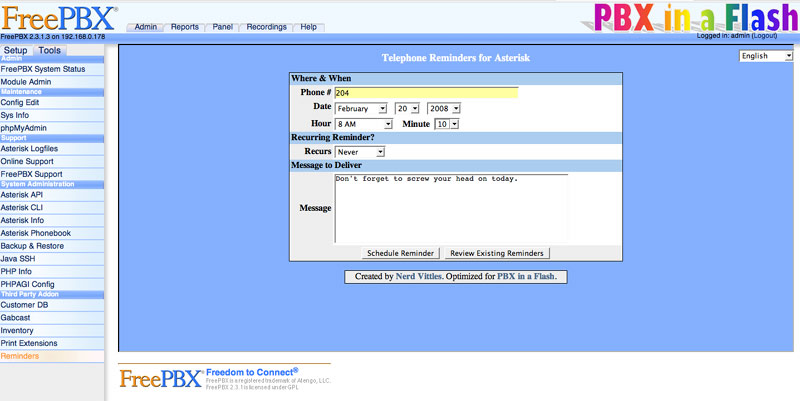
How It Works. The original functionality of the application has been preserved. Dial 1-2-3 on a phone connected to your Asterisk 1.4 system and enter your password. The default is 12345678. Then you can record a reminder message, specify the phone number to which the reminder should be delivered, schedule the date and time for delivery, and decide whether to enable recurring reminders of one of the flavors outlined above. The Web Interface to Telephone Reminders lets you do exactly the same thing using a web browser. The only difference is that, instead of recording your reminder message, you type it and let Flite or Allison record it for you before the telephone reminder message is delivered. The FreePBX Interface to Telephone Reminders provides you the same web interface inside the FreePBX shell by adding a Reminders option under the Third Party Addon section of the Tools tab. As was true in version 3, both the telephone and web interfaces can be customized to meet your needs. See our detailed tutorial for customization tips. You now can also specify whether to use Flite or Allison for your web reminders. So let’s get started.

Installing Cepstral. If you want a perfect text-to-speech system for applications such as this one, then look no further than Cepstral. And we strongly recommend using the Voice of Allison that we’ve all grown up with in the Asterisk community. It’s the best $30 you’ll ever spend. Just follow our Cepstral installation tutorial, and you’ll be up and running in about 10 minutes. If you’ve already installed Cepstral on your system, then log into your server as root and make this one simple addition so that the Web Interface to Telephone Reminders can find the Cepstral application when it’s time to generate your text-to-speech phone reminder.

ln -s /opt/swift/bin/swift /usr/bin/swift

A Hint for the Early Pioneers. For the many pioneers that helped us get the bugs out of the beta release, THANK YOU! The best way to make sure you have a clean install of today’s release of Telephone Reminders with all the bells and whistles is to delete what you’re using now and start over. We will not delete any scheduled reminders, and it’ll only take a few minutes. Here’s how to clean off the old version on your system. Log into your server as root. First, edit crontab: nano -w /etc/crontab. Look for the two lines that look something like what you see below. Delete the two lines using Ctrl-K. Then save your changes: Ctrl-X, Y, then Enter.

0 0 * * * root /var/lib/asterisk/agi-bin/run_recurring > /dev/null
3 0 * * * root /var/lib/asterisk/agi-bin/run_reminders > /dev/null

Second, edit the extensions_custom config file: nano -w /etc/asterisk/extensions_custom.conf. There are two sections of code that need to be removed. The first will be found near the top of the file in the [from-internal-custom] context. Use Ctrl-W to search for 123, and you should see a clump of code that looks like the following. Use Ctrl-K to delete each of the lines.

exten => 123,1,Answer
exten => 123,2,Wait(1)
exten => 123,3,Authenticate(12345678)
exten => 123,4,Goto(reminder,s,1)

The second section of code to be deleted will be near the bottom of the file. Use Ctrl-W to search for reminder. Delete each line of code including the context headings from the following contexts. Hint: It’s a big chunk of code!

[reminder]
[reminder2]
[reminder3]
[reminder4]
[reminder5]
[reminder6]
[reminder7]
[reminder8]
[reminder9]
[reminder9a]
[remindem]

Then save your changes: Ctrl-X, Y, then Enter.

Now let’s delete another group of files, and you’re all set. Just execute the following commands to delete the original files:

cd /var/lib/asterisk/agi-bin
rm checkdate.php
rm checktime.php
rm reminder.php
rm run_recurring
rm run_reminders
rm /var/www/html/reminders/index.php

If You’re Not Using PBX in a Flash. Only read this section if you’re not installing Telephone Reminders for Asterisk 1.4 on a PBX in a Flash system. It’s still possible to use this application without running it on a PBX in a Flash system. The major difference is that it is up to you to assure that the prerequisites are met and properly functioning. For those running trixbox 2.x systems, that is next to impossible until the trixbox developers decide to support Flite… unless you use the commercial Cepstral product. The good news is that Cepstral apparently works. The other good news is that the telephone module of Telephone Reminders does not require either Flite or Cepstral; however, the Web Interface does. As long as you’re willing to live without the Web Interface (i.e. version 3 functionality), keep reading. First, download both the install script and the payload file and manually determine what needs to be placed where. Our recommendation is to build a /root/reminders directory and execute the following commands to get all of the code:

mkdir /root/reminders
cd /root/reminders
wget http://bestof.nerdvittles.com/applications/reminders4/reminders.pbx
wget http://pbxinaflash.net/scripts/reminders.tgz
tar -zxvf reminders.tgz

Unless you’re using PBX in a Flash or trixbox, carefully read the Telephone Reminders 3.0 tutorial on our Best of Nerd Vittles site. Then review the reminders.pbx script and make any necessary placement adjustments. Next, review the directory tree created below /root/reminders and be sure to copy and create the files and directory structure into the appropriate locations on your system. Make certain that you set ownership and file permissions properly for your system. The following assumptions are made in our setup. The root of the web server is located in /var/www/html, and Apache runs as user asterisk. AGI and PHP scripts for Asterisk are stored in /var/lib/asterisk/agi-bin. Logs for this application are written to /var/log/asterisk. Finally, the PHP and Asterisk configuration files are housed in /etc/asterisk. We don’t provide support for any installs other than on PBX in a Flash systems. Life’s too short!


Installation on PBX in a Flash Systems. We’ve saved the best for last. The entire install on a PBX in a Flash system takes about as long as it will take you to cut-and-paste the following commands. 15 seconds should do it! The script reportedly works on trixbox ce systems as well although we have not tested it. Log into your server as root and issue the following commands:
 

cd /root
wget http://bestof.nerdvittles.com/applications/reminders4/reminders.pbx
chmod +x reminders.pbx
./reminders.pbx
amportal restart
ln -s /opt/swift/bin/swift /usr/bin/swift

Test Run of Web Interface to Telephone Reminders. Assuming you have Cepstral running on your server, the web interface is ready to go since it comes configured to use Cepstral as the text-to-speech engine. We’ll show you how to change back to Flite in a minute. Using a web browser, go to the following site using the IP address of your Asterisk server: http://192.168.0.178/reminders/. Fill in the blanks including a reminder message. If you enter a date and time in the past, the phone number you enter will start ringing as soon as you hit the Schedule Reminder button. That’s a good way to be sure everything is working without having to sit and wait for a return call.

When Things Go Wrong. Immediately after scheduling a reminder, be sure to check for the pending reminder by clicking Review Existing Reminders. You should see both a .call file and a .gsm with otherwise matching file names. If the .gsm file is missing, one of two things has happened. If you haven’t installed Cepstral and you haven’t changed the default TTS engine, then solve it by doing one or the other. If Cepstral is working on your system (swift “Hello world.” at command prompt), then you may be missing the sox application. To install it, log in as root and type: yum install sox.

Test Run of Telephone Reminders for Asterisk. On PBX in a Flash systems, the application will run once you complete the install as outlined above. Dial 1-2-3 from a phone on your system and enter the default password of 12345678 when prompted. Record a message and press #. When prompted for the phone number to which the reminder should be delivered, press # to choose the number you are calling from. When prompted for the date to deliver the message, press # to choose today. When prompted for the time, enter a 4-digit time with a 2-digit hour and 2-digit minute. Military time (24 hour clock) is fine. Make sure the time is at least 5 minutes in the future, and make sure the time on your watch and server match! Accept the settings, hang up, and wait for your reminder call.

Configuring Telephone Reminders for Asterisk. The phone interface to Telephone Reminders and the web interface are two separate applications so you’ll need to configure both of them. Let’s start with the phone interface. At a minimum, you’ll want to change the default password to something more secure. Edit /etc/asterisk/extensions_custom.conf using either nano or the FreePBX Config Edit option in Tools. Search for 123 and change the password in line 3 which looks like this. If you want to change the phone number to dial to enter reminders, simply replace 123 on every line with the number you wish to use.

exten => 123,3,Authenticate(12345678)

Update: A user on the PBX in a Flash Forum has pointed out that you can substitute the line below for the “Authenticate” line above, and the system will accept the existing voicemail password associated with the phone making the call:

exten => 123,3,vmauthenticate(${CALLERID(number)})

In order to take advantage of the new number conflict checking mechanism in FreePBX 2.4, we also recommend you add a Misc Destination for Telephone Reminders under the Setup tab. The entries should look something like the following:

Description Reminders
Dial 123

Once you’ve made the entry, click the Submit button and then reload the Asterisk dialplan when prompted.

The other changes you can make are accomplished by setting variables in the reminders.php application which is stored in /var/lib/asterisk/agi-bin. For a complete list of the variables and what they mean, take a look at the Telephony Configuration section in our Best of Nerd Vittles article.

Configuring the Web Interface to Telephone Reminders. The variable settings for the web interface are identical to those above. In addition, the text-to-speech engine can be set to Flite (instead of Cepstral) by changing the value of $ttspick from 1 to 0. The file to edit is index.php in /var/www/html/reminders. For more details, take a look at the Web Interface Configuration topic in our Best of Nerd Vittles article. Some may also find it desirable to secure the web interface to Telephone Reminders with a password. Here’s how.

Installing the FreePBX Interface to Telephone Reminders. After installing Telephone Reminders, a new Module will be available for installation in FreePBX by accessing Tools->Module Admin. Scroll to the bottom of the listing and click on Reminders and then the Install button. Once the installation completes, reload the Asterisk dialplan when prompted. A new FreePBX interface to Telephone Reminders then will display in the Third Party AddOn listing under the Tools tab in FreePBX.

Special Thanks. We want to extend our special thanks to Sangoma for their generous, unsolicited contribution to the PBX in a Flash project. While everything we produce is freely given for all to use, projects such as Nerd Vittles and PBX in a Flash still require money to fund research and product development. On behalf of the entire PBX in a Flash Development Team, thank you. SANGOMA ROCKS!!

Best of Nerd Vittles Tutorial. For those of you that prefer to read manuals, we also have a new Telephone Reminders 4.0 tutorial on our Best of Nerd Vittles site.

Need More Help? That’s what the PBX in a Flash Forum is for! Even if you don’t need help, stop by and let us know what’s on your Wish List! And remember, the Donate button at the top of Nerd Vittles makes wishes come true. Enjoy!


Some Recent Nerd Vittles Articles of Interest…

Text-to-Speech Bonanza with Cepstral and Asterisk 1.4

There's almost too much to celebrate today. It's Valentine's Day, of course. You didn't forget, did you? And PBX in a Flash turns 3 months old with well over 1,000 downloads a week under our belt. Wow! Who woulda thunk? Thanks, Joe! Thanks, Tom! Get the latest scoop on our forums.

We're pleased to introduce our first hosting service provider, Aretta Communications, for those that would prefer to run PBX in a Flash in a secure, hosted environment with regular backups. Your hosted service in Atlanta will be one millisecond away from the Internet backbone. You can't do any better! And, we're excited to welcome VoipQ as our new European gateway host and contributor for PBX in a Flash. You now can access and download all of our resources through their 100 megabit connection in The Netherlands: pbxinaflash.nl. And there are two new European domains that link back to our main pbxinaflash.com site as well: pbxinaflash.eu and pbxinaflash.be. Our special thanks to Dillard and VoipQ for their support! We're also delighted to announce VoxZone as our new MidWest host for PBX in a Flash downloads. Thanks, Dinesh! And finally, we want to welcome Ad Hoc Electronics as our third West Coast host for PBX in a Flash downloads. Thanks, Jeremy! We hope you'll keep all of these open source supporters in mind when you're shopping for VoIP services and hardware.

To celebrate today's events, we thought it'd be a perfect time to introduce five newly customized Nerd Vittles applications for PBX in a Flash to take advantage of the Cepstral text-to-speech engine with Allison that we introduced last month. So today we bring you Weather by Airport Code, Weather by Zip Code, Worldwide Weather, NewsClips, and MailCall. The weather apps are self-explanatory. NewsClips reads Yahoo news feeds on any of 10 different news topics, and MailCall reads you your email by phone for one or many POP3 or IMAP email accounts. Now these new applications support both Flite and Cepstral. Once you hear Allison reading the news and your email, you'll never go back to Egor. And we're pleased to announce that we'll have a web interface to Telephone Reminders in a few short weeks. With the new Cepstral technology, you'll be able to generate single or recurring text-to-speech reminders from your web browser with delivery at the dates and times you specify... to any phone in the world. Whoa!! As a birthday bonus for Nerd Vittles readers, you can email Cepstral for a whopping, once-in-a-lifetime 15% discount code to use on your next Cepstral download and purchase.

For those using PBX in a Flash (and why wouldn't you!), all of these new applications are a 15-second install away using the downloadable scripts from the Nerd Vittles script repository. And, of course, there are dozens of additional scripts available from our PBX in a Flash Script Site which is run by Tom King.

First Install Procedure. If you've never installed an application that's on the menu today, make certain that you have first installed Cepstral. Our tutorial is here, and it only takes a few minutes. Then the process is painless with PBX in a Flash. Just log into your server as root and type the following commands... depending upon the application you wish to install. Do NOT use this procedure if you have previously installed the application on your PBX in a Flash server. We'll get to that in a minute. As mentioned, each install takes about 15 seconds. Then take a look at the instructions by clicking on the application link on the Best of Nerd Vittles site.

Weather by Airport Code. After logging into your server as root, type the following commands. Documentation is here.

cd /root
wget http://bestof.nerdvittles.com/applications/weather-airport/weather.pbx
chmod +x weather.pbx
./weather.pbx

Weather by Zip Code. After logging into your server as root, type the following commands. Documentation is here.

cd /root
wget http://bestof.nerdvittles.com/applications/weather-zip/weatherzip.pbx
chmod +x weatherzip.pbx
./weatherzip.pbx

Worldwide Weather. After logging into your server as root, type the following commands. Documentation is here.

cd /root
wget http://bestof.nerdvittles.com/applications/weather-world/weatherworld.pbx
chmod +x weatherworld.pbx
./weatherworld.pbx

NewsClips from Yahoo. After logging into your server as root, type the following commands. Documentation is here.

cd /root
wget http://bestof.nerdvittles.com/applications/newsclips/newsclips.pbx
chmod +x newsclips.pbx
./newsclips.pbx

MailCall for Asterisk. After logging into your server as root, type the following commands. Documentation is here.

cd /root
wget http://bestof.nerdvittles.com/applications/mailcall/mailcall.pbx
chmod +x mailcall.pbx
./mailcall.pbx

Choosing Flite or Cepstral. As installed, the five applications all rely upon Flite as the default text-to-speech (TTS) engine. If you'd like to change it, here's how. There are two places in which text-to-speech is used for these applications. The first is a little code that is inserted in your dialplan in the /etc/asterisk/extensions_custom.conf file. The second is in the PHP code that does the heavy lifting for each application. You can choose Cepstral as the TTS engine in either or both places for each application. We'll walk you through modifying the Weather by Airport Code application to support Cepstral, but the process is identical for the other applications. The two things you'll need to know to make the changes, are the number to dial for the application, e.g. 611 for Weather by Airport Code, and the name of the PHP file, e.g. nv-weather.php. Here's the info for all five apps just so you don't have to do any hunting:

  • Weather by Airport Code... 611, nv-weather.php
  • Weather by Zip Code... 947, nv-weather-zip.php
  • Worldwide Weather... 612, nv-weather-world.php
  • NewsClips from Yahoo... 511*, nv-news.php (No editing of dialplan 511 code is required)
  • MailCall for Asterisk... 555, nv-mailcall.php

Changing DialPlan Code to Cepstral. Log into your server as root and edit the extensions_custom.conf file in /etc/asterisk: nano -w extensions_custom.conf. Now search for the number to dial from the table above. For example, for Weather by Airport Code, you'd press Ctrl-W, then type 611, then press Enter. You'll be positioned on code that looks like the following:1

exten => 611,1,Answer
exten => 611,2,Wait(1)
exten => 611,3,Set(TIMEOUT(digit)=7)
exten => 611,4,Set(TIMEOUT(response)=10)
exten => 611,5,Flite("At the beep enter the three character ↩
airport code for the weather report you wish to retrieve.")
;exten => 611,5,Swift("At the beep enter the three character ↩
airport code for the weather report you wish to retrieve.")
exten => 611,6,Read(APCODE,beep,3)
exten => 611,7,Flite("Please hold a moment while ↩
we contact the National Weather Service for your report.")
;exten => 611,7,Swift("Please hold a moment while ↩
we contact the National Weather Service for your report.")
exten => 611,8,AGI(nv-weather.php|${APCODE})
exten => 611,9,NoOp(Wave file: ${TMPWAVE})
exten => 611,10,Playback(${TMPWAVE})
exten => 611,11,Hangup

Notice the semicolons at the beginning of the two lines of code. Those indicate comments in the PHP world, and those lines are not executed. You'll note that both of the commented lines include the word Swift which, as you learned from the installation tutorial, activates the Cepstral TTS engine. Immediately under each of those lines is an identical line to activate Flite. So, to swap TTS engines, simply comment out the two Flite lines and uncomment the two Swift lines. When you're finished, your code should look like this:

exten => 611,1,Answer
exten => 611,2,Wait(1)
exten => 611,3,Set(TIMEOUT(digit)=7)
exten => 611,4,Set(TIMEOUT(response)=10)
;exten => 611,5,Flite("At the beep enter the three character ↩
airport code for the weather report you wish to retrieve.")
exten => 611,5,Swift("At the beep enter the three character ↩
airport code for the weather report you wish to retrieve.")
exten => 611,6,Read(APCODE,beep,3)
;exten => 611,7,Flite("Please hold a moment while we ↩
contact the National Weather Service for your report.")
exten => 611,7,Swift("Please hold a moment while we ↩
contact the National Weather Service for your report.")
exten => 611,8,AGI(nv-weather.php|${APCODE})
exten => 611,9,NoOp(Wave file: ${TMPWAVE})
exten => 611,10,Playback(${TMPWAVE})
exten => 611,11,Hangup

Don't change anything else. When your code looks like ours, save your changes by pressing Ctrl-X, then Y, then the Enter key. Reload your Asterisk dialplan to make the changes take effect:

asterisk -rx "dialplan reload"

Changing PHP Application Code to Cepstral. Log into your server as root and issue the following commands using the name of the PHP file for the application you want to change:

cd /var/lib/asterisk/agi-bin
nano -w nv-weather.php

At the top of the file, you'll notice several lines with variables that can be changed.

//-------- DON'T CHANGE ANYTHING ABOVE THIS LINE ----------------

$debug = 1;
$newlogeachdebug = 1;
$emaildebuglog = 0;
$email = "yourname@yourdomain" ;
$ttspick = 0 ;

//-------- DON'T CHANGE ANYTHING BELOW THIS LINE ----------------

To activate the Cepstral TTS engine, just change the value for $ttspick from 0 to 1. Then save your changes: Ctrl-X, Y, then Enter. Now try out your fancy new weather application using Cepstral by dialing 611 from any phone on your PBX in a Flash system.

Upgrading from Previous Installs. If you have already installed one or more of these five Nerd Vittles applications, here's a quick tutorial on how to update your code to the latest and greatest with full Cepstral support. We've already preconfigured the code below to use Cepstral. If you want to use Flite for some of the apps, make the changes following the instructions above. Log into your server as root and issue the following commands:

cd /root
mkdir cepstral
cd cepstral
wget http://nerdvittles.com/wp-content/cepstral.zip
unzip cepstral.zip

For each application that you've already installed, copy the PHP file from /root/cepstral to /var/lib/asterisk/agi-bin and then set the proper ownership of the new files:

cd /root/cepstral
cp nv-mailcall.php /var/lib/asterisk/agi-bin/nv-mailcall.php
cp nv-news.php /var/lib/asterisk/agi-bin/nv-news.php
cp nv-weather.php /var/lib/asterisk/agi-bin/nv-weather.php
cp nv-weather-zip.php /var/lib/asterisk/agi-bin/nv-weather-zip.php
cp nv-weather-world.php /var/lib/asterisk/agi-bin/nv-weather-world.php
cd /var/lib/asterisk/agi-bin
chown asterisk:asterisk nv*.php
chmod 775 nv*.php

Now we need to edit /etc/asterisk/extensions_custom.conf and clean out the old dialplan code for these applications and then replace it with the new dialplan code. First, make a duplicate of the file in case something goes wrong:

cp /etc/asterisk/extensions_custom.conf /etc/asterisk/extensions_custom.conf.bak

Then edit the file: nano -w /etc/asterisk extensions_custom.conf and search (Ctrl-W) for the beginning of each chunk of dialplan code using the phone numbers for the various applications that are shown above in the Choosing Flite or Cepstral section, e.g. 611, 947, 612, 511, and 555. Using Ctrl-K, delete each subsequent line of dialplan code that contains the phone number for that application until you've removed the entire section of code for each application. Then search for the next phone number and repeat the process. Once you've deleted all of the existing code for these five applications, cut-and-paste the following code just below [from-internal-custom] at the top of the file. NOTE: Do NOT paste in a section of the code below if you haven't previously installed that particular application!

; -- Begin New Nerd Vittles Code to Support Cepstral TTS

; Worldwide Weather Forecasts
exten => 612,1,Answer
exten => 612,2,Wait(1)
exten => 612,3,Set(TIMEOUT(digit)=7)
exten => 612,4,Set(TIMEOUT(response)=10)
;exten => 612,5,Flite("At the beep enter the code for the weather report you wish to retrieve.")
exten => 612,5,Swift("At the beep enter the code for the weather report you wish to retrieve.")
exten => 612,6,Read(APCODE,beep,1)
;exten => 612,7,Flite("Please hold a moment while we retrieve your report.")
exten => 612,7,Swift("Please hold a moment while we retrieve your report.")
exten => 612,8,AGI(nv-weather-world.php|${APCODE})
exten => 612,9,NoOp(Wave file: ${TMPWAVE})
exten => 612,10,Playback(${TMPWAVE})
exten => 612,11,Hangup

; Weather by Zip Code
exten => 947,1,Answer
exten => 947,2,Wait(1)
exten => 947,3,Set(TIMEOUT(digit)=7)
exten => 947,4,Set(TIMEOUT(response)=10)
;exten => 947,5,Flite("At the beep enter the five digit code for the weather report you wish to retrieve.")
exten => 947,5,Swift("At the beep enter the five digit code for the weather report you wish to retrieve.")
exten => 947,6,Read(ZIPCODE,beep,5)
;exten => 947,7,Flite("Please hold a moment while we contact the National Weather Service for your report.")
exten => 947,7,Swift("Please hold a moment while we contact the National Weather Service for your report.")
exten => 947,8,AGI(nv-weather-zip.php|${ZIPCODE})
exten => 947,9,NoOp(Wave file: ${TMPWAVE})
exten => 947,10,Playback(${TMPWAVE})
exten => 947,11,Hangup

; Weather by Airport Code
exten => 611,1,Answer
exten => 611,2,Wait(1)
exten => 611,3,Set(TIMEOUT(digit)=7)
exten => 611,4,Set(TIMEOUT(response)=10)
;exten => 611,5,Flite("At the beep enter the three character airport code for the weather report you wish to retrieve.")
exten => 611,5,Swift("At the beep enter the three character airport code for the weather report you wish to retrieve.")
exten => 611,6,Read(APCODE,beep,3)
;exten => 611,7,Flite("Please hold a moment while we contact the National Weather Service for your report.")
exten => 611,7,Swift("Please hold a moment while we contact the National Weather Service for your report.")
exten => 611,8,AGI(nv-weather.php|${APCODE})
exten => 611,9,NoOp(Wave file: ${TMPWAVE})
exten => 611,10,Playback(${TMPWAVE})
exten => 611,11,Hangup

; NewsClips from Yahoo
exten => 511,1,Answer
exten => 511,2,Wait(1)
exten => 511,3,Set(TIMEOUT(digit)=7)
exten => 511,4,Set(TIMEOUT(response)=10)
exten => 511,5,AGI(nv-news.php|topstories)
exten => 511,6,NoOp(Wave file: ${TMPWAVE})
exten => 511,7,Playback(${TMPWAVE})
exten => 511,8,Wait(1)
exten => 511,9,Hangup

; MailCall for Asterisk 1.4
exten => 555,1,Answer
exten => 555,2,Wait(1)
exten => 555,3,Set(TIMEOUT(digit)=7)
exten => 555,4,Set(TIMEOUT(response)=10)
;exten => 555,5,Flite("At the beep enter your e-mail password.")
exten => 555,5,Swift("At the beep enter your e-mail password.")
exten => 555,6,Read(PWCODE,beep,4)
;exten => 555,7,Flite("Please hold a moment.")
exten => 555,7,Swift("Please hold a moment.")
exten => 555,8,AGI(nv-mailcall.php|${PWCODE})
;exten => 555,9,Flite("Thank you for calling. Good bye.")
exten => 555,9,Swift("Thank you for calling. Good bye.")
exten => 555,10,Hangup

; -- End New Nerd Vittles Code to Support Cepstral TTS

Once you get all of the code pasted into extensions_custom.conf, save your changes: Ctrl-X, Y, then Enter. Then reload your dialplan and add a symbolic link to Cepstral:

asterisk -rx "dialplan reload"
ln -s /opt/swift/bin/swift /usr/bin/swift

FreePBX Patch. Something about our applications gives FreePBX fits when you attempt to do a subsequent dialplan reload. So here's the patch to fix that. While still logged in as root, issue the following commands:

cd /root
wget http://pbxinaflash.net/scripts/fixconf.zip
unzip fixconf.zip
chmod +x fixconf.sh
./fixconf.sh
chmod 1777 /tmp

Aretta Communications for Hosted PBX in a Flash Service. We've saved the best for last today. Many of you have been asking for recommendations on hosted PBX service. And today we finally have one for you. Aretta Communications is the premier provider of hosted Asterisk solutions worldwide. Based in telecom-savvy Atlanta and pioneering the business VoIP triple play, Aretta is the first provider to combine hosted Asterisk-based servers with an integrated, high voice quality SIP Trunking offering, and pre-configured VoIP handsets that arrive at your door ready to plug in and start making calls. No longer do you have to try and cobble together components from different places for your PBX in a Flash server. It's finally all available from one company that understands Asterisk and has the flexibility and in-house expertise to work with any kind of custom configuration or application. Every hosted PBX in a Flash server sits in secure telco hotels with UPS power and on-net connectivity to the major Tier 1 providers.

Using software virtualization, Aretta is able to dramatically reduce the cost of a hosted PBX in a Flash server. The hosted offerings scale in a virtual environment to up to 32 simultaneous calls per virtual server. Beyond 32 calls, dedicated dual processor PBX in a Flash servers are available that can handle 48 to 96 simultaneous calls. These can be stacked to provide high density systems. For those large hosted TDM deployments, Aretta can handle on-net termination of T1 or T3 voice circuits into dedicated PBX in a Flash servers with TDM cards. Aretta has a standard weekly backup offering for all of its hosted servers and nightly backups can also be accommodated. Backups can even be sent to geographically disperse datacenters for the ultimate in disaster recovery.

Aretta literally is changing the game in the hosted PBX market by pioneering a brand new pricing model. Forget the old per-extension pricing we've all seen where you get nickeled and dimed for every little feature you want to add to your individual lines. Finally, you pay one low monthly price for an entire system with a complete feature set and the ability to add an unlimited number of extensions. Aretta's pricing is customer-friendly, based on the number of active calls going through the system at any given time. This allows you to start small and grow as needed. PBX in a Flash hosted plans start at 2 channels and expansion is easy and automatic to four, eight, sixteen channels and beyond. Every feature within Asterisk is included in the monthly price. The only a-la-carte option is for help configuring your system. This is available as a one-time initial configuration option when you sign up for your hosted PBX in a Flash system or on a per-incident basis once it is installed.

The NetSIP trunking offering from Aretta provides SIP origination and termination in a variety of configurations. You can choose to pay by the minute or reduce your calling rates with bundled packages of minutes. Unlimited flat-rate inbound-only DIDs are available in 46 countries worldwide. DIDs in over 6300 rate centers in the United States are available in either 'Local Inbound' or 'Enhanced Local Service' configurations. Aretta has also developed a streamlined online number porting system to allow for automatic LOA generation making it easy to port numbers from other providers.

Aretta also offers pre-configured Polycom and Linksys handsets through its online store that arrive at your doorstep ready to plug-in and start calling. Priced competitively with the added bonus of coming configured, IP phone configurations are done automatically while the devices are in transit. Through its extensive customer deployments, Aretta has navigated the QoS and NAT related issues that can occur with typical IP-PBX deployments. Aretta builds and sells pre-configured edge routers based on the open source DD-WRT software to provide a low-cost premise edge device to keep local extension calls on the LAN and provide a great solution for voice QoS.

Last, but not least, in addition to hosted PBX in a Flash systems, Aretta has the flexibility and expertise to build and host custom applications using PBX in a Flash as the core underlying technology. Examples include:

  • Hosted VICIDIAL - outbound and predictive dialing based on Asterisk
  • Hosted A2Billing - the leading open source prepaid and calling card platform for Asterisk
  • High Availability Asterisk - two separate geographically disperse Asterisk servers running in a High Availability configuration with failover
  • Custom IVR development
  • IAX Trunking

If you can dream it and run it with PBX in a Flash, Aretta can build and host it for you. So what are you waiting for, visit Aretta Communications today and take advantage of their special offer for new PBX in a Flash customers.

Nerd Vittles Cepstral Showdown with Allison TTS (courtesy of les.net). You now can take today's Nerd Vittles projects for a test drive... by phone! The current demos include all five new applications preconfigured for Cepstral with the Allison TTS voice: (1) MailCall for Asterisk with password 1234 (retrieve POP3 email by phone), (2) NewsClips for Asterisk (latest news headlines in dozens of categories), (3) Weather Forecasts by U.S. Airport Code, (4) Weather Forecasts by U.S. ZIP Code, and (5) Worldwide Weather Forecasts.

Here's where it gets interesting. We decided to let you compare the voice quality of the calls using our Comcast home cable service versus Aretta Communications' Hosted PBX in a Flash service. The same code is running on both systems and both systems are using les.net for origination. The only difference is that our home system is running on a $199 WalMart Green PC. To make things interesting, we're not going to tell you which phone number goes to which location. Clue #1: Neither system is actually in the Nerd Vittles Valley Girl Headquarters in California. Clue #2: One system may or may not be in the same city as its area code. Give us a little credit. We're smart enough to assign DIDs to any PBX we happen to like... especially if it might confuse our readers. So don't just pick a favorite number because you happen to know that Aretta is in Atlanta and so is the 678 area code. We're tempted to actually swap the DIDs around once or twice just to keep everyone on their toes. And, of course, Comcast may have some additional tricks up their sleeve to make this more interesting.

So... let the voting begin. Dial away on the two numbers shown above and report your results in a comment. If you get a message that Allison isn't available or if you just get silence, simply try your call a little later. We weren't smart enough to limit inbound calls to one channel, and FreePBX doesn't seem to be able to do it either. We can't wait to read what our judges have to say. Enjoy!


Some Recent Nerd Vittles Articles of Interest...

  1. Join the following line with the original line whenever you encounter the ↩ character. []

Introducing the Stealth AutoAttendant for Asterisk 1.4 and FreePBX

Last week we introduced the powerful, new Allison text-to-speech voice for Asterisk using Cepstral. Now that Allison is an integral part of your free PBX in a Flash server, let's put her to good use. Today we're going to roll up our sleeves and show you how to build a typical Interactive Voice Response (IVR) system for your server. Once again we've chosen our Stealth AutoAttendant because it demonstrates the real power of the latest release of FreePBX.

Here's the way our Stealth Auto Attendant works. A call comes into your PBX, and we first decide whether it should be processed using business hour rules or nighttime settings. This works identically for home use except the times may be a little different. Once the call flow is chosen based upon the time of day, then we're going to play a generic greeting that goes something like this. For home use, it might say: "Hi. You've reached the Mundy's residence. Please hold a moment while we connect your call." For small office use, it might say: "Hi. You've reached Wonder Widgets International. Please hold a moment while we locate a sales agent to assist you." The point of these greetings is to welcome the caller without providing a clue that an IVR system is being used for the initial call processing, hence the name Stealth.

With the Stealth AutoAttendant, if the caller doesn't press any buttons on the phone, their call will be transferred to a default ring group after the greeting message completes. If the caller actually knows about the IVR, the caller can press a button while the greeting message is playing to transfer to a particular extension, listen to voicemail, get a weather or news update, check their email, or get dialtone to make a call to Europe using your company's favorite El Cheapo provider.

If no button is pressed during the greeting message, then the incoming call is passed to a ring group while music on hold plays to the caller. If no one is available to take the call, then the call is next routed to a second IVR that gives the caller the option of transferring to one or more cellphones or leaving a message on your voicemail system. Other hidden options can be embedded in this IVR as well.

In the old days, i.e. before last week, today's design was inhibited by the need to acquire customized voice messages for the various IVRs. For the design we've outlined above, you would actually have needed messages for three IVRs: the initial greeting for the Stealth AutoAttendant, the NoAnswer IVR, and the Applications IVR for access to weather, news, and email apps. If you sprung for the $24 Cepstral investment last week, then that's all a thing of the past. Now you can record your own messages and still use Allison as your voice talent. We would hasten to add that we sent Allison a note last week congratulating her on the new Cepstral voice. The note we got back went something like this: "I'm excited about the Cepstral technology. I just hope it doesn't run me out of business." Well, as fantastic as the Cepstral technology is, it's never going to quite measure up to using the real deal. But, as they say, it's close enough for government work and will certainly suffice for home or small office use, two markets that probably would not have hired professional voice talent to begin with. So let's get started.

Being Smart About Cepstral Utilization. There are a couple of things you need to know up front about using Cepstral. First, while the licenses are relatively inexpensive, they still are provided on a per connection basis. For example, if you're using Cepstral to read back a weather report, that ties up one license. If another caller is using Cepstral to play back email messages, that's another license. So, while $30 is cheap, on a 100-user PBX, the cost is a good bit more than $30. Unlike in the Flite days, where Egor could be handling multiple tasks at no cost, you need to be smarter about the way you deploy Cepstral on your server unless your PBX is basically a one-user system. For example, it doesn't make sense to use Cepstral interactively for playing back a 7-day weather forecast. That process would consume more than a full minute of a Cepstral license while Cepstral could just as easily have written the weather forecast out to a .wav file in less than one second. The same goes for IVR prompts. Don't even think about using Cepstral interactively for IVR applications. Instead, write out the IVR prompts to .wav files, and play those to callers which consumes no Cepstral licenses! Repeat after me: "Wave files free. Interactive Cepstral = $30 per simultaneous use." Design accordingly.

Building IVR Voice Prompts with Cepstral. Let's begin by building the voice prompts for our three IVRs. You obviously can customize these as we go along so that, when we're finished, you have a flawless system to deploy in your own home or office. If you didn't install Cepstral with the Allison voice last week, do that first. Here's the link. Our plan goes like this. We're going to record the voice prompts on your PBX in a Flash server, then copy them to your Windows or Mac desktop, and then we'll use FreePBX to assimilate them into your system for use with your IVRs. That's just the FreePBX way of doing things, but it's not really all that painful.

Before we begin, you need to figure out what you want your three prompts to say. For the Stealth AutoAttendant, we gave you some examples above, but you can tailor these to meet your own needs. Once you have the prompt the way you want it, step 1 is to test it. Log into your server as root, plug in some speakers, and issue the following Cepstral command:

swift "Hi. You've reached the Mundy's residence. Please hold a moment while I connect your call."

You may not be entirely happy with the way your prompt sounds. This is where your artistic creativity comes into play. First, you can adjust the spelling of certain words to try and smooth out the rough edges. You also can alter the playback using SSML commands to adjust pauses, playback speed, and many other settings. And finally you can phonetically spell problem-words to address specific issues. For example, to sound out Cepstral, here is the sample code:

Welcome to <phoneme ph="k eh1 p s t r ah0 l">Cepstral</phoneme>.

If this looks like Greek to you, not to worry. There is excellent documentation, but it still takes a bit of experimentation. Suffice it to say that every vowel has various sounds, and the 0 or 1 on the end of the vowel sound tell Cepstral whether to apply emhasis to the particular sound. Here's the list of sounds you have at your disposal. And here are the W3C SSML commands for Cepstral, all of which work under Linux.

Once you get your prompt the way you want it, our recommendation is to first save the text including the surrounding quotation marks to a text file. Then, if you want to change it later, you'll have your original text to work with. To save it to a text file, do this:

echo "Hi. You've reached the Mundy's residence. Please hold a moment while I connect your call." > welcome.txt

Then edit the file (nano -w welcome.txt) and put quotation marks at the beginning and end of the text. Also replace any embedded quotes and apostrophes with normal (i.e. not typographic) quotes and apostrophes.

To generate the .wav file from your .txt file using Cepstral, issue the following command:

swift -f welcome.txt -o welcome.wav

Now repeat the steps above to create the following prompts:

noanswer.txt: "I'm sorry. Noone is available to take your call at the moment. If you'd like to try their cellphones, press 1 for Joe or 2 for Betty. If you'd prefer to leave a message, press 3."

apps.txt: "For Mail Call, press 1. For News Clips, press 2. For weather forecasts by airport code, press 3. For weather forecasts by zip code, press 4. To schedule a telephone reminder, press 5."

FreePBX Preparations. Now that we have our voice prompts ready, copy them to your desktop. Then open FreePBX by pointing your web browser to the IP address of your PBX in a Flash system. We're going to be doing a good bit of editing even though it'll only take a few minutes. Firefox works much better with FreePBX than Internet Explorer so don't say we didn't warn you.

As with most applications, there's a certain order in doing things that makes life much simpler. So it is with FreePBX. First, be sure you have built all the pieces of the puzzle that you plan to use in your IVRs before you build your IVRs. This includes extensions, ring groups, system recordings aka voice prompts, DISA, miscellaneous destinations, etc. Second, we need to address a little Asterisk quirk. For whatever reason, Asterisk has a difficult time transferring calls to a cellphone when you get into nested IVRs. If you recall from our initial design, the plan is to provide a second IVR to catch unanswered calls after the first IVR transfers the inbound calls to a ring group. If you plan to have a cellphone transfer as one of the options in your second IVR, then here's a word to the wise. Don't use Misc Destinations to set up the numbers for your cellphones, or the calls will never be completed! What will work is to create additional extensions on your system specifically for your cellphones.

For today's exercise, we're going to assume that Joe and Betty's extensions are 201 and 202 on your PBX. So we'll also want to create extensions 301 and 302 for their cellphones. Just create SIP extensions in the usual way with no voicemail. If you want to force cellphone voicemail to kick in when a cellphone call goes unanswered, be sure to adjust the Ring Time for your cellphone extensions to 40-60 seconds when you set up these extensions. Now drop down to the Linux command prompt on your server and issue the following commands to set permanent forwarding of these extensions to Joe and Betty's cellphone numbers. Use the desired cellphone numbers in the appropriate format to match your dialplan. Be sure to test this by dialing each extension from a phone on your system to be sure the calls actually get transferred!

asterisk -rx "DATABASE PUT CF 301 6781234567"
asterisk -rx "DATABASE PUT CF 302 6787654321"

There's an alternate way to set the call forwarding which Philippe Lindheimer of FreePBX fame recommends... and he oughta know. When you create these "cellphone extensions," adjust the dial entry from SIP/301 and SIP/302 to look like the following example. Then you won't need the database manipulation step above.

dial... Local/6781234567@from-internal

Ring Groups. The other trick you need to appreciate is that FreePBX provides much enhanced call routing flexibility with ring groups. With an extension, your only option is to send unanswered calls to voicemail. With a ring group, calls can be routed to more than a dozen different destinations including IVRs, other ring groups, voicemail in 3 flavors, miscellaneous destinations, DISA, conferences, or even custom applications. So we typically recommend setting up ring groups for each individual extension on your system, e.g. 401 and 402 for Joe and Betty in our example. And, then set up an additional ring group (499) which includes every extension on your system. If you have work groups or departments, you can use the rest of the 490's for those ring group collections. For now, build these ring groups with a No Answer Destination of the VoiceMail extension matching each extension number. For home use, we recommend setting all of the extensions to the same voicemail box although this isn't required.

Importing Voice Prompts. Once you have all of your extensions, cellphone extensions, and ring groups set up, let's spend a minute importing your three new voice prompts that will be used in the IVRs: welcome.wav, noanswer.wav, and apps.wav. Because of the FreePBX design, all three of these .wav files need to be on the same desktop that you're using to access FreePBX. Then choose System Recordings from the FreePBX Setup tab. Click on the Browse button to select each .wav file. Then click the Upload button to import it into FreePBX. Name each recording and click the Save button. Let's use welcome, noanswer, and apps for the names. Reload FreePBX once you have imported all three .wav files.

Adding DISA. DISA is an extremely powerful function in Asterisk and even more so in FreePBX. Create a DISA option using the link on the Setup tab. Let's name it Standard, enter a PIN of sufficient length that you don't have to worry about compromising your PBX, set response timeout to 7 and digit timeout to 5, and leave Require Confirmation unchecked. If you're going to be placing calls from your cellphone to your PBX in order to take advantage of better outbound call rates using DISA, then you may also want to enter your cellphone number in the CallerID field. This will assure that calls placed through your PBX still have your cellphone's CallerID when they arrive at their destination.

Creating Misc Destinations. If you haven't already installed the Nerd Vittles goodies, now's the time to do it. We recommend you install at least two of the weather applications, the NewsClips application, the MailCall application, and the Telephone Reminders app. You can find all of the installation scripts here. Each install takes less than 15 seconds.

Once you've installed the five applications, create a Misc Destination with the Phone Number of each application plus a Misc Destination to retrieve your voicemail. We recommend:

MailCall... 555
Weather-Airport... 611
Weather-ZipCode...947
NewsClips... 511
Reminders... 123
VoiceMail... *98

Building the Apps IVR. We need to build the IVRs in reverse order so that the Apps IVR will be available for use in the NoAnswer and Welcome IVRs, and the NoAnswer IVR will be available for use in the Welcome IVR. So let's build the Apps IVR first. Click on the IVR link in FreePBX and then click Add IVR. Make the following entries on the form. When you run out of IVR options, click the Increase Options button to add another one. Click the Save button when you're finished and then reload FreePBX.

Name... AppsIVR
Timeout...10
Enable Directory...unchecked
Enable DirectDial...unchecked
Announcement...apps
1...Misc Destination: MailCall
2...Misc Destination: NewsClips
3...Misc Destination: Weather-Airport
4...Misc Destination: Weather-ZipCode
5...Misc Destination: Reminders

Building the NoAnswer IVR. Next we build the NoAnswer IVR. It will not only be used during the day when noone can answer a call, but it will also function as your night service. Design accordingly! Click on the IVR link in FreePBX and then click Add IVR. Make the following entries on the form. When you run out of IVR options, click the Increase Options button to add another one. Click the Save button when you're finished and then reload FreePBX. NOTE: We don't like people waking us up in the middle of the night, but if you do, you can add the 0 option shown in the Welcome IVR below.

Name... NoAnswerIVR
Timeout...10
Enable Directory...unchecked
Enable DirectDial...unchecked
Announcement...noanswer
1...Extensions: Joe Cell <301>
2...Extensions: Betty Cell <302>
3...Voicemail: <201> Joe (no message)
4...Voicemail: <202> Betty (no message)
5...Extensions: Joe <201>
6...Extensions: Betty <202>
7...Misc Destination: Voicemail
8...DISA: Standard
9...IVR: AppsIVR

Building the Stealth AutoAttendant. Finally we build the Welcome IVR. Click on the IVR link in FreePBX and then click Add IVR. Make the following entries on the form. When you run out of IVR options, click the Increase Options button to add another one. Click the Save button when you're finished and then reload FreePBX.

Name... WelcomeIVR
Timeout...10
Enable Directory...unchecked
Enable DirectDial...unchecked
Announcement...welcome
1...Extensions: Joe Cell <301>
2...Extensions: Betty Cell <302>
3...Voicemail: <201> Joe (no message)
4...Voicemail: <202> Betty (no message)
5...Extensions: Joe <201>
6...Extensions: Betty <202>
7...Misc Destination: Voicemail
8...DISA: Standard
9...IVR: AppsIVR
0...Ring Group: 499
t...Ring Group: 499
i...Ring Group: 499

Passing Through CallerID on Cellphone Transfers. If you really want to get fancy and your trunk provider supports adjusting of CallerID on outbound calls (normally accomplished by setting sendrpid=yes in your outbound trunk setup), here's an easy way to customize FreePBX to assure that calls delivered to your cellphone from your Asterisk system still retain the original caller's number rather than the CallerID number of your Asterisk system. Keep in mind that virtually no cellphone provider will let you forward the CallerID name of the original caller, but you can send their number. Log into your Asterisk server as root and edit extensions_custom.conf: nano -w /etc/asterisk/extensions_custom.conf. Then insert code at the bottom of the file that looks something like the following. Note that vitel-outbound is the name of the outbound trunk you wish to use to place the call from your Asterisk system to your cellphone. It is followed by the actual number of your cellphone in a format that matches what your carrier expects to receive. Save your changes: Ctrl-X, Y, then Enter. Now edit your IVR setup and, instead of using 301 as the Option 1 destination for Joe's cellphone, choose Custom App: custom-cellphone,301,1. Then do the same thing for Option 2, extension 302: Custom App: custom-cellphone,302,1. Then save your changes and reload the Asterisk dialplan when prompted.

[custom-cellphone]
exten => 301,1,Background(pls-hold-while-try)
exten => 301,2,Set(CALLERID(num)=${CALLERIDNUM})
exten => 301,3,Dial(SIP/vitel-outbound/6781234567,60,m)
exten => 301,4,VoiceMail(204@default)
exten => 301,5,Hangup
exten => 302,1,Background(pls-hold-while-try)
exten => 302,2,Set(CALLERID(num)=${CALLERIDNUM})
exten => 302,3,Dial(SIP/vitel-outbound/6787654321,60,m)
exten => 302,4,VoiceMail(204@default)
exten => 302,5,Hangup

Revising the IVRs to Cross-Link Back To Welcome IVR. Finally, edit the NoAnswer and Apps IVRs and add a zero option that links back to the Welcome IVR:

0...IVR: WelcomeIVR

Revising the Ring Groups to Support the IVR. Now edit the 499 Ring Group (at least) and modify the Destination on No Answer to point to the NoAnswerIVR. Save your changes and reload FreePBX. The reason we couldn't do this previously should be obvious. But, in case your head is spinning, the reason is because the IVRs didn't yet exist when we initially created the Ring Groups so we couldn't select an IVR as a destination.

Setting Up Time Conditions. While this is the entry point for incoming calls, it's also the last piece that you configure when setting up an AutoAttendant because we want to route calls to different IVRs depending upon the time of day. As with all things FreePBX, you need to have the IVRs built before you can use them to route calls with Time Conditions. Basically, what we want to do is route incoming calls to the Welcome IVR during the day and to the NoAnswer IVR at night. Click on the Time Conditions link and choose Add New Time Condition. Fill in the form as suggested below:

Time Condition Name...Daily
Time to Start...07:00
Time to Finish...21:00
Weekday Start...Monday
Weekday Finish...Sunday
Month Day Start...1
Month Day Finish...31
Destination Match...IVR: WelcomeIVR
Destination Not Match...IVR: NoAnswerIVR

Routing Incoming Calls to Time Conditions. The final step is to route your incoming calls. Simply adjust your Inbound Routes to point to Time Condition: Daily. Save your changes and reload FreePBX.

You're all set. Enjoy!


FreePBX Training - Only 2 Seats Left! We're excited about the upcoming FreePBX Training Seminar, and today we want to remind the foot-draggers that you've almost missed the boat. This Friday is the registration deadline, and there are only two remaining seats available. And, yes, in addition to some fantastic training and the fine cuisine of Charleston, you're going to be treated to some once-in-a-lifetime hardware deals on the very finest Asterisk compatible hardware cards and servers for your business. So sign up today and join the fun. This will be the hands-down very best Asterisk and FreePBX training course that money can buy.

This is a DON'T MISS opportunity to learn everything you ever wanted to know about FreePBX, Asterisk, and Linux. The course will cover IVRs, ACDs, IRQs, E911, and the rest of the alphabet as well as routing, trunking, dialplan integration, remote office configuration, echo cancellation, TDM hardware, gateways, IP phones. It's a very full, three-day course with a half day devoted to branding and selling Asterisk systems. The seminar is being held at one of Charleston's premier hotels, the Embassy Suites Historic Charleston, with gorgeous suites, swimming pool and exercise room, free WiFi, free breakfasts, and free cocktails every evening. There also will be evening sessions to sit down one-on-one with the FreePBX and PBX in a Flash developers. So come join us while space is still available!


Some Recent Nerd Vittles Articles of Interest...

Asterisk PBX Management Done Right

Since the PBX in a Flash project began less than three months ago, we’ve been promising to provide Managed PBX Service and Hosted PBX Service for those that wanted these options. So today we introduce PBX-Management for PBX in a Flash, and next week we’ll bring you hosted service as well. Today’s offering really is for resellers that want to provide cradle-to-grave support for their customers although it works equally well for end-users that just want a little peace of mind.

PBX in a Flash actually grew out of the Concordiax PBX offering that has been well received in the United Kingdom. It’s founder, Joe Roper, has been using Asterisk since the Asterisk@Home 0.3 days and was a big fan of Nerd Vittles. When he heard we wanted to develop our own Asterisk distribution with no strings attached, no surprises, and no bugs, he picked up the phone. The first release of PBX in a Flash was essentially Joe’s Concordiax PBX product minus PBX-Management. It was rock-solid reliable, stable, and easily extensible. In short, it provided all the things we were looking to bring to the open source community in an Asterisk aggregation.

So what does PBX-Management do? For openers, PBX-Management affords resellers the ability to exert some control and reduce administrative overhead on remote PBX system deployments while providing support and backups that can be managed remotely and painlessly. Each PBX checks in every 30 minutes with a heartbeat reporting on the health, condition, and IP address of the host PBX. A reseller can see the status and overall health of all installed PBX in a Flash systems in a glance.

Records are kept about every PBX in a Flash system including the number of extensions, zap hardware, uptime, IP address, database passwords, name, address, location as well as billing and IT support contact details and, most importantly, time-stamped support notes of actions that have been taken with respect to each installation. All of this information is available from a single web page.

Additionally, there are a number of actions that can be performed on any PBX in a Flash system that is subscribed to “managed care.” For those of you that have remotely managed PBX systems, you know the hassles that are involved in the care and feeding of these systems. Many such systems have dynamically assigned IP addresses and clueless end-users that don’t know the difference in an IP address and a zip code.

Some PBX-Management functions still are undergoing construction and testing, but here is a brief description of all of the components:

  • Lock Server – Sets the database to read only, so that your customer cannot make any changes. This was introduced for .htaccess based authentication, (maint/password) so that the customer could look at CDR, and other reports without fiddling with other settings which may break the box. With the FreePBX database authentication and ACL access on the PiaF system, this function is not as useful as it used to be.
  • Suspend Server – Disables access to the database. This is as a revenue protection measure, so that if one of your customers defaults on his payment, either for support or for the initial purchase, the system will continue to work as normal, but the customer cannot access his PBX for adds and changes, but the system continues to work in the same state that it did when the PBX was suspended. We have not built in the functionality to switch off a customer PBX, as the reseller may be open to litigation if the customer loses their ability to make and receive calls, even if this is accidental. Suspend will also switch off Backups and Mail relay where used. The server can be un-suspended at any time. Once suspended, the server can then be deleted from PBX management. This is still undergoing testing.
  • Move Server – Moves the PBX to another reseller account.
  • Backup Server – Still under construction, but you can guess what it’s going to do.
  • Clone Server – When a PBX is first installed and registered, a clone button will be available. This will allow you to clone a PBX from an existing broken system onto the replacement box, in the time that it takes for the PBX to download the backup from PBX-Management. You can only clone to a box which has zero extensions. Hence, a production system can never be overwritten with another user’s settings. As this is a function of the backup, it is not yet fully functional.

And what does PBX-Management cost? Well, for now, nothing. It’s a perfect opportunity for anyone to try it and see if it meets your needs. And until all of the functionality described above is working flawlessly, you won’t pay a dime. Once the system becomes production quality, the cost will be 25¢ per month per extension, a portion of which is returned to the PBX in a Flash development team to support future development. And, yes, you can quit at any time with no penalties of any kind… other than losing your managed care service.

How It Works. To install PBX-Management on your existing PBX in a Flash system, you first must sign up for the service at this link. Then you download a script and execute it. This is the same process used to add other components to your PBX in a Flash system. To install PBX-Management, your MySQL database and Asterisk manager passwords must not have been changed from the defaults. When you run the script, you will prompted for the PBX-Management username that you obtained when you registered for PBX-Management service. The following functions then are performed:

  • Registers your system with PBX-Management.
  • Downloads your logo to the main PBX in a Flash web page and to the top right hand corner of FreePBX.
  • Changes the MySQL root and freePBX passwords to a random password generated by PBX-Management. The passwords are recorded in the interface.
  • Changes the Asterisk Manager password and records it in PBX-Management. Customers don’t like the FreePBX reminders that default passwords still are being used.
  • Sets up a cron job to run a heartbeat in /etc/pbx which reports the health, status, and IP address of the system to your PBX-Management account every 30 minutes.

Installing PBX-Management. Once you have your account established, here are the commands to execute on your PBX in a Flash system. Until testing and development is completed, Joe strongly recommends that you evaluate this on non-production systems only! We would also encourage you to make a full backup of your system before you begin. PBX in a Flash includes one of the best backup solutions in the industry so there’s no excuse for not having a good backup. Once you’re finished making your backup, log into your server as root and issue the following commands:

cd /etc/pbx
wget http://www.pbxmanagement.com/PBXScripts/ConcordiaRegister.pl
wget http://www.pbxmanagement.com/PBXScripts/ConcordiaHeartbeat.pl
chmod 711 Concordia*
./ConcordiaRegister.pl

You will be prompted for your PBX-Management username. The script is successful if it ends with the following:

Error: 000000000000000000000000000000

You then can log into PBX-Management to view your PBX on line using the credentials you used when you registered. No changes will be made to your system unless you plug in your correct login. And, as previously noted, while the system is being refined and improved with new functionality, there will be no charge to register through this link. Charges will only commence once the backup functionality is completed, and Joe will notify all customers well in advance of the cutover date providing you an opportunity to leave the program if you so desire.

How to Disable PBX-Management. If you should decide to cancel out of the PBX-Management program and wish to disable the heartbeat, first write down your MySQL root password by accessing your PBX-Management account online. Then simply remove the cron job for ConcordiaHeartbeat.pl and delete ConcordiaxRegister.pl, ConcordiaHeartbeat.pl and ConcordiaID.txt from the /etc/pbx directory on your server. Enjoy!


Some Recent Nerd Vittles Articles of Interest…

WordPress Themes