Category: Apple Macs

Tips, Tricks & Apps to Get the Most Out of Your iPad 2

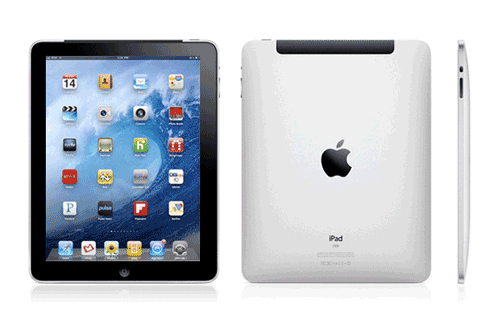
Rather than providing another glowing review of the iPad 2®, we thought it might be more helpful to sketch out the daily use potential of this incredible device based upon our experience and that of our 10-year old daughter. Yes, we’re one of the 30% who purchased an iPad 2 having already owned a number of first generation iPads. With double the RAM and nearly double the processing power of the first generation device, the one cautionary note that potential purchasers should heed is don’t buy the $499 model. Our daughter has survived a year with a $499 iPad only to find it completely full when she attempted to load Garage Band. And you will want Garage Band which is a storage hog by iPad standards. That’s not to suggest that Katherine’s iPad hasn’t served her well. She has almost 150 applications plus substantial collections of photos and music. What she doesn’t have is movies and video clips. With the addition of two cameras on the iPad 2 as well as Camera, AutoStitch, Movie, and Photo Booth apps and once you see what’s possible with iMovie, you’ll be begging for more storage capacity. Keep in mind that your storage capacity choice is irrevocable! There’s no way to add more storage later unless you buy a new device. And there’s no external storage other than removing apps and data through the iTunes interface. Perhaps more than anything else, that’s why the absence of a microSD slot on the iPad 2 is both a significant shortcoming and a huge disappointment.

The other suggestion we would offer to first-time iPad 2 purchasers is this. Get organized early. What we mean is decide early on how you’re going to use the 10 screens to organize your applications. Before the year is out, you will use all 10 screens assuming your bank account survives. At least now you can also create folders within a screen if you run out of room. Here’s our methodology, and it has served us pretty well. Screen 1 is reserved for the apps we use every day. The other screens are reserved for categories of applications: business, news and books, social, drawing and graphics, music, games, location-based services, and system/network management. If you’re a big gamer, artist, or musician, you may want to reserve two screens for your favorite category. The point is to spend a little time up front deciding how to organize applications. And, fortunately, you can move things around with the iTunes interface down the road so long as you leave one screen available for reorganizing.

You can also place six apps at the bottom of the display, and these are accessible from all 10 screens. Here’s where you’d want your browser, email or Gmail buttons, App Store, and Settings. That leaves you two more must-have apps. If you play music all the time, you’d probably want the iPod app. If you look at Photos all the time, you’d want the Photo app. But you get the idea, use Screen 1 for Daily Use Apps and the 6 bottom slots for your must-have at all times apps. If you don’t heed this advice, then you’ll find yourself having to search for apps on Screen 0 every time you want to use an application.

Favorite Apps. That brings us to our favorite apps. For ease of reference, we’ll cover these in the same way they are organized on our iPad 2. And, we’d love to hear about your favorite apps, too. Just post a comment. In the Daily Use category, here’s our list:

Calendar
Contacts
Mail
Maps
Videos
FaceTime
Camera
Photo Booth
EyeTV
YouTube
Hulu Plus
SlingPlayer
NetFlix
Bria
Travelin’ Man
OBiON
Pandora
Pulse News
Flipboard
iSWiFTER
 

Most of the above applications are self-explanatory, but we’ll mention a few. If you have a Mac, then EyeTV is a must-have addition. It lets you play and record all your favorite TV shows. Removing commercials from a one-hour show is about a 2-minute click-and-drag operation. And it’s incredibly easy to export your favorite recordings in either iPhone or iPad format. So long as iTunes is running on your Mac desktop, you can play your recordings or live TV at any time using either a WiFi or 3G network connection. SlingPlayer does much the same thing (only worse) with no recording capability, but it works with Windows machines as well as Macs, and it’s a standalone device. The Netflix app lets you stream movies and TV shows to your iPad for $7.99 a month, and it supports 6 simultaneous devices including many current generation HDTVs. OBiON is the VoIP app that lets you make free Google Voice calls in the U.S. and Canada using your $49 OBi device. You can read all about it here. If you have an Asterisk® PBX, then you’ll want Bria and our Travelin’ Man app for secure, remote, and free SIP communications. Finally, there’s the new iSWiFTER app which brings Flash video back from the dead on the iPad platform. It’s free for a limited time and, believe it or not, it’s available in the App Store.

Books & News. We spend every morning at the breakfast table with the Books & News page on our iPad. Here’s our list:

Kindle
iBooks
Friendly (Facebook)
Twitterific
AccuWeather
ABC News
ABC Player
CBS News
CNBC RT
CNN
Huff Post
Newsy
NYTimes
News Pro
USA Today
WSJ
Wash Post
The Daily
TV Guide
Tweetdeck
 

We don’t watch much Faux News which has become more akin to Incitement TV. We really hoped The Daily would be different. It’s not. But… to each his own.

Business Apps. This is kind of a catch-all page for stuff we use frequently as well as some apps we’ll probably never use again. Here’s our list:

iMovie
Keynote
Pages
Notes
Bento
Sorted
2Do
Todo
Zenbe Lists
Voice Memos
aNote Lite
Dictation
Due
FlipTime XL
MobileNoter
Pad Info
PaperDesk LT
News Rack
GoodReader
textPlus
 

Of all the ToDo applications that are available (and we’ve tried most of them), we like Todo the best. But, for quick reminders, you can’t beat Due. GoodReader, Keynote, and Pages are must have business apps, and iMovie is every bit as good as the app on the Mac. It’s about perfect for an on-the-go, need-it-in-a-hurry project.

Navigation & Wi-Fi Apps. When we’re on the road or looking for a WiFi Hot Spot or good place to eat, here’s our list:

CoPilot HD
Charts & Tides
Navionics Marines
ShipFinder HD
GPS Drive HD
GPS HD
Hurricane HD
UrbanSpoon
Epicurious
Where To Eat
ZAGAT
Zillow.com
WiFiGet HD
Dash Four
Mifi
World Atlas
Skobbler
SpeedBox
WiFon
Trapster
 

GPS navigation on the roads is hit and miss on the iPad. Nothing comes close to Google Maps navigation. CoPilot could be a contender except for the outdated maps and copy protection paranoia. On the water, both Charts & TIdes and Navionics Marine are fantastic. We compared both of them to a $10,000 Nav system on a very fine boat only yesterday. There was virtually no difference in the information available with the exception of the radar-enhanced features. If you’re always shopping for real estate, there is no finer app than Zillow, period. If you’re in to fast cars, there is no finer app than Trapster.

Games. Last but not least, everybody needs a diversion once in a while. Here’s a list of some of our favorite iPad games:

Game Center
GearedHD
Frogger
Foosball HD
AirCoaster
Angry Birds
Asphalt 5
JirboBreak
Doons HD
ElectroRacer
FarmVille (WAF)
Hit Tennis 2
iFooty
Pac-Man
Pinball HD
RealRacing HD
RealRacing GTI
Snowboarding
Checkers HD
Wacky Circus HD


This will probably be the category that changes the quickest with the new lightening-fast graphics and dual core processor on the iPad 2. Stay tuned!

Originally published: Monday, March 14, 2011


Need help with Asterisk? Visit the PBX in a Flash Forum or Wiki.
Or Try the New, Free PBX in a Flash Conference Bridge.


whos.amung.us If you’re wondering what your fellow man is reading on Nerd Vittles these days, wonder no more. Visit our new whos.amung.us statistical web site and check out what’s happening. It’s a terrific resource both for us and for you.


New Vitelity Special. Vitelity has generously offered a new discount for PBX in a Flash users. You now can get an almost half-price DID and 60 free minutes from our special Vitelity sign-up link. If you’re seeking the best flexibility in choosing an area code and phone number plus the lowest entry level pricing plus high quality calls, then Vitelity is the hands-down winner. Vitelity provides Tier A DID inbound service in over 3,000 rate centers throughout the US and Canada. And, when you use our special link to sign up, the Nerd Vittles and PBX in a Flash projects get a few shekels down the road while you get an incredible signup deal as well. The going rate for Vitelity’s DID service is $7.95 a month which includes up to 4,000 incoming minutes on two simultaneous channels with terminations priced at 1.45¢ per minute. Not any more! For PBX in a Flash users, here’s a deal you can’t (and shouldn’t) refuse! Sign up now, and you can purchase a Tier A DID with unlimited incoming calls for just $3.99 a month and you get a free hour of outbound calling to test out their call quality. To check availability of local numbers and tiers of service from Vitelity, click here. Do not use this link to order your DIDs, or you won’t get the special pricing! After the free hour of outbound calling, Vitelity’s rate is just 1.44¢ per minute for outbound calls in the U.S. There is a $35 prepay when you sign up. This covers future usage and any balance is fully refundable if you decide to discontinue service with Vitelity.


Some Recent Nerd Vittles Articles of Interest…

Introducing PogoPlug: Cloud Computing for $100 per Terabyte

Introducing PogoPlug

Ever wished you could build and manage your own Cloud Computing Center with minimal cost and no recurring charges… ever? Well, today’s your lucky day.

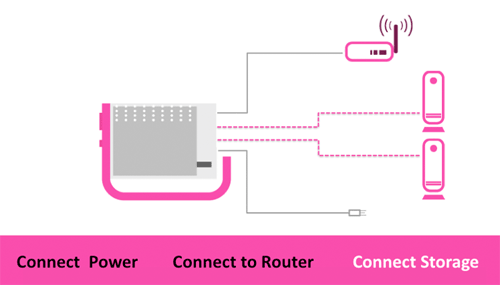
It takes a lot to get us excited about a new product offering. But this one is a real winner! For under $130, Cloud Engines provides you your very own PogoPlug 2.0 device that connects to your router and shares up to four USB drives over the Internet. At today’s prices and ignoring sales tax, that means you can put eight terabytes of Cloud Storage on line for a one-time cost of about $100/terabyte. To give you a point of reference, Google will rent you the same space for $256/terabyte… per year. And Google is one of the least expensive Cloud Computing resources out there. Here’s the math for naysayers:

4 – WalMart1 2TB WD MyBook Drives @ $169 each = $676
1 – PogoPlug 2.0 Device @ $129 each = $129
ONE-TIME, NON-RECURRING COST: $805/8TB or $100/TB

For those that don’t need 8 terabytes, the 2 terabyte setup including the drive and PogoPlug device is still just over half the one-year rental rate of equivalent storage from Google. And, just to be clear, this isn’t merely a storage device (like Amazon S3) requiring downloads before the files can actually be used. PogoPlug’s software makes these USB drives an integral part of your Desktop just like any other attached storage devices. Think WebDAV! So it makes a perfect home for your music, movie, and photo collections. There also are loads of Open Source applications for PogoPlug for those that like to tinker. And you can use PogoPlug to keep synchronized backups of your important files.

Other Options. Be aware that for about $50 less, you can purchase the Seagate FreeAgent DockStar Network Adapter which includes a single year of PogoPlug Internet support. After that, it’s $30 annually. Translation: By the end of the second year, you’re better off with the PogoPlug. So the choice is a No-Brainer in our book. But, the fact that Seagate is also standing behind the PogoPlug design should make everyone sleep more soundly.

Deployment. After a one-minute, one-time setup over the Internet, you can securely access all of your USB drive resources via PogoPlug using either a web browser or one of several free desktop applications that are available for Windows, Mac OS X, Linux as well as Android phones, iPhones, and (earlier today) Blackberrys. And you get free support and a terrific forum. The device works flawlessly behind either a DSL or cable modem AND a NAT-based router so there are no firewall issues to address. Just enter the serial number on the bottom of your device when you access the PogoPlug web site, and configuration is automatic.

Uploading Files. One of PogoPlug’s slickest features is its automatic cataloging of files which are uploaded. Once uploaded, you can view your Music, Movies, and Pictures by simply clicking on one of the buttons. Photos are cataloged into directories by the month in which the photos were taken. Music is indexed by artist, album, and genre. In addition, music by artist, album and genre as well as photo albums can be shared by entering email addresses for those that can access the materials, by enabling public viewing (assuming you have legal rights to do so), or by sharing items using your Twitter, Facebook, and MySpace credentials. We’ve shared a photo album just to give you an idea of how this works. The security and logistical nuts and bolts all are managed by Cloud Engines’ servers. You can review and modify the materials you’re sharing by clicking on the Files I Share link in your browser. Finally you can automatically alert those with share privileges when folder content is updated. Very slick!

Give PogoPlug a try. By clicking on one of our links, you also help support the Nerd Vittles project. We think you’ll be as thrilled as we are with this terrific new creation. Enjoy!


Need help with Asterisk®? Visit the PBX in a Flash Forum.
Or Try the New, Free PBX in a Flash Conference Bridge.


whos.amung.us If you’re wondering what your fellow man is reading on Nerd Vittles these days, wonder no more. Visit our new whos.amung.us statistical web site and check out what’s happening. It’s a terrific resource both for us and for you.


New Vitelity Special. Vitelity has generously offered a new discount for PBX in a Flash users. You now can get an almost half-price DID and 60 free minutes from our special Vitelity sign-up link. If you’re seeking the best flexibility in choosing an area code and phone number plus the lowest entry level pricing plus high quality calls, then Vitelity is the hands-down winner. Vitelity provides Tier A DID inbound service in over 3,000 rate centers throughout the US and Canada. And, when you use our special link to sign up, the Nerd Vittles and PBX in a Flash projects get a few shekels down the road while you get an incredible signup deal as well. The going rate for Vitelity’s DID service is $7.95 a month which includes up to 4,000 incoming minutes on two simultaneous channels with terminations priced at 1.45¢ per minute. Not any more! For PBX in a Flash users, here’s a deal you can’t (and shouldn’t) refuse! Sign up now, and you can purchase a Tier A DID with unlimited incoming calls for just $3.99 a month and you get a free hour of outbound calling to test out their call quality. To check availability of local numbers and tiers of service from Vitelity, click here. Do not use this link to order your DIDs, or you won’t get the special pricing! After the free hour of outbound calling, Vitelity’s rate is just 1.44¢ per minute for outbound calls in the U.S. There is a $35 prepay when you sign up. This covers future usage and any balance is fully refundable if you decide to discontinue service with Vitelity.


Some Recent Nerd Vittles Articles of Interest…

  1. The in-store pricing at WalMart is actually cheaper than on line for these particular drives. []

Apple’s iPad: A Home Run for Education

We’ve been anything but a cheerleader for Apple lately. And that applies in spades to the iPad. If you follow us on Twitter, here’s a sampling of our comments since the iPad was introduced last week.

The Computer Illiterate’s Dream Machine: Meet the iPad. http://bit.ly/c9sPED

Thinking you’ll slip your existing AT&T or T-Mobile SIM into Apple’s new iPad? Think again. http://bit.ly/9M8mbk

iPad: The Good http://tr.im/ipadg, The Bad http://tr.im/ipadb, and The Ugly http://tr.im/ipadu

iPad: Uh, but wait, No Camera http://tr.im/ipadc, No Flash http://tr.im/ipadf, No Multitasking http://tr.im/ipadm. No thanks.

Funny: Hitler’s take on the iPad. http://tr.im/ipadah

Why Apple Doesn’t Want Flash on the iPhone and iPad? It Finally Makes $ense. http://tr.im/theflash

The Vote That Really Matters: A 16-year-old’s view of Apple’s iPad: iFail http://tr.im/ipad16 (via @scobleizer)

Michael Dell demos what the iPad coulda/woulda/shoulda been. http://bit.ly/czYPww (via @engadget) #android Mini5

iPad Web Surfing: Here’s what the future holds. http://tr.im/noflash (via @gadgetweb) #surfsdown

RT @cultofmac: "Pundits On The iPad’s Closed System: It’s Doom For PCs, No It’s Great" http://bit.ly/cpFV4v

Apple iPad Micro SIM guarantees that you’ll be paying for two wireless data plans instead of one. http://bit.ly/bYipZP

Funny: iPad v. A Rock http://bit.ly/b50XP2 (via @TechCrunch)

RT @TechmemeFH: Apple reinventing file access, wireless sharing for iPad (Prince McLean/AppleInsider) http://bit.ly/awHJzG

Today’s Math Lesson: Hulu + Flash = Free Internet Movies. iPad – Flash = Megabucks for Apple from iTunes Movie Store sales

RT @dcagle: The library of the future, courtesy of the iPad http://bit.ly/bFvDAE #apple #toon

So what’s with the headline? Have we changed our mind? Well, no. It’s a lousy machine for us and for anyone above the age of puberty. But sometimes you need to look beyond the forest to find the nugget in the trees. And we’ve found the iPad’s Sweet Spot: It’s Lower School Education, Stupid!

For all the reasons that make the iPad an undesirable computing device for adults, it turns out these same qualities make it an almost perfect learning platform for young children, ages 3 to 12. In fact, we think it has the potential to revolutionize preschool and elementary education.

For openers, we can all probably agree that the key to a good education is good teachers. And that’s especially true when it comes to computer education. The problem, of course, is that teachers of young children don’t have the time or the resources to keep up with computer technology because they’re so busy doing all the things that parents should actually be doing to raise their kids. So, other than turning kids loose with a computer game, PCs have been all but worthless in lower school education because the teachers never had time to master the devices themselves. The iPad fixes that because of its incredibly simple learning curve. Any teacher can master the richness of the iPad interface in an hour. And it turns out that’s probably true for young children as well. If you don’t believe it, hand a kid your iPhone and come back in an hour.

A computer is important in early education because it’s much more patient and individually focused than any teacher ever could be. A computer doesn’t care how many times it takes a kid to master a specific topic. And, for young children, they need the repetition at their own pace until they actually get it. The iPad can handle all of these repetitive tasks while freeing the teacher up for observation and pinpoint coaching. So it levels the playing field by getting the "slow learners" up to speed without the usual frustrations of dealing with kids with different levels of comprehension. And the iPad accomplishes this while making education fun instead of frustrating!

Young kids learn with their hands. Walk in any lower school classroom if you don’t believe it. The iPad is a hands-on device. You use your hands literally for everything: a mouse, a navigation instrument, a drawing tool, and for writing and typing. So it’s a natural for kids, just like a hammer.

If you’ve ever visited a Montessori school, you’ll come away appreciating how critically important group collaboration can be to early education. Working in teams enhances learning in so many ways. The iPad is a natural collaboration tool. It can be used to encourage kids to jointly develop rich multimedia reports pulling from the web, their textbooks, images, and their classmates. iWork for iPad at $9.95 per application is the perfect development tool. And, as Steve Jobs demonstrated, the iPad makes a perfect presentation tool. Teaching kids to stand in front of their peers and tell a story is probably the single most important thing kids can learn in elementary education. You learn a lot more teaching others than you’ll ever learn as a student. Most of today’s adults never got it… nor did they have the opportunity that the iPad presents.

We could write a book about the advantages which would flow from getting rid of hardback books. Not only would it save trees and natural resources, but it also could turn books into living, breathing educational tools with rich multimedia presentations instead of static images. Instead of kids lugging around a backpack full of textbooks which will be obsolete in a year or two, they could carry an iPad with all of their learning tools, their schedules, their homework, and their presentations. Think about the possibilities, and you’ll come to appreciate why the iPad really could revolutionize education as we know it. We hope so. Go talk to the educators in your community and get them excited about this Golden Opportunity. You’re only young once!

For a well-balanced, thought-provoking review of the iPad, head over to emergent by design.

We’ll leave you with Neil Curtis’ 3-minute, adjective-laced version of Steve Jobs’ iPad Introduction. And, just in case you missed the Grammy Awards last night, there was an iPad Presentation there as well. Funny stuff!


Some Recent Nerd Vittles Articles of Interest…

Free At Last: The Emancipation of the Apple TV

We’ve never quite forgiven Apple1 for bricking some of the original iPhones because some owners chose to jailbreak their private property to learn how it worked or to add additional functionality. It may turn out to be Steve Jobs’ billion dollar blunder! The stunt was especially egregious when one considers that both the iPhone and much of Mac OS X are based upon open source software for which Apple didn’t pay a nickel. Apple certainly added a pretty wrapper, but the internals of both the iPhone and Mac OS X contain loads of pure open source code including dozens of Mach 3.0 and FreeBSD 5 applications. Destroying people’s cellular phones for accessing soft- ware that was licensed to Apple as open source code just doesn’t pass the smell test.

Courtesy of Apple, Inc.

Thus it was with mixed emotions that we unwrapped our Apple TV during Christmas 2007. Like the iPhone, it was locked up tighter than a drum even though the internals of the product read like a Who’s Who of the Open Source Movement: awk, bzip, cut, grep, find, ftp, finger, gzip, more, nano, openssl, perl, sed, tail, tar, touch, uname, whois, zip, and on and on. In fact, Mac OS X arguably is a better Linux than Linux. Suffice it to say, we read numerous articles outlining the lengths to which some talented users were going to unlock their Apple TVs. The process required disassembly of the unit, removal of the hard disk, and then a tedious unlocking scenario that was akin to breaking into Fort Knox. We chose to leave our Apple TV in its shrink wrap.

So what’s wrong with the Apple TV? Well, nothing… if you don’t mind paying Apple over and over again to reacquire media content which you already have licensed and if you don’t mind jumping through the iTunes hoops to transfer that content to a device which is perfectly capable of being self-sufficient. Let’s see. $1.99 to watch a TV show or play a music video that’s already sitting on your TIVO machine or that’s already freely (and legally) available from numerous sources on the Internet. Apple has added YouTube access, but the design really limits you to the most popular content. That makes it unsuitable (or worse) for anyone under the age of 13… or over the age of about 25. :roll:

Fast forward to 2009, and we decided it was time to take another look at the Apple TV landscape. WOW! What a difference a year makes. You now can create a bootable USB flash drive in a couple minutes, plug it into your Apple TV, and have a perfectly functioning, (true) open source appliance with DIVX and AVI support in less than 15 minutes. The FrontRow-enhanced Apple TV provides access to virtually all media content in every format imaginable with incredibly slick user interfaces thanks to the XBMC Media Center, Boxee Social Media Center, Nito TV, and Hulu. Most were originally designed for Microsoft’s Xbox. Uploads and downloads of media content can be performed using either your Apple TV controller and a television, or a web browser, or SAMBA networking, or SSH. So thanks to a resourceful bunch of talented, open source developers, we finally have an Apple TV worth owning that also happens to be fun to use. Incidentally, this whole metamorphosis can be accomplished without damaging the Apple TV’s existing user interface or its out-of-the-box functionality… at least until the next update from Apple. :-)
So proceed at your own risk!

Freeing Your Apple TV. Since October, 2008, the emancipation of the Apple TV has become a simple, 5-minute exercise. What you’ll need to get started is an Apple TV2 with version 2 software, a 1GB USB Flash Drive, and ATVUSB-creator which is free. The drill here is to create a bootable flash drive that can be used to reboot the Apple TV and transform its closed and proprietary shell into an open source platform. The preferred machine for creating your bootable flash drive is a Mac running Tiger or Leopard although a Windows XP/Vista solution is also available now. The only precaution we would add is to unplug all of the USB drives connected to your PC before creating the bootable flash drive. Then you won’t accidentally reformat the wrong USB drive. The one-minute CNET tutorial is here. A better one is here.

Once you have your bootable USB flash drive in hand, unplug your Apple TV and plug the USB drive into the unit. Now connect your Apple TV to a television. Power up your Apple TV and marvel at the installation process which takes under a minute. Whatever you do, don’t boot your Apple TV with the flash drive more than once! When the install completes, you should see a message indicating that your Apple TV can be accessed with SSH within a few minutes at frontrow@appletv.local. The password is frontrow. The IP address for your Apple TV also can be used for SSH access as well. Remove the flash drive and reboot. You’ll see a new menu option for XBMC/Boxee. Just follow the menu items to install both applications. After another reboot, you’ll be all set. Click on the CNET video above to watch a demo.

After installing the apps, launch and then configure XBMC. If you get an error that reads "Cannot launch XBMC/Boxee from path," it means you forgot to install the software through your TV menu. If you enable the web interface, you’ll be able to go to any browser on your LAN and manage XBMC through the following link using the IP address of your Apple TV: http://192.168.0.180:8080. For complete documentation, check out the XBMC Wiki.


Before you can use Boxee, you’ll need to visit their web site and sign up for an account. A tutorial on the application is available at UberGizmo. As luck would have it, this application only became publicly available in Alpha last week so we’re just in time. Don’t sweat the Alpha status too much, it previously ran on the XBox platform as well as Windows, Macs, and Linux. There’s social networking support via Twitter, FriendFeed, Tumblr, and NetFlix. While it’s running on your Apple TV, you can access the interface remotely with a browser from anywhere on your LAN at http://ipaddress:8800 assuming you have enabled the web server interface.

Hulu is another terrific resource for movies, TV shows and music videos. It is available through Boxee. There are a few ads but not many. For a lot of the movies, you’ll also need to set yourself up an account there and configure your uncrippled Apple TV accordingly.

But What About Asterisk®? We knew someone would ask. Sure. An Asterisk for Mac solution should work on the Apple TV if you don’t plan to use it as a media center. For best results, compile everything on a separate Tiger Mac, and then move it over. Keep in mind that the device is limited to 256MB of RAM so simultaneously using the Apple TV as both an Asterisk PBX and a media center more than likely will cause unacceptable performance degradation in both your phone calls and your music and video streams. Someday perhaps we’ll give it a try. In the meantime, enjoy your new open source media center!


Want a Bootable PBX in a Flash Drive? Next week to celebrate the beginning of Nerd Vittles’ Fifth Year, we’ll be introducing our bootable USB flash installer for PBX in a Flash with all of the goodies in the VPN in a Flash system featured a few weeks ago on Nerd Vittles. You can build a complete turnkey system using almost any current generation PC with a SATA drive and our flash installer in less than 15 minutes!

If you’d like to put your name in the hat for a chance to win a free one delivered to your door, just post a comment at this link with your best PBX in a Flash story.3

Be sure to include your real email address which will not be posted. The winner will be chosen by drawing an email address out of a hat (the old fashioned way!) from all of the comments posted over the next couple weeks. Good luck to everyone!


New Fonica Special. If you want to communicate with the rest of the telephones in the world, then you’ll need a way to route outbound calls (terminations) to their destination. For outbound calling, we recommend you establish accounts with several providers. We’ve included two of the very best! These include Joe Roper’s new service for PBX in a Flash as well as our old favorite, Vitelity. To get started with the Fonica service, just visit the web site and register. You can choose penny a minute service in the U.S. Or premium service is available for a bit more. Try both. You’ve got nothing to lose! In addition, Fonica offers some of the best international calling rates in the world. And Joe Roper has almost a decade of experience configuring and managing these services. So we have little doubt that you’ll love the service AND the support. To sign up in the USA and be charged in U.S. Dollars, sign up here. To sign up for the European Service and be charged in Euros, sign up here. See the Fonica image which tells you everything you need to know about this terrific new offering. In addition to being first rate service, Fonica is one of the least expensive and most reliable providers on the planet.
 
New Vitelity Special. Vitelity has generously offered a new discount for PBX in a Flash users. You now can get an almost half-price DID and 60 free minutes from our special Vitelity sign-up link. If you’re seeking the best flexibility in choosing an area code and phone number plus the lowest entry level pricing plus high quality calls, then Vitelity is the hands-down winner. Vitelity provides Tier A DID inbound service in over 3,000 rate centers throughout the US and Canada. And, when you use our special link to sign up, the Nerd Vittles and PBX in a Flash projects get a few shekels down the road while you get an incredible signup deal as well. The going rate for Vitelity’s DID service is $7.95 a month which includes up to 4,000 incoming minutes on two simultaneous channels with terminations priced at 1.45¢ per minute. Not any more! For PBX in a Flash users, here’s a deal you can’t (and shouldn’t) refuse! Sign up now, and you can purchase a Tier A DID with unlimited incoming calls for just $3.99 a month and you get a free hour of outbound calling to test out their call quality. To check availability of local numbers and tiers of service from Vitelity, click here. Do not use this link to order your DIDs, or you won’t get the special pricing! After the free hour of outbound calling, Vitelity’s rate is just 1.44¢ per minute for outbound calls in the U.S. There is a $35 prepay when you sign up. This covers future usage and any balance is fully refundable if you decide to discontinue service with Vitelity.


Some Recent Nerd Vittles Articles of Interest…

  1. Disgruntled customers reportedly have filed over a billion dollars’ worth of lawsuits over their bricked iPhones claiming Apple did it intentionally. Great PR move there, Steve! []
  2. The Apple TV actually runs a modified version of Tiger (aka Mac OS X 10.4). []
  3. This offer does not extend to those in jurisdictions in which our offer or your participation may be regulated or prohibited by statute or regulation. []

Apple’s iPhone: Free At Last!

We raved about the iPhone when it was first released. And today we wanted to give you a brief update because of some very good news. Other than the cost which now has been addressed, the two serious shortcomings that we’ve seen with the iPhone both centered around Apple’s decision to lock the platform. This led to two major drawbacks. First, it forced at least those in the U.S. to use AT&T for wireless service. To say they are a dreadful provider just really doesn’t cover it. For any of you that hated Sprint three years ago and left, guess what? All those people you hated seem to have moved to AT&T… with reinforcements. The good news is that Sprint now has some of the most courteous, helpful staff of any provider in the industry. Go figure?

WARNING: Do not attempt any of the following if the firmware on your iPhone is 1.1.1 or higher. Read this forum for details.

The second major limitation was the inability to add any applications other than Apple’s to the iPhone. Yes, you can do instant messaging through some stranger’s web site with your web browser if you don’t mind sharing your usernames and passwords with folks you don’t know. We can’t wait for the online banking scams. Can’t you see it now? Log into your favorite bank through our site, and you can transfer funds (to us!) quicker than we can say Ka-ching! Sorry, but Web 2.0 is an absolutely lousy platform for any application that collects or uses personal information. The intermediate web site operator can harvest every piece of information you type. Yes, you should make certain that you trust the provider before using their site. Try telling that to a bunch of teenagers that miss their free instant messaging.

So, where were we? All of the above has changed in the last couple weeks, and today we’ll walk you through how to easily unlock your iPhone in about 5-10 minutes to take advantage of the changes. Once you do this, you’ll be in your own iPhone Orbit which means no more Apple updates to the iPhone unless you’re willing to completely wipe everything off your phone and start over. This isn’t as big a deal as it sounds since most of your stuff (photos, address book, and music) is stored in iTunes anyway. What will you have when you’re finished? A perfect iPhone! You can add your own applications in seconds. And there are close to a hundred apps already. And you can use any SIM card you like. So, when you travel out of the country, you can purchase an El Cheapo SIM card in Mexico and have a functioning, low cost iPhone.

Unlocking Your iPhone. Let’s start with the obvious. Make certain you have a properly functioning, up to date iPhone before you begin. If you haven’t upgraded your firmware to 1.0.2 using iTunes, do that first and be sure everything is still chugging along before attempting to unlock the phone. And, of course, the obligatory warnings. YOU’RE DOING ALL OF WHAT FOLLOWS AT YOUR OWN RISK. Read the whole article first and be sure you appreciate the risks AND you’re comfortable performing all of the steps. If you’re not willing to assume the risk that accompanies living on the Bleeding Edge, then leave your iPhone alone and wait for Apple to release 1.0.3 or whatever.

The Mac Solution. If you happen to live in a household with both Macs and PCs, then you can perform this magic just as we did. The Mac needs to be running Tiger. The PC needs Windows XP with SP2 although Vista reportedly works as well. We didn’t try Vista! For Mac users, the easiest process is to follow this guide. First, download and install iNdependence 1.1.1 on your Mac, not the newer version. Next, download the 91MB iPhone 1.0.2 restore files and put the decompressed folder where you can find it. Plug your iPhone into your Mac and shut down iTunes if it autostarts. Kill the iTunes Helper app using Activity Monitor. Then load iNdependence. Click the Jailbreak tab and then the Perform Jailbreak button. Using the Finder dialog box, find the folder location where you stored the 1.0.2 restore files and click Open. Now, for the tricky part. Step 6 involves holding down the Home and Sleep buttons on your iPhone until you see the spinning pizza wheel. This occurs shortly after the iPhone begins its reboot. Release the buttons immediately. If your iPhone reboots normally (as ours did on the first try), you waited too long. Just repeat the steps again and work on your timing. When you do it correctly, you’ll see a pretty picture of a jail cell. When the Jailbreak is completed, iNdependence will return to its native state. Click on the SSH tab and then the Install SSH/SFTP/SCP button. Once you get the Jailbreak success message, do a special reboot of your iPhone by holding Home + Sleep buttons down for 3 seconds. Then power off your iPhone in the standard way. Now Power On your iPhone and wait while the software is loaded. When it finishes, do another special reboot as above. And you’re done. Skip the Return to Jail step for now.

Changing the Root Password on Your iPhone. A special word of caution is in order here. The root password for your iPhone is dottie. Just about everyone in the world knows that now. With SSH and SFTP now installed on your iPhone, anybody that deciphers your IP address can log into your iPhone unless the password is changed. Hmmm. The bad news. The passwd app is NOT loaded on the iPhone, and we have yet to find a trustworthy copy of it. If you don’t change the root password on your phone, anyone at any Starbucks has a good shot at trashing your phone. All they need is your IP address: ssh -l root 192.168.0.122. For the time being, the easiest way to make the change is first to generate a new password file at this web site. Once you have the text file in hand, hop on over to this site and follow the instructions to update the /etc/master.passwd file on your iPhone.

The Windows Approach. You no longer need a Mac to perform the jailbreak. Reportedly, iBrickr can do the same thing. Just watch the video on the IBrickr web site for details on the jailbreak process. There’s also a Mac-compatible version called Breezy which we haven’t tried. We’re going to use iBrickr for a different purpose, however. It’s become the very best tool for loading custom applications onto your jailbreaked iPhone. You also can use it to load custom ringtones and wallpaper. Download and store iBrickr 0.8 on your Windows PC. Once downloaded, plug in your iPhone and click on the folder location where you unzipped the iBrickr files and double-click ibrickr.exe to run the application.

iBrickr installs files in the PXL image format. There’s a pxl installer on the iPhone that does all the dirty work so all you have to do is find the application you want with a PXL installer. You’ll find about about 50 of them on Nate True’s site or the mirror site, and there’s a growing collection on this Google Code site. So download your favorites into a folder on your PC.

Installing Applications with iBrickr. To install the applications, run the iBricker.exe program while your iPhone is connected to your PC and choose Applications. Then click Install from PXL file. Click on the application desired and wait for your phone to beep after a software refresh. It’s about a 30-second exercise for most applications. The new application will appear in the bottom row of the SpringBoard. Keep in mind that there’s only room for four more applications on the iPhone SpringBoard. If you want more than that, install the Launcher application as one of your first four choices or load the SpringBoard rearranger.

Unlocking the AT&T SIM. Thousands of articles have already been written about this. The price went from $100 to $0 in less than a day. Now you can simply install the anySIM 1.01 PXL image and run it to switch SIM chips on your phone. Be sure to first consult their web site for late-breaking announcements. Enjoy!


Some Recent Nerd Vittles Articles of Interest…

Introducing Version 3 of the Plug-and-Play Asterisk IP PBX for the Intel Mac

NOTE: The system referenced in this article is no longer supported by Nerd Vittles as this version of Asterisk® has been phased out. For the latest and greatest, please consider our new PBX in a Flash offering.

We don’t usually write about stuff we haven’t personally tested, but we’re making a partial exception today because we don’t (yet) own an Intel Mac. Donations, anyone? Where were we? Thanks to the work of literally hundreds of developers, there is a terrific Asterisk IP PBX with an incredible array of additional bells and whistles. That product which we have tested extensively is TrixBox 1.2.3. It’s so good, in fact, that we chose it as the base system for all of the Nerd Vittles applications that we write about each week. For Halloween last year, we introduced Version 3 of our Plug-and-Play Asterisk IP PBX for Windows. Then a week later, we showed how to take a standard install of TrixBox 1.2.3 on Linux and NerdVittlize it into the equivalent of our version 3 build for Windows. When you were finished, you had a secure, turnkey Asterisk IP PBX with all of the Nerd Vittles software collection and virtually every mission-critical add-on anyone could ever dream of for a phone system: freePBX, an Apache web server, a SendMail server, PHP, MySQL, WebMin, SugarCRM contact management, FTP and SSH support, Perl, integrated fax-to-email support, calling card billing, and more. And it all runs quite peacefully in a CentOS 4.4 Linux wrapper on either a dedicated Linux machine or on your Windows Desktop.

What was missing unfortunately was a way to run this same system on a Mac. Yes, there’s an Asterisk implementation on the Mac platform. But it’s downright primitive compared with the systems we’ve been writing about for the last 18 months. So today we have not one but two special treats for the Mac enthusiasts of the world. First, it’s now possible to run our standard Version 3 system using the new VMware beta for the Intel Mac. You can download it here (561MB). You’ll also need to install the VMware Fusion beta software on your Intel Mac. Just fill out this form and then download the software. At least the beta is free, and the clients have remained free on other platforms.

Thanks to one of our great contributors, Gillam Hall, there’s now another alternative: a Parallels Desktop image of our Version 3 Asterisk system. You’ll first need to purchase and install Parallels Desktop on your Intel Mac. Parallels Desktop requires Mac OS X 10.4.6 or later. Then you can download the Parallels Desktop image of Version 3 here (535MB).

After installing either VMware Fusion or Parallels Desktop on your Mac, all you need to do is download either our standard VMware Version 3 Build or the new Parallels Version 3 .tar.gz Build, decompress the archived file, and run it in a VMware or Parallels window on your Mac Desktop. Once you get it running, hop over to our Version 3 tutorial for Windows and configure your system. To maximize performance, make sure you also apply the tweaks covered in the Comments to that tutorial. The total setup time is about 30 minutes once you have the download in hand. Enjoy!

What To Do Next. Once your new PBX is humming away, here are the next steps. First, you’ll want to upgrade freePBX to version 2.2.x. The tutorial to walk you through the drill can be found here. Last but not least, you’ll want to apply the latest Asterisk security patches to prevent a denial of service attack on your system. The tutorial for that can be found here.

Securing AsteriDex. Because of a security vulnerability in our very own AsteriDex, you’ll need to download and install this simple patch as well. Log into your Asterisk server as root and issue the following commands:

cd /var/www/html/asteridex
rm -f callboth.php
wget http://nerdvittles.com/trixbox11/callboth.zip
unzip callboth.zip
rm -f callboth.zip
chown asterisk:asterisk callboth.php
chmod 775 callboth.php

Ringbinder theme by Themocracy