Category: Microsoft PCs

The Good, the Bad, and the Ugly: Windows 8 Touchscreen Roundup

We began our Windows 8 adventure a few weeks ago with a look at Microsoft’s promising Surface Pro. As much as we liked the concept, there were a few too many compromises for us, and we ended up returning the machine. The deal breaker really was figuring out what to do with the awkward keyboard when you wanted to use the Surface Pro as a tablet. The connector sticks out of the end of the keyboard so there would always be a concern that it was going to somehow get damaged. There was also intermittent confusion between the Surface Pro and Windows 8 as to whether the external keyboard was plugged in or not. This sometimes left you with a tablet and no popup keyboard. We couldn’t even log in. The solution seemed to be making sure you always removed or added the keyboard only when the machine was completely turned off. So much for hot swappable. We’re sure that these shortcomings will get sorted out over the next few months, but we weren’t that interested in being a paying pioneer.

We still needed a good Windows 8 machine on which to test and run our telephony applications. As much as we love our 27″ iMac and MacBook Air, we never like to get too far away from the Microsoft tent especially when Apple is showing signs of returning to their old proprietary ways. Hope springs eternal that the great M$FT comeback is just around the next corner. So what to do?

Portability was a key consideration because we spend considerable time away from home base during the summer. For us, the choice came down to either a good UltraBook or a desktop machine that was easy to move from place to place. As mentioned in our Surface Pro review, the machine also had to be capable of running the BlueStacks Android emulator as well as Oracle’s VirtualBox to host our Linux development platform.

Let’s begin with The Good. For our UltraBook selection, we chose the new Asus Ultrabook UX31A Touch. What a mouthful. The specs were nothing out of the ordinary: 13.3″ Full HD (1920×1080), Intel Core i5 (1.7Ghz) processor, 4GB DDR3 RAM, Intel HD Graphics, WiFi, Bluetooth, and a 128GB SSD with Windows 7 Home Premium. But what a surprise. This machine is a MacBook Air killer. Close your eyes and imagine a MacBook Air with Windows 8 and a touchscreen. Quiet. Excellent performance. Stunning display. Awesome lighted keyboard. Terrific battery life. Ultra lightweight (under 3 pounds). 8 seconds to boot up. And thin (.7″ to be exact). We love this machine. If you’re looking for a portable Windows 8 computer, look no further. Nobody is going to top this one unless the same unit is offered by another retailer with a price tag below Best Buy’s current sale price of $1100.

And Now: The Bad and The Ugly. Sony is the hands-down winner of both awards on the same machine. When you look at the spec sheet, Sony’s new VAIO Tap 20 Mobile Desktop should be the ultimate Dream Machine with its Core i7 processor and 8 gigs of RAM. Add a battery and a semi-portable, but beautiful, 20-inch screen, and it had all the makings of a perfect desktop replacement. And then we turned it on. 45 seconds to boot. A 5400 RPM drive that performs more like a floppy drive when matched against the Asus Ultrabook. "Unbelievably poor performance when loading and running applications" is being kind. For example, taking a screenshot with the Asus Ultrabook is a split-second operation with the image instantly available in the Metro Photos app. Repeating the drill on the Tap 20 took a good 20 seconds for the screenshot to even appear in the Photos collection. We intentionally held off ordering one of these machines until the i7 processor was available because the reviews of the i5 model were so bad. And to think Best Buy actually sells an i3 version of this machine. Hopefully, they leave it on overnight with a large cache enabled.

What’s sad about this is we’ve been a huge fan of Sony products for over 40 years. They always represented best of breed and usually were years ahead of the competition in features. Little wonder that Steve Jobs copied everything he could from Sony when he returned to Apple. Sony made awesome tape recorders including reel-to-reel, 8-track, cassette, and even BetaMax. Their computers and televisions always stood out from the crowd. The Walkman was over 21 years old when the iPod finally hit the market! So what happened?

This machine is a a bit of an embarrassment. 1600×900 resolution on a 20-inch display. Seriously? It means you can’t even watch an HD movie. Putting a 5400 RPM drive in a Core i7 machine is just plain silly. To save five bucks? The computer is so slow that Windows 8 repeatedly locked up just handling trivial tasks. Alerts from Norton routinely popped up warning of impending doom from the poorly performing drive. It’s the only Windows 8 machine that we’ve ever seen hang shutting down when no applications were even running on the desktop. Sorry, Sony, you really blew it. This one’s coming back.

Serenity Now. Just when we had all but given up hope of finding the perfect Windows 8 touchscreen desktop, we decided to forego portability and settle for anything that could truly match the 27″ iMac in performance and features. And, yes, we wanted a great price as well. We’ve always been a big fan of refurbished machines because you know that someone has actually tested the unit to make sure it works. Well, guess what $1,200 will buy? The Dell XPS One 2710T is finally available as an almost half-price, refurbished machine sporting a 3.10 GHz Quad-core i7 processor, 8GB RAM, NVIDIA GeForce GT 640M 2GB GDDR5 Graphics card, 2TB 7200 RPM and DVD+/-RW drives, magnificent 27″ touchscreen display, and a one-year Dell warranty. Add a $50 Crucial m4 32GB mSATA SSD accelerator,1 and you’ve got a gen-u-wine rocketship! It was the well-deserved PCMag Editor’s Choice for 2012. This one’s not going back!

We quickly downloaded our favorite Android VoIP app, Groove IP, from Google’s Play Store using BlueStacks. Then we performed a couple of quick calls using a Google Voice account. The calls were flawless even with our shaky DSL connection on a very snowy day in the mountains. Adding BlueStack’s Cloud Connect will let you push existing apps from your Android phone or tablet to your Windows 8 desktop.

SAMBA connections work fine after the usual tweaks to the Windows Registry and a reboot. NeoRouter as a VPN client or server functions just as you would expect after telling Windows 8 to run the main programs as Administrator. Windows 8 is a bit more picky about this even when you’re logged in as an Administrator. Oracle’s VirtualBox as a virtual machine platform for Linux appliances works swimmingly, and performance is AMAZING. We built an Incredible PBX server using the latest .ova template in under 5 minutes, and we were making free calls and sending out faxes through Google Voice in under 10 minutes.


PBX in a Flash News. If you don’t subscribe to the PBX in a Flash Forum, you probably should. We’ve added a spiffy What’s New Web Portal that will tell you everything you need to know about what’s going on in the Asterisk World. The most important items this week include the release of CentOS 6.4 this past weekend which broke new PBX in a Flash installs briefly. Unlike the other distros, PIAF compiles from source and always gives you the latest updates to CentOS. Sometimes that bites us. But all is well today. The other big news is a major bug in Asterisk 11.2.1 which caused Google Voice to stop working after a period of time until Asterisk was restarted. This has been addressed in Asterisk 11.3 RC1, and we’ll have updates available shortly. In the meantime, you can discover the real beauty of a source-based distribution like PIAF, and upgrade yourself. It’s easy! Here’s how:

amportal stop
cd /usr/src
wget http://downloads.asterisk.org/pub/telephony/asterisk/releases/asterisk-11.3.0-rc1.tar.gz
tar zxvf asterisk-11.3.0-rc1.tar.gz
mv asterisk asterisk-last
mv asterisk-11.3.0-rc1 asterisk
cd asterisk
make clean
./configure
contrib/scripts/get_mp3_source.sh
make menuselect
make
make install
cd ..
cd asterisk-flite
make clean
make
make install
ldconfig
amportal start
echo "Check whether Flite is functioning..."
asterisk -rx "core show application flite"
echo "Check whether CDR reporting is functioning..."
asterisk -rx "module show like mysql"
cd /root
status

The only tricky part is when the menuselect screen appears. Here’s your cheat sheet for the proper settings with PBX in a Flash. Use the cursor keys to move around. Use the Enter key to select/deselect entries. If no section is listed below, leave the default settings. Tab to Save & Exit when you’re finished and press Enter. That’s it.

  • Add-ons – Select top 4 entries in –extended–
  • Channel Drivers – Deselect chan_gtalk and chan_jingle
  • Extra Sound Packages – Select EXTRA-SOUNDS-EN-GSM

Fail2Ban Fails After Midnight. We’re adding this update because of a serious bug discovered on computers running CentOS 6.3 and below. When your logs are automatically rotated, Fail2Ban ceases to function. So, while you’re sleeping like a baby, SO IS Fail2Ban! There’s a simple fix that you’ll find on the PBX in a Flash Forum. Basically, you need to restart Fail2Ban just after your logs are rotated. The bug has been partially addressed in the CentOS 6.4 release.

Originally published: Monday, March 11, 2013   Last Updated: Thursday, March 14, 2013


Need help with Asterisk? Visit the PBX in a Flash Forum.


A Terrific New Vitelity Special for PIAF Users. Vitelity has just announced a new and improved discount for PBX in a Flash users. You now can get an almost half-price DID from our special Vitelity sign-up link plus more. If you’re seeking the best flexibility in choosing an area code and phone number plus the lowest entry level pricing plus high quality calls, then Vitelity is the hands-down winner. Vitelity provides Tier A DID inbound service in over 3,000 rate centers throughout the US and Canada. And, when you use our special link to sign up, the Nerd Vittles and PBX in a Flash projects get a few shekels down the road while you get an incredible signup deal as well. The going rate for Vitelity’s DID service is $7.95 a month which includes up to 4,000 incoming minutes on two simultaneous channels with terminations priced at 1.45¢ per minute. For PBX in a Flash users, here’s a deal you can’t refuse! Sign up now, and you can purchase a Tier A DID with unlimited incoming calls, free SMS messaging, free 911 alerts, and free in-network calling for only $3.99 a month. Better hurry! This won’t last forever. To check availability of local numbers and tiers of service from Vitelity, click here. Do not use this link to order your DIDs, or you won’t get the special offer! Vitelity’s rate for outbound calls in the U.S. is just 1.44¢ per minute. There is a $35 prepay when you sign up. This covers future usage. Any balance is fully refundable if you decide to discontinue service with Vitelity at any time. Enjoy!


Some Recent Nerd Vittles Articles of Interest…

  1. There are conflicting reports on how to add an after-market mSATA SSD to the Dell XPS One and get it functioning as a fast cache for your computer. Here’s what worked for us. Lay the computer monitor-side-down on a blanket with the top of the machine facing away from you. With a small Phillips head screwdriver, loosen the two screws on each end of the bottom of the panel, and then slide the back cover towards the top of the machine and remove it. The large metal plate covering the motherboard has to be removed. It’s held in place by 8 screws. Once it’s out of the way, you’ll see two openings for an mSATA card. Gently insert the SSD card in the right one at a 45 degree angle. Then press it down and secure it with the two screws included with the card. Reassemble the computer. Turn it on and press F2 when the Dell logo appears. Go into the Advanced settings, Onboard Device Configuration, SATA Mode. Change the primary drive to RAID. Save your changes with F10 and reboot. When Windows 8 appears, access Control Panel and choose Intel Rapid Storage Technology. Choose the Accelerate option and accept the defaults. Reboot and you’re good to go. []

The Ultimate Android Tablet: Meet the Microsoft Surface Pro

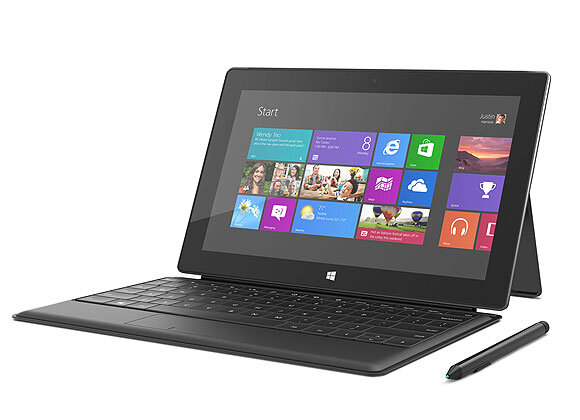
We were fully prepared to hate the Microsoft Surface Pro. After all, it was designed and produced by Microsoft, and we haven’t seen many flashes of brilliance from Redmond since the XBox. That was more than eleven years ago! Yes, Microsoft has new smartphones, but they’re too little, too late in our opinion. So why is the Surface Pro different? For openers, it runs pure Windows 8, not the Windows RT crippleware. While we’re not much of a Windows cheerleader any more (we were for the first 25 years), it is worth noting that Apple has one operating system for desktops and notebooks and a different (crippled) one for smartphones and tablets. And Google has one operating system for its notebooks and a very different one for its smartphones and tablets. Microsoft, on the other hand, had a better idea. The same operating system runs on both its desktop computers, its notebooks, and its latest tablet, the Surface Pro. What that means is the same application that runs on your desktop computer can now perform equally well on a tablet. And it can do it with or without the Surface’s revolutionary, portable keyboard. Application portability is huge especially if your company happens to still be a pure Microsoft shop. And it’s especially important if you or your employees happen to travel for a living.

It Just Works. So much for the theory. The bottom line for us was whether our existing PBX in a Flash, Incredible PBX, and Android platforms could live and breathe on the Surface Pro. The short answer is a resounding YES. This is not the crippled, proprietary Windows RT platform found in the original (klunky) Surface. This is a fully functional Windows 8 machine with an Intel processor, blazing performance, and both microSD and USB 3.0 slots, nice additions that you won’t find on a lot of tablets. If an app will run with Windows 7 or Windows XP, it works just as well or better on the Surface Pro. And with BlueStacks, you can run 750,000 Android apps on your Surface Pro as well. We quickly downloaded our favorite Android VoIP app, Groove IP, from Google’s Play Store using BlueStacks. Then we performed a couple of quick calls using a Google Voice account. The calls were flawless even with our shaky DSL connection on a very snowy day in the mountains. Adding BlueStack’s Cloud Connect will let you push existing apps from your Android phone or tablet to your Surface Pro. Pretty cool.

For a complete technical review of the Surface Pro, visit ZDnet or TechRadar. Just pray you never need repairs.

The only thing we’ve found missing hardware-wise on the Surface Pro is a PrintScreen key on the awesome keyboard which is a must-have, by the way. To print screens, you’ll need to use the tablet trick: VolDown + Home. But, as you can see from the screenshot above, it works fine. Because of the high resolution screen however, you lose something shrinking the images down to 650 pixels. On the software front, there were few surprises. WiFi is rock solid, and links to MiFi devices make the Surface Pro truly portable. If ass-backwards scrolling with the touchpad drives you crazy, use RegEdit and search for the mouse entry for FlipFlopHScroll. Change the decimal value from 0 to 1. The Chrome browser works fine with the keyboard and mousepad, but you’ll be using Internet Explorer to work with the touchscreen in tablet mode. Hopefully, that will get fixed shortly.

SAMBA connections work fine after the usual tweaks to the Windows Registry and a reboot. NeoRouter as a VPN client or server functions just as you would expect after telling Windows 8 to run the main programs as Administrator. Windows 8 is a bit more picky about this even when you’re logged in as an Administrator. Oracle’s VirtualBox as a virtual machine platform for Linux appliances works swimmingly, and performance is AMAZING. We built an Incredible PBX server using the latest .ova template in under 5 minutes, and we were making free calls and sending out faxes through Google Voice in under 10 minutes. Amazing!

Family Feud. There’s only one major shortcoming worth noting. Microsoft has taken their feud with Google to a whole new level with Windows 8. It’s not so much the Bingification of every Windows utility that bothers us. It’s what appears to be a conscious effort to banish Google from the Windows platform entirely. Think Apple! Those using two-step authentication for Google services are S.O.L. when it comes to Gmail. You’re left having to deploy Gmail as an IMAP mail service to get your mail at all. Giving Microsoft the benefit of the doubt, you could give them a pass on this if it had just been the initial Windows 8 release. But there have been plenty of patches and updates since Day One, and two-step authentication for Google services remains MIA. If the United States is going to retain its lead in the software development arena, Microsoft and Google and Apple had best bury the hatchet and learn how to work together to make their offerings complimentary. Consumers aren’t going to tolerate this kind of seventh grader nonsense in this day and age. So, wake up, Microsoft. Ruining an otherwise promising platform while trying to shaft Google is a lousy business decision, and it’s going to backfire. Consumers will simply move exclusively to their platform of choice, and guess what? That platform isn’t going to be Microsoft. More importantly, this article is a testament to what actually can be accomplished in Googlifying a Surface Pro with a little Yankee ingenuity. For all practical purposes, our Surface Pro is the best Android tablet we’ve ever owned, and we’ve owned a few. So here’s a little tip for Microsoft: Remember what made Windows a hit! Ubiquity, not exclusivity!

Originally published: Monday, February 18, 2013


Need help with Asterisk? Visit the PBX in a Flash Forum.


whos.amung.us If you’re wondering what your fellow man is reading on Nerd Vittles these days, wonder no more. Visit our new whos.amung.us statistical web site and check out what’s happening. It’s a terrific resource both for us and for you.


New Vitelity Special. Vitelity has generously offered a new and improved discount for PBX in a Flash users. You now can get an almost half-price DID from our special Vitelity sign-up link. If you’re seeking the best flexibility in choosing an area code and phone number plus the lowest entry level pricing plus high quality calls, then Vitelity is the hands-down winner. Vitelity provides Tier A DID inbound service in over 3,000 rate centers throughout the US and Canada. And, when you use our special link to sign up, the Nerd Vittles and PBX in a Flash projects get a few shekels down the road while you get an incredible signup deal as well. The going rate for Vitelity’s DID service is $7.95 a month which includes up to 4,000 incoming minutes on two simultaneous channels with terminations priced at 1.45¢ per minute. Not any more! For PBX in a Flash users, here’s a deal you can’t (and shouldn’t) refuse! Sign up now, and you can purchase a Tier A DID with unlimited incoming calls, free SMS messaging, free 911 alerts, and free in-network calling for just $3.99 a month. To check availability of local numbers and tiers of service from Vitelity, click here. Do not use this link to order your DIDs, or you won’t get the special pricing! Vitelity’s rate is just 1.44¢ per minute for outbound calls in the U.S. There is a $35 prepay when you sign up. This covers future usage and any balance is fully refundable if you decide to discontinue service with Vitelity.


Some Recent Nerd Vittles Articles of Interest…

The 5-Minute PBX: PIAF Virtual Machine for VirtualBox (Windows, Mac, or Linux)

For most of us, today marks the last time we’ll ever see the day, month, and year line up on the calendar in perfect harmony so Happy 12-12-12 to everyone. It’ll be 88+ years before it happens again. And the Mayans believe the world will be ending in 9 more days so there may be no need to worry about the 88 years anyway. Whatever happens, it seemed like an appropriate time to take stock of how we’re doing in the development of the Perfect PBX™. Such an assessment, of course, is in the eyes of the beholder. From our perspective, in addition to being feature-rich, it has to have three components: ease of installation, ease of use, and flexibility. The first two are self-explanatory but flexibility needs some explanation. Flexibility to us means a feature set that’s appealing not only to those just beginning the journey but also to those of us that need to make frequent changes and additions to the platform to keep it current or make it better. After all, that’s what open source is all about.

The real beauty of PBX in a Flash has not been that someone with sufficient expertise couldn’t assemble something just as good or even better. Watch the AstriCon presentations from this year if you have any doubts. The beauty of PIAF is it puts this technology down where the goats can get it. It provides a toolset that encourages further development by simplifying the learning curve for a broad cross-section of the VoIP community while not compromising functionality or flexibility. The source code for the major components is included in the build so you can customize and recompile Asterisk or load a new version of Asterisk or any additional Linux app in minutes without losing your existing setup.

As many of you know, we have literally hundreds of gurus on the PIAF Forum. That doesn’t mean any particular person or group knows everything. It’s merely a designation that a particular individual is an expert at something. The collective wisdom of the group is what makes PBX in a Flash as a project better because we’ve put in place a platform that experts from many different disciplines can build upon without needing to learn everything about everything. Simply stated, you can be a terrific chef without knowing how to build a stove!

Turning to Asterisk® 11 and FreePBX® 2.11, from everything we’re seeing, these new releases are shaping up to be a remarkable step forward both in terms of toolset and in the new mindset of the development community. That’s a good thing. For our part, we’ve wanted to get our latest preview release of PBX in a Flash with CentOS 6.3, Asterisk 11 and the new FreePBX 2.11 beta into as many hands as possible keeping in mind the objectives we outlined above.

The Ultimate VoIP Appliance: PIAF Virtual Machine for VirtualBox

Today brings us to a new plateau in the virtual machine development era. Thanks to the masterful work of Tom King on PBX in a Flash 2.0.6.3.1, we’re pleased to introduce a new product that can be installed in under 5 minutes and will run on any Windows PC, Mac, or Linux machine as well as Solaris. And, unlike the dedicated machine platforms and OpenVZ compromises of years past, today’s PIAF Virtual Machine gives you everything a bare metal install from source code would have provided. Most importantly, the components are truly portable. They can be copied to a 4GB flash drive1 for the price of a good hamburger and installed from there onto any type of machine that happens to be in front of you. Five minutes later, you have a fully functional Asterisk server with FreePBX and exactly the same feature set and source code that you would have had doing a bare metal PIAF install to a dedicated server. And we’ve built both a production-ready PIAF-Purple VM with Asterisk 1.8 and FreePBX 2.10 as well as a Pioneer edition PIAF-Green VM with Asterisk 11 and FreePBX 2.11 beta. The choice is yours. No Internet access required to perform the install. Sound too good to be true? Keep reading or, better yet, try the PIAF appliance for yourself. The install process is simple:

  1. Download and install VirtualBox onto a Desktop Machine of your choice
  2. Download and double-click on the PIAF Virtual Machine to import it into VirtualBox
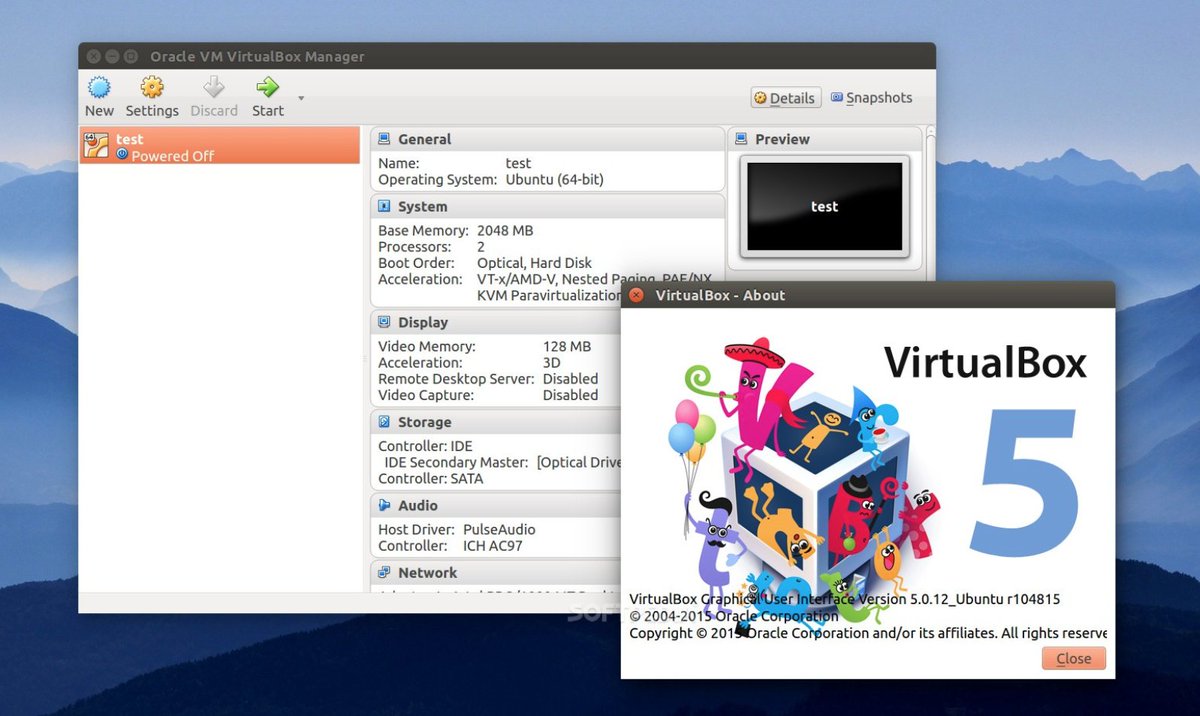
  3. Select the PIAF Virtual Machine in VirtualBox Manager Window and click the Start button

Introducing Oracle VM VirtualBox

We’re late to the party, but Virtual Box®, Oracle’s virtual machine platform inherited from Sun, is really something. It’s not only free, but it’s pure GPL2 code. VirtualBox gives you a virtual machine platform that runs on top of any desktop operating system. In terms of limitations, we haven’t found any. We even tested this on an Atom-based Windows 7 machine with 2GB of RAM, and it worked without a hiccup. So step #1 is to download one or more of the VirtualBox installers from VirtualBox.org or Oracle.com. As mentioned, our recommendation is to put all of the 100MB installers on a 4GB thumb drive. Then you’ll have everything in one place whenever and wherever you happen to need it. Once you’ve downloaded the software, simply install it onto your favorite desktop machine. Accept all of the default settings, and you’ll be good to go. For more details, here’s a link to the Oracle VM VirtualBox User Manual.

Introducing the PIAF Virtual Machine

We’ll walk you through installing the PIAF-Green Virtual Machine. It’s basically the same procedure with PIAF-Purple except you get to skip the reassembly step since the PIAF-Purple.ova image is only 1.3GB.

The PIAF-Green Virtual Machine tips the scales at over 2GB. Because of the 2GB file size limit on many systems, we’ve chosen to split this download into two pieces. You need both of them. Just download them onto any flavor desktop from SourceForge. Once you’ve downloaded the two files, we need to reassemble them into a single file known as an Open Virtualization Appliance (.ova). Then verify the checksums for the reassembled file to be sure everything is in its proper place. Finally, we’ll double-click on the .ova file which will initiate the import process into VirtualBox.

So let’s begin by downloading the two halves of PIAF-Green from SourceForge: PIAFGREENaa and PIAFGREENab. If you’d prefer production-ready code, just download PIAF-Purple.ova and skip the reassembly step. There’s also a new surprise offering that’s covered in the comments to this article. :-)

The reassembly procedure depends upon your desktop operating system. For Windows PCs, you’ll need to drop down to the Command Prompt, change to the directory in which you downloaded the two files, and type the following command:
 
copy /b PIAFGREENaa + PIAFGREENab PIAF-Green.ova

To check the MD5/SHA1 checksums in Windows, download and run Microsoft’s File Checksum Integrity Verifier.

For Mac or Linux desktops, open a Terminal window, change to the directory in which you downloaded the two files, and type the following commands:
 
cat PIAFGREENa{a..b} > PIAF-Green.ova
md5 PIAF-Green.ova (use md5sum for Linux)
openssl sha1 PIAF-Green.ova

The correct MD5 checksum for PIAF-Green ( PIAF-Green.ova) is a86a018466c7045372e51100cddd42ea. For PIAF-Purple.ova, it’s 664b1afe75c3b1877029531b0fe28063. The correct SHA1 checksum for PIAF-Green is d883c5e137ac19ecb45c1e6f127180b78a9cd0af. For PIAF-Purple, it’s 15f94352745ca989fd9939d9a8ee8b765fc8388c. If you have a match, proceed. Otherwise, rinse and repeat.

Importing the PIAF Virtual Machine into VirtualBox

You only perform the import step one time. Once imported into VirtualBox, PBX in a Flash is ready to use. There’s no further installation required, just like an OpenVZ template… only better. Double-click on the .ova file you downloaded to begin the procedure and load VirtualBox. When prompted, be sure to check the Reinitialize the Mac address of all network cards box and then click the Import button. Once the import is finished, you’ll see a new PIAF virtual machine in your VM List on the VirtualBox Manager Window. Regardless of flavor, you’ll need to make a couple of one-time adjustments to the PIAF Virtual Machine configuration to account for differences in sound and network cards on different host machines.

Click on the PIAF Virtual Machine in the VM List. Then click Settings -> Audio and check the Enable Audio option and choose your sound card. Save your setup by clicking the OK button. Next click Settings -> Network. For Adapter 1, check the Enable Network Adapter option. From the Attached to pull-down menu, choose Bridged Adapter. Then select your network card from the Name list. Then click OK. Finally, click Settings -> System, uncheck Hardware clock in UTC time, and click OK. That’s all the configuration that is necessary for your PIAF Virtual Machine. The rest is automagic.

Running the PIAF Virtual Machine in VirtualBox

Once you’ve imported and configured the PIAF Virtual Machine, you’re ready to go. Highlight PIAF Virtual Machine in the VM List on the VirtualBox Manager Window and click the Start button. The PIAF boot procedure with CentOS 6.3 will begin just as if you had installed PBX in a Flash on a standalone machine. You’ll see a couple of dialogue boxes pop up that explain the keystrokes to move back and forth between your host operating system desktop and your PIAF VM.

Here’s what you need to know. To work in the PIAF Virtual Machine, just left-click your mouse while it is positioned inside the VM window. To return to your host operating system desktop, press the right Option key on Windows machines or the left Command key on any Mac. For other operating systems, read the dialogue boxes for instructions on moving around. Always shut down PIAF gracefully! Click in the VM window with your mouse, log in as root, and type: shutdown -h now.

Run the PIAF Virtual Machine behind a hardware-based firewall with no Internet port exposure!

To begin, position your mouse over the VM window and left-click. Once the PIAF VM has booted, log in as root with password as the password. Change your root password immediately by typing passwd at the command prompt. Now set up a secure maint password for FreePBX as well. Type passwd-master. If you’re not in the Eastern U.S. time zone, then you’ll want to adjust your timezone setting so that reminders and other time-sensitive events happen at the correct time. While logged into your server as root, issue these commands to download and run the timezone-setup script:

cd /root
wget http://pbxinaflash.com/timezone-setup.tar.gz
tar zxvf timezone-setup.tar.gz
./timezone-setup

Next, use a browser to log into your PIAF server by pointing to the IP address of the PIAF VM that’s displayed in the status window of the CLI. Click on the User button to display the Admin choices in the main PIAF Menu. Click on the FreePBX option to load the FreePBX GUI. You will be prompted for an Apache username and password. For the username, use maint. For the password, use whatever password you set up with passwd-master.

Now read the latest PIAF Quick Start Guide and begin your VoIP adventure. Then you’ll want to do some reading on VirtualBox. We’ve barely scratched the surface. Setting up Headless VMs that run in the background on any server is a breeze. From the command line, here’s an article to get you started. But you also can start Headless VMs from within the GUI by highlighting the VM and clicking Shift->Start. Always shut down VMs gracefully: Close->ACPI Shutdown. You’ll find more great tips at virtualbox.org and GitHub.

One of the real beauties of VirtualBox is you don’t have to use a GUI at all. The entire process can be driven from the command line. Other than on a Mac, here is the procedure to import, configure, and run PIAF-Purple Virtual Machine:
 
VBoxManage import PIAF-Purple.ova
VBoxManage modifyvm "PIAF-Purple" --nic1 nat
VBoxManage modifyvm "PIAF-Purple" --acpi on --nic1 bridged
VBoxHeadless --startvm "PIAF-Purple" &
# Wait 1 minute for PIAF-Purple to load. Then decipher IP address like this:
VBoxManage guestproperty get "PIAF-Purple" /VirtualBox/GuestInfo/Net/0/V4/IP
# Now you can use SSH to login to PIAF-Purple at the displayed IP address
# Shutdown the PIAF-Purple Virtual Machine with the following command:
VBoxManage controlvm "PIAF-Purple" acpipowerbutton

On a Mac, everything works the same way except for deciphering the IP address. Download our findip script for that.

Enjoy!

Originally published: Wednesday, December 12, 2012


Need help with Asterisk? Visit the PBX in a Flash Forum.


New Vitelity Special. Vitelity has generously offered a new discount for PBX in a Flash users. You now can get an almost half-price DID from our special Vitelity sign-up link. If you’re seeking the best flexibility in choosing an area code and phone number plus the lowest entry level pricing plus high quality calls, then Vitelity is the hands-down winner. Vitelity provides Tier A DID inbound service in over 3,000 rate centers throughout the US and Canada. And, when you use our special link to sign up, the Nerd Vittles and PBX in a Flash projects get a few shekels down the road while you get an incredible signup deal as well. The going rate for Vitelity’s DID service is $7.95 a month which includes up to 4,000 incoming minutes on two simultaneous channels with terminations priced at 1.45¢ per minute. Not any more! For PBX in a Flash users, here’s a deal you can’t (and shouldn’t) refuse! Sign up now, and you can purchase a Tier A DID with unlimited incoming calls for just $3.99 a month. To check availability of local numbers and tiers of service from Vitelity, click here. Do not use this link to order your DIDs, or you won’t get the special pricing! Vitelity’s rate is just 1.44¢ per minute for outbound calls in the U.S. There is a $35 prepay when you sign up. This covers future usage and any balance is fully refundable if you decide to discontinue service with Vitelity.


Some Recent Nerd Vittles Articles of Interest…

  1. Many of our purchase links refer users to Amazon when we find their prices are competitive for the recommended products. Nerd Vittles receives a small referral fee from Amazon to help cover the costs of our blog. We never recommend particular products solely to generate Amazon commissions. However, when pricing is comparable or availability is favorable, we support Amazon because Amazon supports us. []

Introducing NeoRouter VPN: A Star Is Born

In our last article, we introduced PPTP VPNs for interconnecting remote users and branch offices to a central network hub. Known as a hub-and-spoke VPN, the advantage of this design is it lets remote users participate as peers in an existing home office LAN. It’s simple to set up and easy to maintain. The drawback is vulnerability to man-in-the-middle attacks.

Today, we want to turn our attention to the more traditional client-server VPN which still relies upon a central server but uses a star topology to connect remote nodes. The major difference is that only registered devices participate in the virtual private network so there is no direct access to other machines on the LANs of the registered devices. If you have servers scattered all over the countryside, this is an excellent way to manage and interconnect them. All data and communications between the nodes can then be routed through the encrypted VPN tunnel for rock-solid security.

With NeoRouter’s free software, you can set up your VPN server using a PC, a Mac, a Linux or FreeBSD machine, OpenWrt Backfire, and Tomato. VPN clients are available for PCs, Macs, Linux and FreeBSD PCs, OpenWrt, Tomato as well as Android phones and tablets. There’s even an HTML5 web application in addition to a Chrome browser plug-in. With the OpenWrt and Tomato devices or if you’re an extreme techie, you can broaden your NeoRouter star configuration to include bridging of remote LANs. See pp. 47-50 of the NeoRouter User’s Manual. And you can interconnect up to 256 devices at no cost. For $999, you can enlarge your VPN to support 1,000 devices. Screen sharing, remote desktop connections, HTTP, and SSH access all work transparently using private IP addresses of the VPN nodes which are automatically assigned to the 10.0.0.0 private network.

You may be wondering why we’ve moved on from Hamachi. Suffice it to say, LogMeIn has put the squeeze on the free version to the point that it’s now next to worthless. In fact, you’d be hard-pressed to find any mention of a free version of Hamachi (other than a trial edition) on LogMeIn’s current web site. Here’s a feature comparison which says it better than we could:

Today we are introducing the first of two NeoRouter VPN solutions. First, we have a simple installation script that works with any PBX in a Flash 2™ server. See also our more recent column for the dedicated server edition of NeoRouter VPN known as VPN in a Flash. It’s suitable for use on a dedicated server or running as a virtual machine. For smaller VPNs, we prefer the add-on module for PBX in a Flash. For larger deployments, you probably should opt for the dedicated machine. It also isolates your VPN server from your PBX which generally is the better network strategy. Regardless of the installation scenario you choose, keep in mind that neither option requires exposure of your entire server to the Internet. Only a single TCP port needs to be opened in your hardware-based firewall and IPtables Linux firewall.

NeoRouter Setup with PIAF2™. We’re assuming you already have a PBX in a Flash 2 server set up behind a hardware-based firewall. If not, start there. Next, we’ll need to download and run the installer for your new NeoRouter Server. It also installs the client. Just log into your server as root and issue the following commands:

wget http://incrediblepbx.com/install-neorouter
chmod +x install-neorouter
./install-neorouter

The installer will walk you through these five installation steps, but we’ll repeat them here so you have a ready reference down the road.

First, on your hardware-based firewall, map TCP port 32976 to the private IP address of your PIAF2 server. This tells the router to send all NeoRouter VPN traffic to your PIAF2 server when it hits your firewall. If you forget this step, your NeoRouter VPN will never work!

Second, we’re going to use your server’s public IP address as the destination for incoming traffic to your NeoRouter VPN. If this is a dynamic IP address, you’ll need an FQDN that’s kept current by a service such as DynDNS.com.

Third, each administrator and user is going to need a username to access your NeoRouter VPN. You can use the same credentials to log in from multiple client machines, something you may or may not want to do. We’re going to set up credentials for one administrator as part of the install. You can add extra ones by adding entries with one of the following commands using the keyword admin or user. Don’t use any special characters in the username and password!

nrserver -adduser username password admin
nrserver -adduser username password user

Fourth, make up a very secure password to access your NeoRouter VPN. No special characters.

You’re done. Review your entries very carefully. If all is well, press Enter. If you blink, you may miss the completion of the install process. It’s that quick.

Fifth, after your NeoRouter VPN is installed, you can optionally go to the NeoRouter web site and register your new VPN by clicking Create Standalone Domain. Make up a name you can easily remember with no periods or spaces. You’ll be prompted for the IP address of your server in the second screen. FQDNs are NOT permitted.

When a VPN client attempts to login to your server, the server address is always checked against this NeoRouter database first before any attempt is made to resolve an IP address or FQDN using DNS. If no matching entry is found, it will register directly to your server using a DNS lookup of the FQDN. Whether to register your VPN is totally up to you. Logins obviously occur quicker using this registered VPN name, but logins won’t happen at all if your server’s dynamic IP address changes and you’ve hard-coded a different IP address into your registration at neorouter.com.

Setting Up a NeoRouter Client. As mentioned previously, there are NeoRouter clients available for almost every platform imaginable, except iPhones and iPads. Hopefully, they’re in the works. So Step #1 is to download whatever clients are appropriate to meet your requirements. Here’s the NeoRouter Download Link. Make sure you choose a client for the Free version of NeoRouter. And make sure it is a version 1.7 client! Obviously, the computing platform needs to match your client device. The clients can be installed in the traditional way with Windows machines, Macs, etc.

CentOS NeoRouter Client. As part of the installation above, we have automatically installed the NeoRouter client for your particular flavor of CentOS 6, 32-bit or 64-bit. In order to access resources on your NeoRouter server from other clients, you will need to activate the client on your server as well. This gets the server a private IP address in the 10.0.0.0 network.

To activate the client, type: nrclientcmd. You’ll be prompted for your Domain, Username, and Password. You can use the registered domain name from neorouter.com if you completed step #5. Or you can use the private IP address of your server. If your router supports hairpin NAT, you can use the public IP address or server’s FQDN, if you have one. After you complete the entries, you’ll get a display that looks something like this:

To exit from NeoRouter Explorer, type: quit. The NeoRouter client will continue to run so you can use the displayed private IP addresses to connect to any other online devices in your NeoRouter VPN. All traffic from connections to devices in the 10.0.0.0 network will flow through NeoRouter’s encrypted VPN tunnel. This includes inter-office SIP and IAX communications between Asterisk® endpoints.

Admin Tools for NeoRouter. Here are a few helpful commands for monitoring and managing your NeoRouter VPN.

Browser access to NeoRouter Configuration Explorer (requires user with Admin privileges)

Browser access to NeoRouter Network Explorer (user with Admin or User privileges)

To access your NeoRouter Linux client: nrclientcmd

To restart NeoRouter Linux client: /etc/rc.d/init.d/nrservice.sh restart

To restart NeoRouter Linux server: /etc/rc.d/init.d/nrserver.sh restart

To set domain: nrserver -setdomain YOUR-VPN-NAME domainpassword

For a list of client devices: nrserver -showcomputers

For a list of existing user accounts: nrserver -showusers

For the settings of your NeoRouter VPN: nrserver -showsettings

To add a user account: nrserver -adduser username password user

To add admin account: nrserver -adduser username password admin

Test VPN access: http://www.neorouter.com/checkport.php

For a complete list of commands: nrserver –help

To change client name from default pbx.local1:

  • Edit /etc/hosts
  • Edit /etc/sysconfig/network
  • Edit /etc/sysconfig/network-scripts/ifcfg-eth0
  • Edit /etc/asterisk/vm_general.inc
  • reboot

For the latest NeoRouter happenings, follow the NeoRouter blog on WordPress.com.

GPL2 License. The install-neorouter application is open source software licensed under GPL2. The NeoRouter Server and Client software is freeware but not open source. This installer has been specifically tailored for use on PBX in a Flash 2 servers, but it can easily be adjusted to work with virtually any Linux-based Asterisk system. If you make additions or changes, we hope you’ll share them on our forums for the benefit of the entire VoIP community. Enjoy!

Originally published: Wednesday, April 18, 2012


Need help with Asterisk? Visit the NEW PBX in a Flash Forum.


whos.amung.us If you’re wondering what your fellow man is reading on Nerd Vittles these days, wonder no more. Visit our new whos.amung.us statistical web site and check out what’s happening. It’s a terrific resource both for us and for you.


New Vitelity Special. Vitelity has generously offered a new discount for PBX in a Flash users. You now can get an almost half-price DID from our special Vitelity sign-up link. If you’re seeking the best flexibility in choosing an area code and phone number plus the lowest entry level pricing plus high quality calls, then Vitelity is the hands-down winner. Vitelity provides Tier A DID inbound service in over 3,000 rate centers throughout the US and Canada. And, when you use our special link to sign up, the Nerd Vittles and PBX in a Flash projects get a few shekels down the road while you get an incredible signup deal as well. The going rate for Vitelity’s DID service is $7.95 a month which includes up to 4,000 incoming minutes on two simultaneous channels with terminations priced at 1.45¢ per minute. Not any more! For PBX in a Flash users, here’s a deal you can’t (and shouldn’t) refuse! Sign up now, and you can purchase a Tier A DID with unlimited incoming calls for just $3.99 a month. To check availability of local numbers and tiers of service from Vitelity, click here. Do not use this link to order your DIDs, or you won’t get the special pricing! Vitelity’s rate is just 1.44¢ per minute for outbound calls in the U.S. There is a $35 prepay when you sign up. This covers future usage and any balance is fully refundable if you discontinue service with Vitelity.


Some Recent Nerd Vittles Articles of Interest…

  1. We’ve built a script to rename your PIAF2 server in all the right places. You can download it here. []

11/11/11: To Celebrate Nerd New Year’s, Please Welcome…

Nerd Vittles Daily Dump

Just click on the image above to visit the site. Content is updated at least twice daily. As always, we welcome your content suggestions. Enjoy!

Originally published: Friday, November 11, 2011


Great News! Google Plus is available to everyone. Sign up here and circle us. Click these links to view the Asterisk feed or PBX in a Flash feed on Google+.


Need help with Asterisk? Visit the PBX in a Flash Forum.
Or Try the New, Free PBX in a Flash Conference Bridge.


whos.amung.us If you’re wondering what your fellow man is reading on Nerd Vittles these days, wonder no more. Visit our new whos.amung.us statistical web site and check out what’s happening. It’s a terrific resource both for us and for you.


New Vitelity Special. Vitelity has generously offered a new discount for PBX in a Flash users. You now can get an almost half-price DID and 60 free minutes from our special Vitelity sign-up link. If you’re seeking the best flexibility in choosing an area code and phone number plus the lowest entry level pricing plus high quality calls, then Vitelity is the hands-down winner. Vitelity provides Tier A DID inbound service in over 3,000 rate centers throughout the US and Canada. And, when you use our special link to sign up, the Nerd Vittles and PBX in a Flash projects get a few shekels down the road while you get an incredible signup deal as well. The going rate for Vitelity’s DID service is $7.95 a month which includes up to 4,000 incoming minutes on two simultaneous channels with terminations priced at 1.45¢ per minute. Not any more! For PBX in a Flash users, here’s a deal you can’t (and shouldn’t) refuse! Sign up now, and you can purchase a Tier A DID with unlimited incoming calls for just $3.99 a month and you get a free hour of outbound calling to test out their call quality. To check availability of local numbers and tiers of service from Vitelity, click here. Do not use this link to order your DIDs, or you won’t get the special pricing! After the free hour of outbound calling, Vitelity’s rate is just 1.44¢ per minute for outbound calls in the U.S. There is a $35 prepay when you sign up. This covers future usage and any balance is fully refundable if you decide to discontinue service with Vitelity.


Some Recent Nerd Vittles Articles of Interest…

Incredible Fax: Free Faxing Returns to Incredible PBX 1.8

It’s been a rocky road getting an open source (free) faxing alternative to work reliably with Asterisk® 1.8. To further complicate things, CentOS 5.6 was finally released which brought us a few more Asterisk 1.8 headaches and updates finally leading up to an all-new and nearly perfect PBX in a Flash 1.7.5.6 thanks in large part to Tom King. The new release also forced some under-the-covers modifications in Incredible PBX. Now you’re caught up on last week’s news. But what have we done for you lately?

Well, one alternative was to shift gears to the commercial Fax for Asterisk from Digium® which is supported in FreePBX 2.8 and 2.9 and includes one free license. But we’re open source fans and, of course, nothing beats free. Thanks to the efforts of a number of folks on the PBX in a Flash forums including our old pal, Joe Roper, there is an alternative that folks have been wrestling with for over two years. The combination of Hylafax, Avantfax, and IAXmodem is a compelling open source solution if you don’t need T.38-compatible faxing.1 The drawback has been the learning curve to install all the components and get them working reliably together. Well, for those using Incredible PBX 1.8 with PIAF-Purple and Asterisk 1.8, today we have a newly minted installation script that is simple enough that even a monkey can use it. If you know your own email address and your local area code AND you can find the Enter key on your keyboard, you are fully qualified to perform today’s installation. It’ll take you under 5 minutes! We’ve also got a nice little surprise for you toward the end of this article.

Prerequisites. You’ll first need to install the latest version of PBX in a Flash with the PIAF-Purple (Asterisk 1.8) payload. Then sign up for a free Google Voice account and install Incredible PBX 1.8. You’ll find complete installation instructions for everything here. Can you just wing it and run this installation script on a garden-variety Asterisk 1.8 machine? No. And the reason is that all of these components have dependencies which are too complex to cover in a 5-minute article. You might want to have a look at the A-Fax Project which is where we started. Suffice it to say, the combination of PIAF-Purple and Incredible PBX 1.8 provides the ideal platform on which to install Incredible Fax. If you prefer to do-it-yourself, by all means have at it. We lost about 10 years worth of hair even starting with the work of a dozen very talented Linux gurus who have been wrestling with this for over two years! But, hey, YMMV! We never claimed to be the sharpest tool in the shed. :wink:

Installing Incredible Fax. Once you have your Incredible PBX 1.8 platform up and running, adding Incredible Fax is a stroll in the park. Just log into your server as root and issue the following commands. If you’ve downloaded Incredible PBX in the last few days, the script may already be on your system. In this case, just type /root/incrediblefax.sh to run it.

cd /root
wget http://incrediblepbx.com/incrediblefax.sh
chmod +x incrediblefax.sh
./incrediblefax.sh

After checking to make sure Incredible PBX 1.8 is installed, the script will prompt you to enter an email address where incoming faxes should be delivered. Then all of the necessary components will be installed after which the Avantfax install script will be run. With the exception of entering your local area code when prompted to do so, the correct response to every other question is to press the Enter key if you live in the U.S. or Canada. Don’t "improve" anything if you expect the end product to work reliably. For those outside North America, you’ll need to also make the usual adjustments to account for your country and city codes.

Avantfax has its own security model, but we’ve grown to appreciate the Apache authentication model which is built into PBX in a Flash so it’s been incorporated into Incredible Fax as well. When the install completes, just reboot your server to get everything working. On the PBX in a Flash web GUI, there will be a new Admin icon for Faxing. Or you can access Avantfax with a browser by going to http://serverIPaddress/avantfax. When prompted for your username and password, use maint and whatever your maint password happens to be. These can be reset with passwd-master. Literally everything has been preconfigured in Avantfax to get you going. Here’s a 3-minute video to show you how easy it is. Just don’t forget to reboot once the install completes.

If you want to be able to print to fax from Windows-based machines, then you’ll need to make one addition. Click on the small Toolbar icon in the upper right corner of the AvantFax home screen and choose New User from the pull-down Menu. For the user, enter Fax for the Name, fax for the Username, a secure password for Password, and an email address that is DIFFERENT from the one you used to set up Incredible Fax. Check the boxes for User Can Delete Faxes and User Can Fax From Any Modem. Finally, check the boxes for all four IAXmodems. Then click the Save button to add this new user.

A Word About Reliable Faxing. Suffice it to say that analog faxing over VoIP trunks is something less than ideal. If you want reliable analog faxing, then you’ll need a PSTN line from your favorite local telephone company. It doesn’t need any fancy add-ons like CallerID which doubles the price in many cities. Then you’ll need a properly configured analog telephone adapter (ATA) with at least one FXO port to support your Ma Bell phone line. Our favorite is the OBi110 which also can double as an additional Google Voice trunk for your PBX. But an SPA3102 will work equally well. It just costs more and gives you less.

Now that we’ve covered the obligatory warnings… will Incredible Fax work with a pure VoIP connection? Absolutely. We do it all the time. Is it flawless? No. Are there certain providers that are better than others? You bet. Do some providers not support faxing at all? Correct. Based on our 5+ years wrestling with this, here’s our recommendation. First, you’ll need a DID (i.e. phone number) from one of our recommended providers to handle inbound faxes. With the latest release of Asterisk 1.8, you no longer need a DID dedicated to faxing. In other words, you can use the same DID to receive incoming voice calls as well. The good news is that pay-as-you-go DIDs are dirt cheap. Some providers such as voip.ms offer DIDs for under $1 a month with 1¢ per minute calls. VoIP.ms also has unlimited inbound calling DIDs for under $4 a month. Other providers whose trunks we have found work reliably for VoIP faxing include Vitelity (see our special sign up deal below), Axvoice, Teliax, VoIPMyWay ($45 for first year with unlimited outbound and inbound calling with a local DID), and Future-Nine2. Google Voice trunks are hit and miss. We’re batting about .250 in our testing with Google Voice lines. Bottom Line: If VoIP faxing doesn’t work after you complete the install, it’s probably the fault of your VoIP trunk, not the setup. To make absolutely sure, connect a standard fax machine to an extension using an FXS telephone adapter and send a fax to that extension from the Avantfax web interface. You’ll find it works every time!

Configuring FreePBX for Incredible Fax. Here are the steps you’ll need to complete to get analog faxing working reliably with FreePBX. First, set up an account with one of the companies we’ve mentioned above. With voip.ms, create a subaccount on their site with credentials to use with the DID you purchased to link to that subaccount.

Unless you’re using today’s release of Incredible PBX, you’ll need to activate FreePBX’s Fax Configuration Module if you want to take advantage of Asterisk 1.8′s fax detection capabilities. It didn’t work reliably in previous Asterisk 1.8 releases. This module already is either available or already installed on your server. In the FreePBX GUI using a browser, choose Tools, Module Admin and then click on Fax Configuration. A drop-down list will provide several choices. Choose either Install or Enable depending upon the version of Incredible PBX you currently are running. Then click the Process button and finally Reload the settings when prompted.

Unless you installed Incredible PBX today, you’ll need to create a SIP trunk for your new provider in FreePBX using the credentials you set up on the provider’s web site. The VoIP.ms template now is included in Incredible PBX so you can just edit the existing one to add your credentials. And, at least with VoIP.ms, you can set the outbound CallerID to anything you like (as long as it’s legal). Unless you want a knock at your door, we wouldn’t recommend using the main number at the White House. Then put all of the settings below in the Outgoing Settings PEER Details where 1234567 is your main account number, subacctname is the name of the subaccount you created, and atlanta is your closest voip.ms server location:

username=1234567_subacctname
type=friend
trustrpid=yes
sendrpid=yes
secret=subacctpassword
nat=yes
insecure=port,invite
host=atlanta.voip.ms
fromuser=1234567_subacctname
disallow=all
context=from-trunk
canreinvite=nonat
allow=ulaw

For the registration string, it should look like the following. If you’re planning to only use the trunk for outbound faxing, then you can leave off the trailing DID number.

username:password@atlanta.voip.ms:5060/10-digit-DID

In addition to setting up the Trunk for your provider, you’ll also need to create an Outbound Route for sending faxes out through this trunk AND an Inbound Route to receive incoming faxes on the DID you purchased from your provider.

For the Outbound Route, we recommend setting the Dial Pattern with a prefix not otherwise used on your Incredible PBX so that you can make fax calls easily by dialing this prefix. For example, on our sample system, we used 7 so that fax calls could be made by dialing 7 plus a 10-digit number in the U.S. and Canada. Here’s how our Outbound Route for VoIP.ms looks in FreePBX, and the latest Incredible PBX release already has it in place as shown below:

For the Inbound Route, you want to specify the DID from your provider which must match the 10-digit number you affixed to the end of the trunk registration string above. If you don’t want to share this number for voice and fax calls, then simply direct these inbound fax calls to the Fax Custom Destination. Extension (329 spells F-A-X) also can be used to process incoming faxes and route them to your email address as well as the Avantfax web GUI.

Our experience suggests that using a single trunk for both voice and fax delivery is hit and miss so you may wish to consider adding an additional trunk just to support faxing. You’ll find the templates for adding a second Google Voice trunk in the /tmp directory, and complete instructions are available on the PIAF Forums. We’ve also provided preconfigured trunk settings for both Vitelity and VoIP.ms if you’d like to try those options as well. Just plug in your credentials and configure an inbound route to map incoming faxes to the Fax Custom Destination.

AvantFax in a Nutshell. Here’s a quick summary of the main features in the AvantFax web GUI. You can access the GUI by pointing a browser to the IP address of your server + /avantfax. After you enter your maint account name and maint password, the following screen will display with your Inbox. As noted, all of these incoming faxes also will be emailed to the account you set up when you ran the Incredible Fax install script.

The icons to the right of each thumbnail fax let you View, Rotate, Download PDF, Reply to Fax, Email PDF, Add a Note, Archive the Fax, and Permanently Delete the Fax.

At the top of the screen just to the right of Inbox is the option to Send a Fax. Here you’d specify the phone number to dial. Don’t forget the 7 and then a 10-digit number. Next you can attach a document from your local disk. Finally, fill in the blanks for the Fax Cover Sheet, and then click Send. Your fax will be on its way. You can monitor the progress of the fax transmission by clicking on Outbox. It’s also a good idea to fire up an SSH session to your server and run asterisk -rvvvvvvvvvv to monitor the first few calls to be sure all is well in Incredible FaxLand.

Implementing Fax on Demand. Finally, there’s a nifty little command line utility for sending faxes from within the Linux CLI. You can attach PDF files as well as any sort of plain text file. Here’s the command syntax: sendfax -n -d 78005551212 /etc/crontab. The most practical use for this command line utility would be to construct a Fax on Demand service to let callers dial in to download a PDF document to their fax machine. So we’ve done a simple one just to show you how easy it is to construct. When callers dial in to the Fax on Demand service, they are prompted to enter the number of their fax machine and then a document number (0-9) to retrieve. The Fax on Demand service then delivers the requested PDF document to their fax machine. You can embellish this in any way you like obviously.

If you’ve downloaded Incredible PBX 1.8 since yesterday (May 1), this service already is enabled once you install Incredible Fax and activate VoIP.ms service. Just dial 363 (F-O-D) from an extension on your system, enter your fax number (it can be an extension on your local system as well) and then 0-9 for the document number to retrieve. You can easily point a DID to the FaxOnDemand Misc Destination to enable the service for outside callers; however, versions downloaded before 9 p.m. EDT this evening lacked a password option so don’t do it without replacing the code with what’s provided in the next paragraph AND adding a secure password! See the next paragraph for the location of the dialplan code. The actual PDF documents are stored in /var/lib/asterisk/agi-bin with file names of fod-0.pdf through fod-9.pdf. Sample documents already are there for you to try out.

If you’d like to add this to your existing Incredible PBX system, log into your system as root and edit extensions_custom.conf in /etc/asterisk. Add the following block of code just below the [from-internal-custom] context marker at the top of the file. Make certain you change the password on line 3 to something VERY SECURE if you provide outside access to this service. You don’t want creeps sending faxes to very expensive phone numbers on your nickel. Then restart Asterisk. Now execute the following commands to load the sample PDF documents onto your server:

cd /var/lib/asterisk/agi-bin
wget http://incrediblepbx.com/fod-0.pdf
cp fod-0.pdf fod-1.pdf
cp fod-0.pdf fod-2.pdf
cp fod-0.pdf fod-3.pdf
cp fod-0.pdf fod-4.pdf
cp fod-0.pdf fod-5.pdf
cp fod-0.pdf fod-6.pdf
cp fod-0.pdf fod-7.pdf
cp fod-0.pdf fod-8.pdf
cp fod-0.pdf fod-9.pdf

To test it out, dial 363 from an extension on your system. Enter a fax number when prompted, and then choose a document number to deliver by keying in 0 through 9. Press 1 to confirm your entries. Doesn’t get any simpler than that!

Where to Go Next. HylaFax and AvantFax are very mature open source products with a huge international following. We apologize for focusing primarily on U.S. and Canadian users today, but anything is possible with this software. The first piece you probably will want to tackle is adding Print to Fax capability on your Windows machine. The software you’ll need can be downloaded here. You’ll find excellent documentation on the setup by visiting the PBX in a Flash Forum. One little footnote for those using Windows 7. Microsoft and Apple are back to their old tricks so there are no Apple postscript print drivers in Windows 7. We’ve had equally good results using Dell’s 3100cn PS driver. Incidentally, there’s a similar print-to-fax utility for Mac OS X, but it’ll set you back $36. Here’s the link. HylaFax also maintains a terrific resource list for those that want additional goodies for PCs, Macs and Linux systems.

Originally published: Monday, May 2, 2011


Changes in PBX in a Flash Distribution. In light of the events outlined in our recent Nerd Vittles article and the issues with Asterisk 1.8.4, the PIAF Dev Team has made some changes in our distribution methodology. As many of you know, PBX in a Flash is the only distribution that compiles Asterisk from source code during the install. This has provided us enormous flexibility to distribute new releases with the latest Asterisk code. Unfortunately, Asterisk 1.8 is still a work in progress to put it charitably. We also feel some responsibility to insulate our users from show-stopping Asterisk releases. Going forward, the plan is to reserve the PIAF-Purple default install for the most stable version of Asterisk 1.8. As of June 1, Asterisk 1.8.4.1 is the new PIAF-Purple default install. Other versions of Asterisk 1.8 (newer and older) will be available through a new configuration utility which now is incorporated into the PIAF 1.7.5.6.2 ISO.

Here’s how it works. Begin the install of a new PIAF system in the usual way by booting from your USB flash drive and pressing Enter to load the most current version of CentOS 5.6. When the CentOS install finishes, your system will reboot. Accept the license agreement, and choose the PIAF-Purple option to load the latest stable version of Asterisk 1.8. Or exit to the Linux CLI if you want a different version. Log into CentOS as root. Then issue a command like this: piafdl -p beta_1841 (loads Asterisk 1.8.4.1), piafdl -p 184 (loads Asterisk 1.8.4), piafdl -p 1833 (loads Asterisk 1.8.3.3), or piafdl -p 1832 (loads Asterisk 1.8.3.2). If there should ever be an outage on one of the PBX in a Flash mirrors, you can optionally choose a different mirror for the payload download by adding piafdl -c for the .com site, piafdl -d for the .org site, or piafdl -e for the .net site. Then add the payload switch, e.g. piafdl -c -p beta_1841.

Bottom Line: If you use the piafdl utility to choose a particular version of Asterisk 1.8, you are making a conscious decision to accept the consequences of your particular choice. We would have preferred implementation of a testing methodology at Digium before distribution of new Asterisk releases; however, that doesn’t appear to be in the cards. So, as new Asterisk 1.8 releases hit the street, they will be made available through the piafdl utility until such time as our PIAF Pioneers independently establish their reliability.


Need help with Asterisk? Visit the PBX in a Flash Forum or Wiki.
Or Try the New, Free PBX in a Flash Conference Bridge.


whos.amung.us If you’re wondering what your fellow man is reading on Nerd Vittles these days, wonder no more. Visit our new whos.amung.us statistical web site and check out what’s happening. It’s a terrific resource both for us and for you.


New Vitelity Special. Vitelity has generously offered a new discount for PBX in a Flash users. You now can get an almost half-price DID and 60 free minutes from our special Vitelity sign-up link. If you’re seeking the best flexibility in choosing an area code and phone number plus the lowest entry level pricing plus high quality calls, then Vitelity is the hands-down winner. Vitelity provides Tier A DID inbound service in over 3,000 rate centers throughout the US and Canada. And, when you use our special link to sign up, the Nerd Vittles and PBX in a Flash projects get a few shekels down the road while you get an incredible signup deal as well. The going rate for Vitelity’s DID service is $7.95 a month which includes up to 4,000 incoming minutes on two simultaneous channels with terminations priced at 1.45¢ per minute. Not any more! For PBX in a Flash users, here’s a deal you can’t (and shouldn’t) refuse! Sign up now, and you can purchase a Tier A DID with unlimited incoming calls for just $3.99 a month and you get a free hour of outbound calling to test out their call quality. To check availability of local numbers and tiers of service from Vitelity, click here. Do not use this link to order your DIDs, or you won’t get the special pricing! After the free hour of outbound calling, Vitelity’s rate is just 1.44¢ per minute for outbound calls in the U.S. There is a $35 prepay when you sign up. This covers future usage and any balance is fully refundable if you decide to discontinue service with Vitelity.


Some Recent Nerd Vittles Articles of Interest…

  1. Yes, we’re aware that HylaFax theoretically supports T.38 with the right hardware. Feel free to point us to someone who has it actually working with Asterisk 1.8. :roll: []
  2. Vitelity, Teliax, VoIPMyWay, and Future-Nine trunks require the following additional entries in your Inbound trunk settings: t38pt_rtp=no, t38pt_tcp=no, t38pt_udptl=no []

Ringbinder theme by Themocracy